
Print barcode labels from Stock Management
Stock Management provides individual barcode links and a selected-row batch action. Use existing product or variant SKUs for the intended labels. Printing a label does not create a new SKU or record a stock delivery.
Find and check the rows
- Open Catalogue & Stock → Stock Management.
- Check Stock outlet and all active filters, particularly Stock at or below. A low-stock filter can hide products you want to label.
- Find the required product and, where applicable, its exact size, colour or other option combination.
- Compare the row's SKU with the intended scanning identifier. If different variants share the same SKU, a barcode containing that shared code cannot distinguish them by itself.
- Have the correct label stock and printer ready. Barcode output uses the shop's existing label layout; this inventory list is not a label designer.
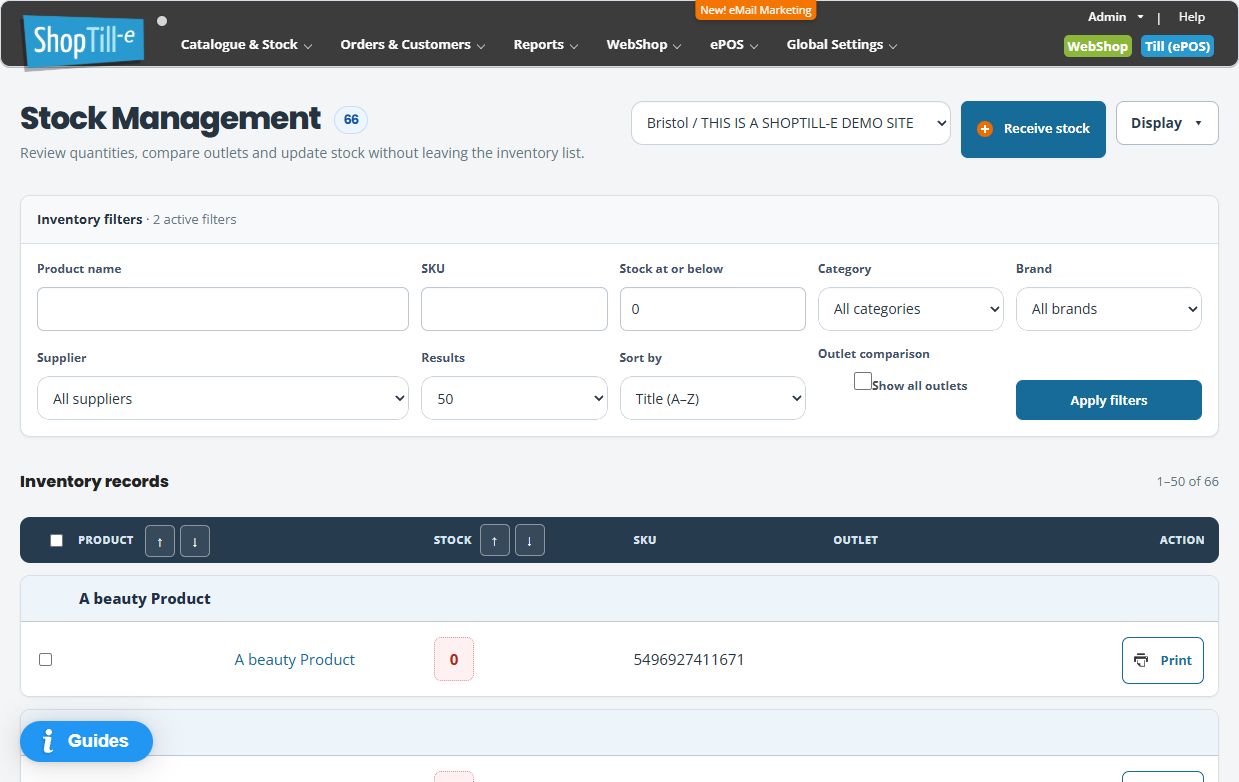
Print one row's barcode
- Use the intended row's Print action, labelled Print barcode for that item.
- Review the output window and any print dialog. Depending on the label layout and browser, output can go straight to the print dialog; do not assume another in-app confirmation.
- Check the item, visible code, size and layout before committing the print job. Cancel the dialog if anything is wrong.
This row action uses that row's code. It does not use whichever other inventory checkboxes happen to be ticked.
Prepare a selected batch
- Tick the barcode-selection checkbox for each intended inventory row.
- Use Select all inventory rows only when every loaded row belongs in the batch. It selects the rows loaded on the current list page, not every matching product across all result pages.
- Review every selected row, including all option/combination rows within a product. The Results setting controls displayed product records; a product can have several inventory rows.
- Recheck selections after changing the page, filter, sort or outlet. Do not assume selections are carried between pages.
- Choose Print selected barcodes only when the intended selection is clear and at least one row is selected.
- Review the generated labels and print dialog, then print a small sample before a larger run.
Batch output can open the print dialog automatically. Keep the selected codes and expected label count available so you can cancel a wrong batch before printing.
Selection and copy quantities are different
The batch uses selected row codes, not the stock quantity held. Selecting a row holding twelve units does not request twelve labels. Duplicate selected codes can also produce repeated labels; check the output rather than treating repeated labels as distinct variants.
For example, if you need one label each for blue/small and blue/medium, select the two inventory rows and check that they have the intended distinct SKUs. If you need several copies, review the print dialog's copy and page settings and whether they repeat the whole batch. Check a sample instead of assuming an inventory holding determines copies.
Clear a batch before making another
If you change your mind and untick all rows, do not use Print selected barcodes with no selection. Reopen the inventory list and make a fresh, checked selection before starting another batch. Review the filters again. If the generated labels differ from the visible ticks, cancel printing and keep the selected SKUs and a description of the mismatch for support.
Check a printed sample
- Compare the printed code and item/variant description with the intended row.
- Check label stock, paper size, orientation, margins and scaling against the actual label layout.
- Check that the barcode is complete, sharp and not clipped.
- Scan the sample at the till and confirm the correct product and option. Print quality alone does not prove the identifier selects the intended item.
Troubleshooting
- An item is missing: review the outlet, stock threshold, filters and other result pages.
- No new output window appears: check whether the browser blocked the new tab or window.
- The label is blank, wrong or duplicated: compare the SKU and selected rows. Resolve shared or missing identifiers before another print job.
- A code containing punctuation fails or splits into labels: keep the exact SKU and output details for support. Do not rename catalogue codes solely to work around a printing problem.
- Labels are the wrong size or price: check the active label layout and actual output. Customer-group, tax and variant pricing should be checked in the intended selling context before using price labels.
- The output contains a previous selection: cancel printing, reopen the list and make a fresh selection. Do not print an output you cannot reconcile with your intended codes.
Print from a product's row or variant chooser · Find inventory rows · Review variant identifiers.
Rebuild a selection after clearing individual rows
- If you untick the last selected row, leave Print selected barcodes alone.
- Reopen Stock Management and apply the intended outlet and filters again.
- Make a new selection and compare each intended SKU, including variant rows.
- Proceed only when the current selection is clear. If any output differs from the intended codes, cancel printing and keep the affected SKUs for support.
A header selection can cover several variant rows inside one product. Check row identities rather than using the number of product headings as the expected label count.
