
Set up a miscellaneous item for till sales
A miscellaneous till item still uses a catalogue record. A dedicated record gives staff an identifiable shortcut while they enter the appropriate price and, where configured, a description for the current sale.
Plan the record
Decide which kinds of sale it is intended for, the authorised starting price, tax class and reporting category. Separate miscellaneous records can help distinguish different uses in reports. Do not use one generic record to bypass the correct stock, tax or product setup for normal catalogue items.
Create and configure the product
- Create a product with a clear name such as Miscellaneous accessories and an agreed identifier.
- Enter the intended base price and save the product. An intentionally zero starting price still needs staff to check the actual sale price.
- Open Advanced and review Track stock?. If this is an untracked miscellaneous record, choose No deliberately; this is different from reducing the stock of a particular physical catalogue item.
- Review ePOS/In Store Only if the record should be restricted to shop-floor use.
- Review the intended tax class and sales-channel/outlet availability, then save and reopen the record.
Optional: a description staff can enter
Add an appropriate Text box variant to the saved product if the sale needs its own wording. Choose a clear title and review Active/Required. Check how the wording appears on the order and receipt before relying on it as the sale description.
Connect the Quick Bar shortcut
- Open Global Settings → ePOS/Till Setup → Quick bar.
- Enable the Quick Bar where intended and add or review the shortcut row.
- Give it a clear Title and select the intended miscellaneous product.
- Review Numeric Keypad/input for that shortcut so staff receive the intended price-entry workflow.
- Save the intended settings, then select the shortcut on the till and check its product and price-entry prompt with a test item.
Use the shortcut for a sale
- Select the intended miscellaneous shortcut.
- In Product Price, enter the agreed New Price and any applicable text-option wording.
- Select Save and check the product line, quantity, description, amount and basket total.
- Complete the intended payment workflow and review the saved order/receipt.
If you cancel the price prompt
Inspect the basket before continuing. The shortcut creates a line before opening its price editor, so closing that editor should not be treated as proof that the line was removed. Remove an unwanted line and check To Pay before serving the next item.
Example: enter an agreed one-off price
For a miscellaneous sale priced at £1.23, select the intended shortcut, enter 1.23 in New Price and complete the configured text field if the sale needs a description. After Save, check that the line has the intended wording and amount, quantity is correct and To Pay agrees with the basket.
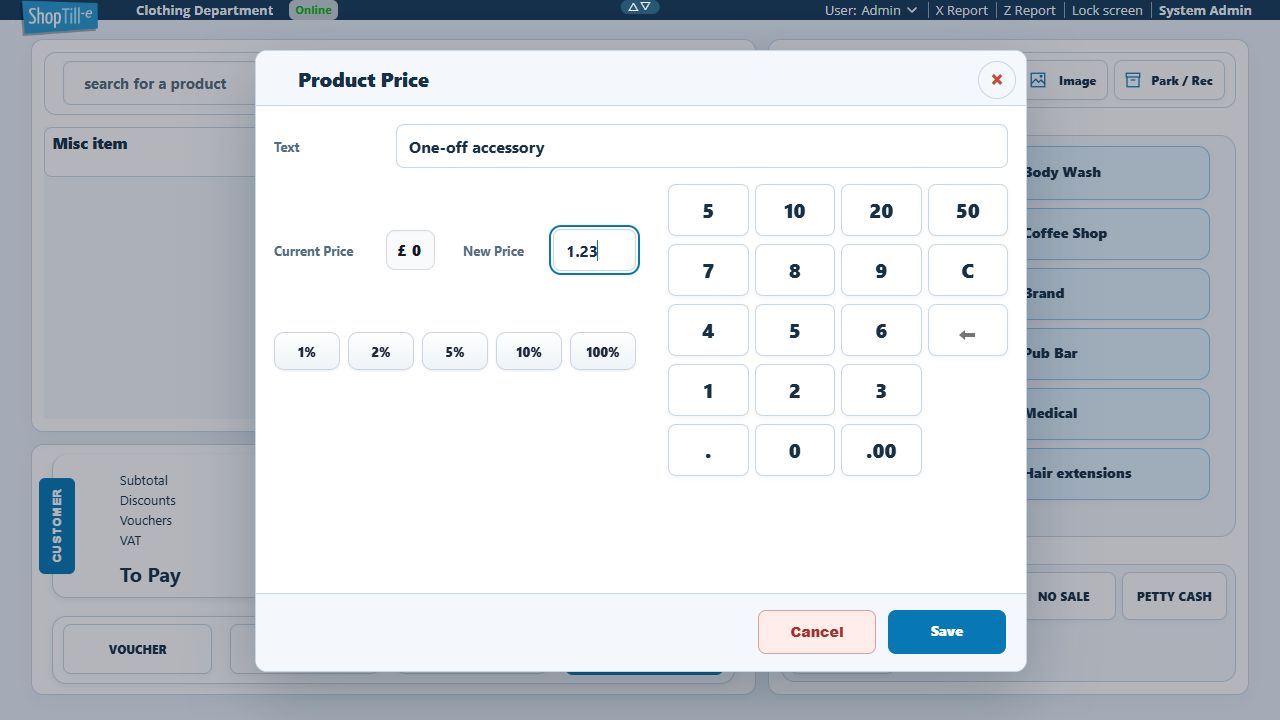
In this example the description field is labelled Text. Your product’s text-option title may differ. If you decide not to sell the item, cancel the prompt, remove the unwanted basket line and confirm the total before continuing.
Keep ad-hoc pricing controlled
Use the price editor for a specific existing basket item when that is the real task. Selling a tracked product through a miscellaneous record can lose the intended product/stock reporting detail.
Review Quick Bar mapping · Cash payment.
Check the description on the saved order and document
The base product name can remain Misc item while your entered wording is stored as a separate Text option. Find the saved order and compare that option with the intended description, quantity and amount. Check the actual document used by staff or given to the customer: an invoice can retain the Text option while a Builder Receipt shows only the base product name.
If the description must appear on a receipt or fulfilment document, check that exact template and output route before relying on it. Ask support to review a missing option in the output; do not take payment again or assume the saved entry was lost merely because one layout omits it.
