
Add and configure till Quick Bar shortcuts
A Quick Bar shortcut has a visible title, a selected product and a separate numeric-input choice. Review all three when a button’s label or behaviour is unexpected.
Inspect the shortcut setup
- Open Global Settings → ePOS/Till Setup.
- Review Enable Quick Bar in ePOS?, then choose Quick bar in the page’s section navigation.
- Find the intended row. Compare Title with the selected Product.
- Use the row’s edit control when you intend to review product selection. Do not try to type over the disabled product-display field.
- Review the row’s Numeric Keypad/input checkbox separately from its title and product.
- Check the complete mapping before saving an intended change. Reopen the settings and verify the actual shortcut on the relevant till.
Example: a carry bag and a miscellaneous item
A shortcut titled “Bag” can point to a catalogue product called “Carry Bag”. A separate “Misc” shortcut can have its numeric-input checkbox selected. Do not copy the numeric-input choice from the Misc row simply to give a regular catalogue item a short button title.
Adding and clearing rows
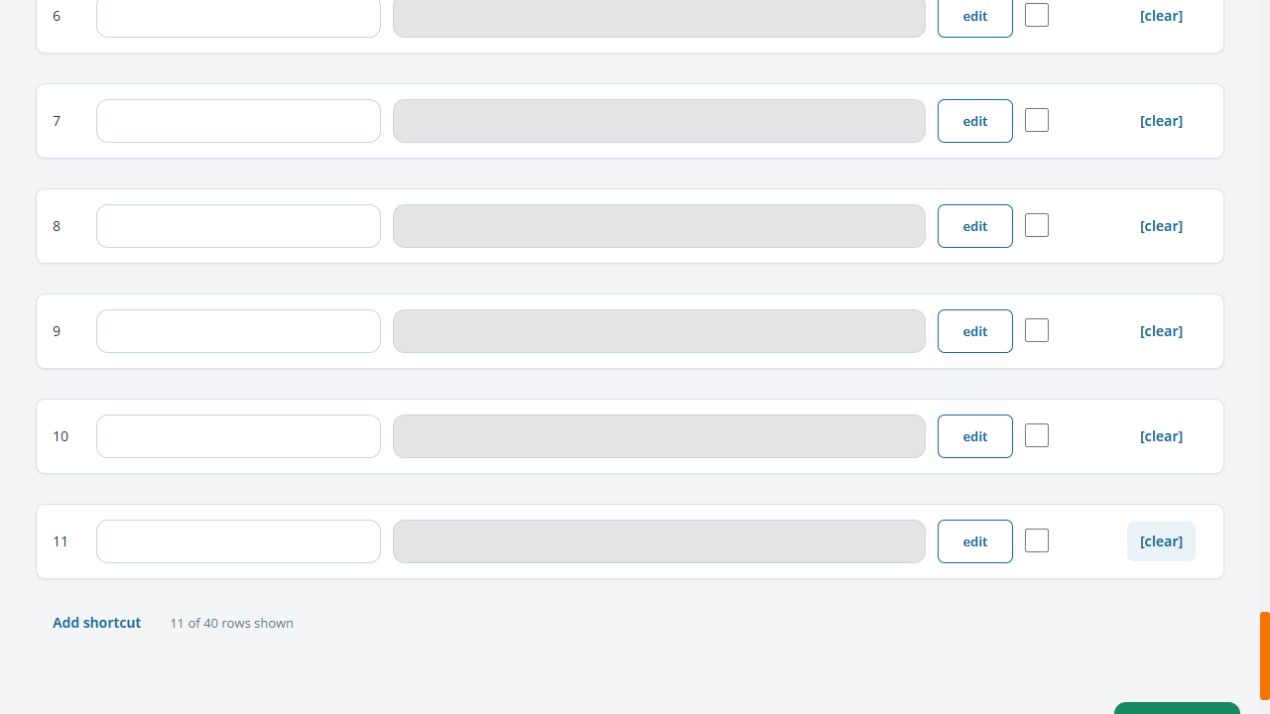
The page shows Add shortcut, a row-count status and a [clear] action for each row. Review the intended row before using a mapping or clearing action. If your task is only wording, follow Rename a Quick Bar button and retain its product and numeric-input setting.
Check what the button actually does
After saving the shortcut, use it with a test item and check the product added, any price-entry prompt, quantity and tax treatment. A familiar shortcut title does not prove which catalogue record it adds.
Add and configure another shortcut
- In Quick bar, select Add shortcut to reveal the next available row.
- Check the new row number and enter its Title.
- Select edit on that row. Type at least three characters of the intended product name and choose the correct suggestion.
- Check the selected Product against the row number; choosing a product does not supply the intended button title for you.
- Review Numeric Keypad/input separately, then review the other settings before Save Settings.
- Reopen the settings and check both the stored row and the intended till button.
Use the displayed row-count status to see available space. Do not assume an older ten-row example is the limit for your current screen. If Add shortcut is unavailable, check whether all available rows are already shown.
Clear a shortcut deliberately
The row’s [clear] action empties its title and product selection and clears its numeric-input choice in the form. Check the exact row first. Use Save Settings only when that cleared mapping is intended, then check the result after reopening and at the till. Clearing a row is different from deleting the catalogue product.
Load or save messages
If additional shortcuts could not be loaded, reload and inspect the settings before changing the list. If a save reports failure or is interrupted, compare the stored rows before retrying. Keep the row number, intended product and message for support; do not reconfigure multiple rows to work around an unexplained save result.
Related help
Understand the row count and unsaved changes
The current editor can show a status such as 10 of 40 rows shown. Add shortcut reveals the next row and moves focus to its Title field. It does not by itself save that shortcut. Use the count on your own screen rather than treating an older ten-row illustration as the available limit.
In the product picker, confirm the button number in Edit product of Button #…. Choose a search suggestion rather than leaving a product name typed in the search field. After selection, compare the row’s Title and Product separately.
When you want to discard unsaved settings, reload or leave without Save Settings, then reopen and compare the stored rows. This discards other unsaved edits on the same settings page too. It does not reverse a settings save already completed.
When all shortcut rows are visible
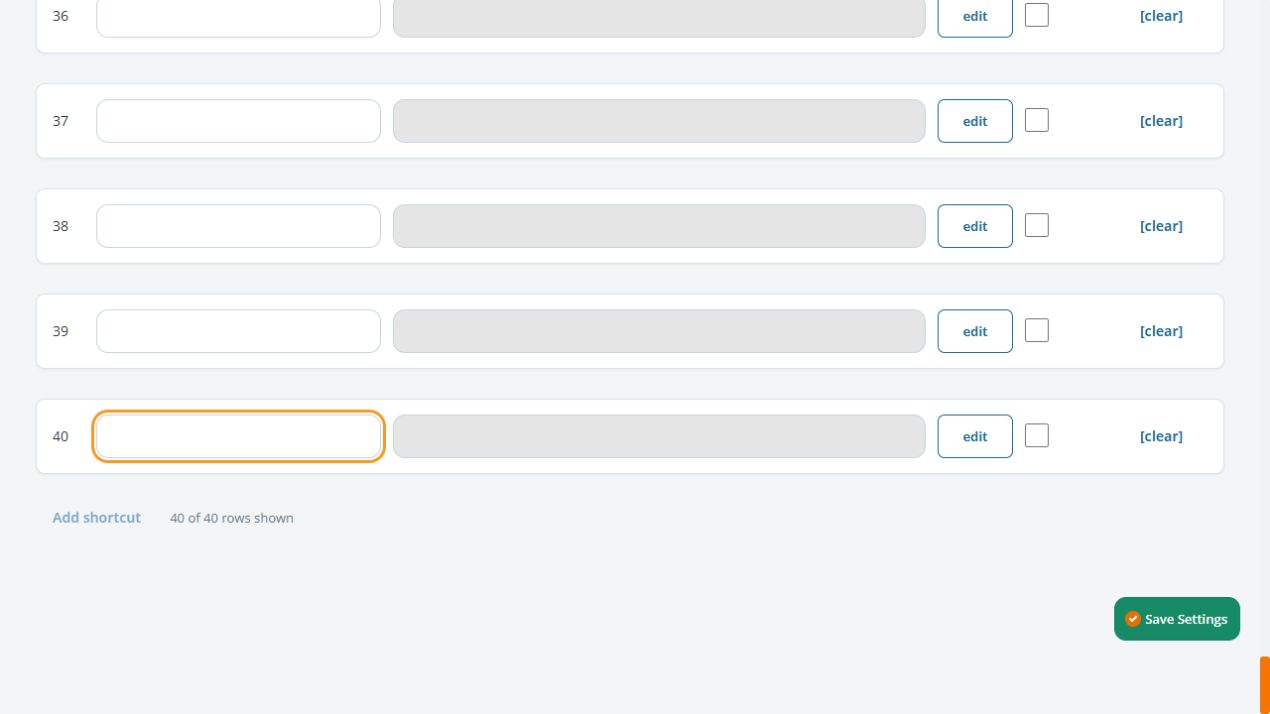
At 40 of 40 rows shown, Add shortcut is disabled in the current editor. Review the existing rows rather than repeatedly clicking it. A visible blank row is still a row: choose an unused one and configure its Title, Product and Numeric Keypad/input deliberately.
To leave a product picker without selecting a different product, use its Cancel button. Recheck the row’s existing product and title. Typing search text alone does not select a replacement.
