
Read your Builder Dashboard
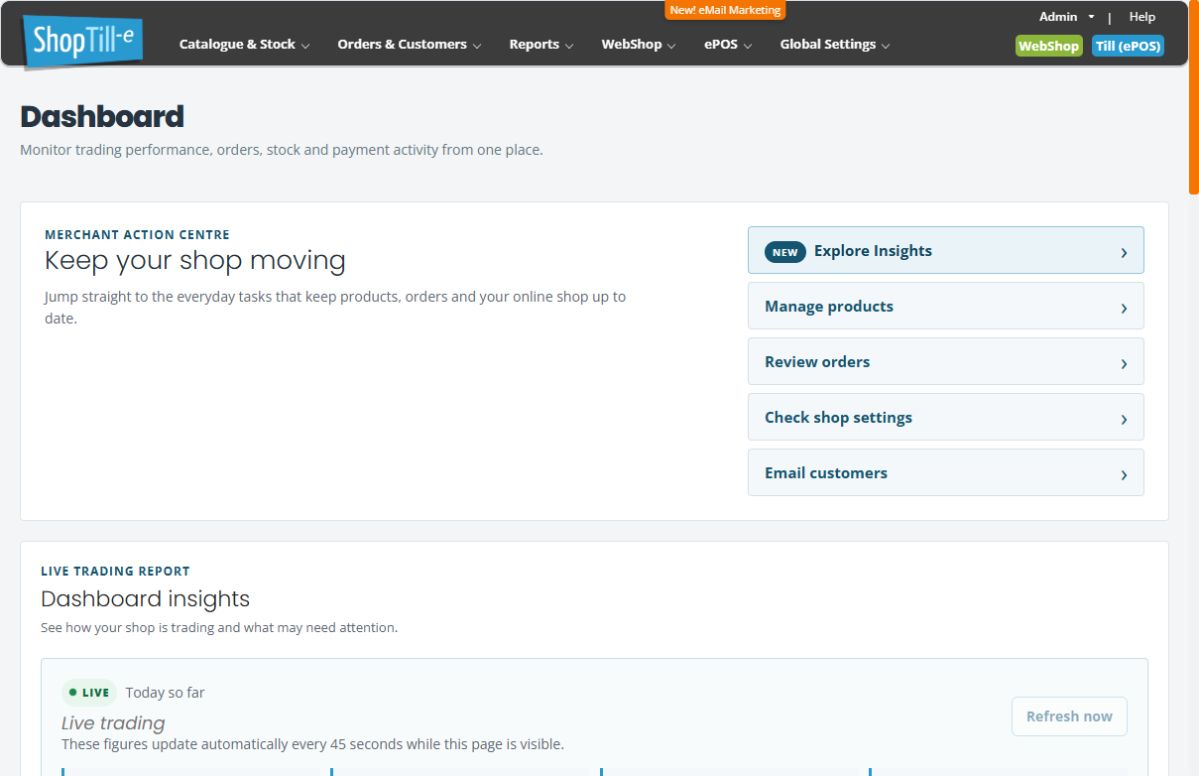
The Dashboard combines shortcuts to everyday tasks with a trading overview. Start by identifying which time period a figure represents: Today so far and the selected comparison period are separate views.
Review today’s activity
- Open Reports → Dashboard.
- Find Live trading and its Today so far label.
- Review Revenue today, Orders today and the WebShop/ePOS breakdown.
- Check the update status. Use the displayed update status to check the figures’ freshness; Refresh now requests a fresh display.
Compare recent trading
Use Period to choose Last 7, 14 or 30 days, and Sales channel for All channels, Webshop or ePOS. Review the displayed period before comparing revenue, order count, average order and discounts with the previous period.
Read the scope notes
The Dashboard’s scope notes state that cancelled, abandoned and estimate orders are excluded from its trading data, and that revenue includes paid and zero-value orders. Top-selling stock labels show current shop-wide product totals, rather than a historical count for just one branch.
Payments needing attention shows order counts and signed order values for the selected period/channel. Its own note says these are not unpaid balances or refund liabilities. Use Review orders to investigate the underlying records rather than treating an attention value as an amount to collect.
Investigate a payment needing attention
- On the Dashboard, choose the intended Period and Sales channel. Check the displayed trading-data description and the period in the Payments needing attention heading.
- Read the Pending, Failed and Authorised counts and values, then choose Review orders in that section.
- On Orders, read the Payment status: Attention scope message. Check its actual start/end dates and channel before comparing the results with the Dashboard.
- This attention view overrides the usual saved date, channel, payment-method and location filters; access permissions still apply. Some filter controls are disabled in this view. Read the displayed scope rather than assuming your normal saved filters still apply.
- Identify the intended order and use View to investigate its payment history and actual balance. Keep the order reference when asking support about an unexpected state.
- When returning to the Dashboard, check Period and Sales channel again before continuing. An earlier selection may no longer be selected.
For example, choose Last 30 days and ePOS to investigate attention records for that channel and period. Read the dates shown on the resulting order list. The attention total is an order value, so check the individual order before deciding whether any payment is outstanding; a fulfilment label such as Shipped does not itself settle the payment question.
If the attention list looks different from your usual orders
Check the attention-view scope message first: it excludes negative orders, retains zero-value orders and overrides the overall order-status filter. A location or payment-method choice used in another order view may therefore no longer describe this list. If the date or channel is wrong, return to the Dashboard, choose the intended filters and reopen Review orders. Record the scope, order reference and displayed status if the discrepancy remains. See Find an order for ordinary order lookup.
Example: compare a branch query with the overview
A shop-wide stock label can differ from one outlet’s stock row. Compare the same item and location in Stock Management, and use the relevant detailed report for a period-specific question.
Everyday widgets
Latest Orders links to recent order records and View all orders. New Product Reviews provides View review and View all reviews links. Stock Levels provides View full stock report; check the stock filters it opens before interpreting the list.
The Daily revenue section offers Blocks and Trend display controls. Keep the selected period and channel in view when comparing the chart.
Choose the right widget link
| Link | What to check next |
|---|---|
| Latest Orders → View all orders | Opens the ordinary Orders list. Review its actual filters; this is a different entry from Payments needing attention → Review orders. |
| New Product Reviews → View review | Opens the selected review’s editor. Read the intended entry and approval state; use Cancel to leave it unchanged. |
| New Product Reviews → View all reviews | Opens the review list for finding and inspecting feedback. |
| Stock Levels → View full stock report | Opens Stock Management with Stock at or below set to 1. Check the selected outlet and other filters; it is a low-stock view rather than an unrestricted inventory list. |
Use Review product feedback for approval tasks and Check stock by outlet for a particular holding. Opening a widget link is separate from changing a record.
Headline scope and detail links
Check Period and Sales channel before comparing historical cards. The current/live area can have a different scope from the selected history period. Use Manage products, Check shop settings or View full stock report for the intended task; opening a linked report does not establish that it uses every dashboard filter.
Use trading signals to choose the next check
| Signal | How to use it |
|---|---|
| Best trading day | Compare the highlighted day with Daily revenue and the detailed sales report for the same period and channel. |
| Sales concentration | Read the qualification about the listed products. A leading product’s share among those products is not a complete measure of the whole business. |
| Stock opportunity | Use the signal as a prompt to inspect the actual product or option and relevant outlet stock. The headline does not establish that every branch has enough stock. |
Read the low-margin and trading-time notes
Low-margin sellers considers leading sold products and only includes a product where every relevant order line has a recorded cost. Check the threshold and scope note shown on the screen. A message saying no qualifying low-margin products were found does not establish that every product is profitable; missing costs or products outside the listed scope can leave a different question unanswered.
Busy and quiet trading times uses qualifying order times across the selected period. The screen explains that hourly patterns need recurring trade and that exceptional out-of-hours orders are excluded. If it says there is not enough recurring trade, review the period and underlying orders before drawing conclusions. A longer available period may provide more context, but does not guarantee a reliable pattern.
Example: investigate a quiet-period signal
If the seven-day period contains very little trading, first confirm the Sales channel and the dates shown. Compare an available fourteen- or thirty-day period and inspect the detailed orders for context. Keep these observations separate from assumptions about future demand or individual staff performance.
