
Edit a featured product list
Product Lists curate featured ranges for the storefront homepage. Check the list’s type as well as its title: a list named “Latest Products” can still be a manually curated list.
Open the intended list
- Open WebShop → Product Lists.
- Choose the intended Storefront.
- Select Edit beside the list.
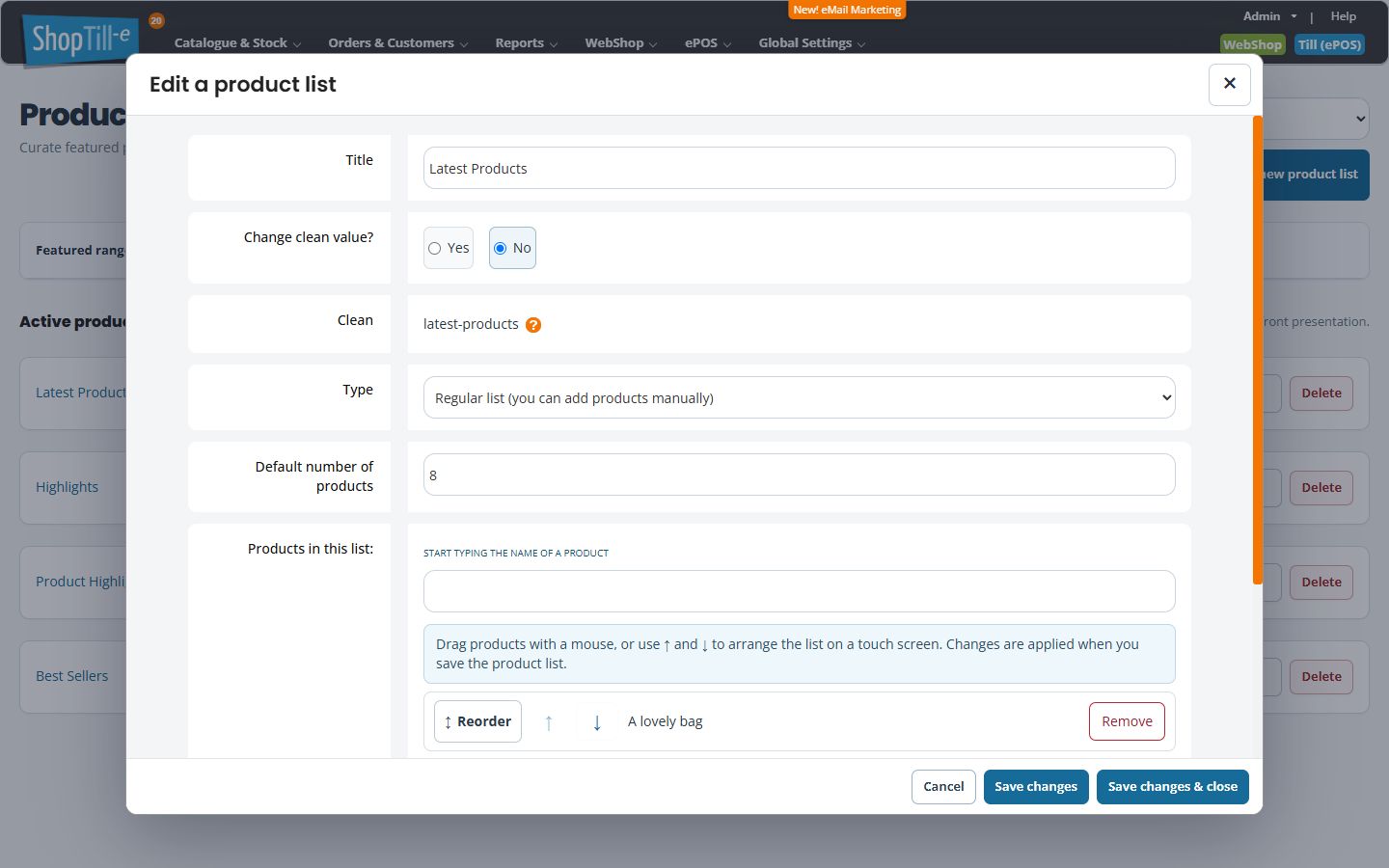
- Review Title, Clean and Change clean value? before changing an established identifier.
- Review Type: Regular list (you can add products manually) or Recently added products.
- Check Default number of products.
Maintain a regular list
Under Products in this list, start typing a product name to find the intended item. Use the drag handle with a mouse, or the ↑ and ↓ controls on touch screens, to arrange the listed products. Remove product from this list is a list-membership action.
The on-screen guidance states that ordering changes are applied when you save the product list. Use Save changes & close for an intended update, then check the homepage placement.
Example: create a focused selection
A hand-picked highlights list can contain the specific items you want to feature. A Recently added products type serves a different selection intention. Review the type, count and actual homepage section before deciding the list is wrong.
If it does not appear
Check the storefront and the theme’s use of the list. Keep the Clean value and template placement in your notes; a title change does not establish that the template reference changed.
Add and arrange a hand-picked range
- For a Regular list, type at least three characters of a product name under Products in this list and choose the intended result.
- Check that the selected product appears in the list. Repeat for other intended items; do not treat typing a name without choosing a result as adding it.
- Use the drag handle or Move product up/Move product down to arrange the items. Use Remove product from this list to leave an item out of this range; this is separate from deleting the catalogue product.
- Check the entire intended membership and order before choosing Save changes or Save changes & close. Changes in this editor are applied when the list is saved.
- Reopen the list and inspect the intended storefront section, including item order, visibility and prices.
Keep the Clean identifier stable
Clean is the identifier used to reference the list in a theme. Changing the displayed title and changing that identifier are different actions. With Change clean value? → No, an existing identifier is retained when saving a title change. Choosing Yes regenerates it from the title. Check the theme reference before doing that; it is not a way to rename a product or its webpage.
Check the count and membership before saving
Default number of products controls the requested list size; it does not establish that every stored member appears in the editor or theme. If you see fewer products than expected, check the list's count, product Live state and whether items are for ePOS only before saving an unrelated title change. Keep your intended membership record and ask support to inspect a mismatch rather than saving a shortened list by assumption.
For a Recently added products list, the system selects recent catalogue additions. The label “Best Sellers” does not turn that type into a sales ranking. Check the Type field and the actual storefront output together.
Remove a membership or delete a list?
Removing a product within the editor changes membership when you save that list. Delete on the main Product Lists page is a different action: it removes the list itself after the Delete Product List? confirmation. Review the theme placement and retain the title, Clean identifier and intended members before deleting a list. Do not assume deleting it updates every homepage reference or provides automatic recovery.
Create a featured product list · Find the active theme.
Compare the right homepage section with the right list
- Choose the intended Storefront in Product Lists and open the relevant record.
- Record its Title, Clean identifier, Type and Default number of products. For a Regular list, compare the displayed members and their order.
- Open that storefront's actual home page. Where the theme offers several featured tabs or sections, choose the one you intend to check before comparing products.
- Compare product names and destinations, rather than judging from the section title alone. A section called Latest Products can use a hand-picked Regular list; a title called Best Sellers does not itself establish sales-ranked selection.
- If the count differs, check the configured count, displayed membership, product visibility and theme placement together. A default count of eight does not establish that eight eligible manually selected products exist.
- After an intended update, reopen the list and check the same homepage section again. Keep the storefront, section, list identifier and product references if the result differs.
If there is no list called Latest Products
Do not assume every shop starts with the same list names or setup history.
- Check the selected Storefront and the existing list titles.
- Open the intended existing list using its name or Edit control, then check its Type and Clean identifier before deciding whether it serves the range you need.
- If the required list does not exist, use Create a featured product list to prepare it explicitly. Check how the current theme should reference and display it.
- Verify the actual homepage placement before changing or deleting another working list. A new title alone does not create a theme reference.
