
Prepare and bulk-upload product images
Use Bulk Image Manager to match a batch of image filenames to existing product or variant SKUs. Prepare the filenames, matching delimiter and image policy before adding files. Keep original photographs and a record of the current image groups before replacing anything.
Prepare the files and catalogue
- Make sure the intended products already exist and check their exact SKUs, including leading zeros.
- Use genuine JPEG, PNG or GIF image files. Renaming another file's extension does not convert it into a supported image.
- Keep separate originals and working copies. Use clear photographs that belong to the actual product or option.
- Resolve duplicate or ambiguous SKUs before a large batch. A matching title alone does not prove that the photograph belongs to the intended variant.
- For one product, or when you need to choose an image group directly, use the product editor's Images tab.
Choose filenames and delimiter together
Use the SKU as the filename before the extension. For additional views, use the chosen delimiter followed by a number, starting at 2. Choose -, _ or Custom and enter its single character before adding the files.
| Filename | Delimiter | Intended SKU and suffix |
|---|---|---|
| 0123456.jpg | - | SKU 0123456, no extra-image suffix |
| 0123456-2.jpg | - | SKU 0123456, suffix 2 |
| 0123456_3.png | _ | SKU 0123456, suffix 3 |
| BAG-2.jpg | _ | SKU BAG-2, no extra-image suffix |
| BAG-2_2.jpg | _ | SKU BAG-2, suffix 2 |
If the SKU itself ends in a delimiter and digits, choose a different delimiter for extra images. For example, selecting a hyphen for BAG-2.jpg can treat the ending as an image suffix instead of part of the SKU. Check the queue's target description before uploading.
Set the delimiter first. If you change it after adding files, clear the unstarted queue and add the files again so the matches are checked using the intended rule.
Decide whether to append or overwrite
- Append: add photographs while retaining existing images. Repeating an upload can add duplicate photographs; it is not a synchronisation or deduplication action.
- Overwrite: a replacement choice for product-level image matches. An unsuffixed filename targets the main position; a suffix identifies an intended existing position, such as 2 for the second image. Check the existing image group first. This is not a promise to replace the entire gallery or preserve its final display order.
Overwrite can remove an existing image. Keep originals and check a small representative change before a large replacement batch. If a replacement fails, inspect the product's current images rather than assuming the previous photograph is still intact.
For a variant match, do not assume selecting Overwrite replaces that option's existing photograph in the same way. Use the individual product's Images tab to review the exact option group and intended result.
Review the queue before starting
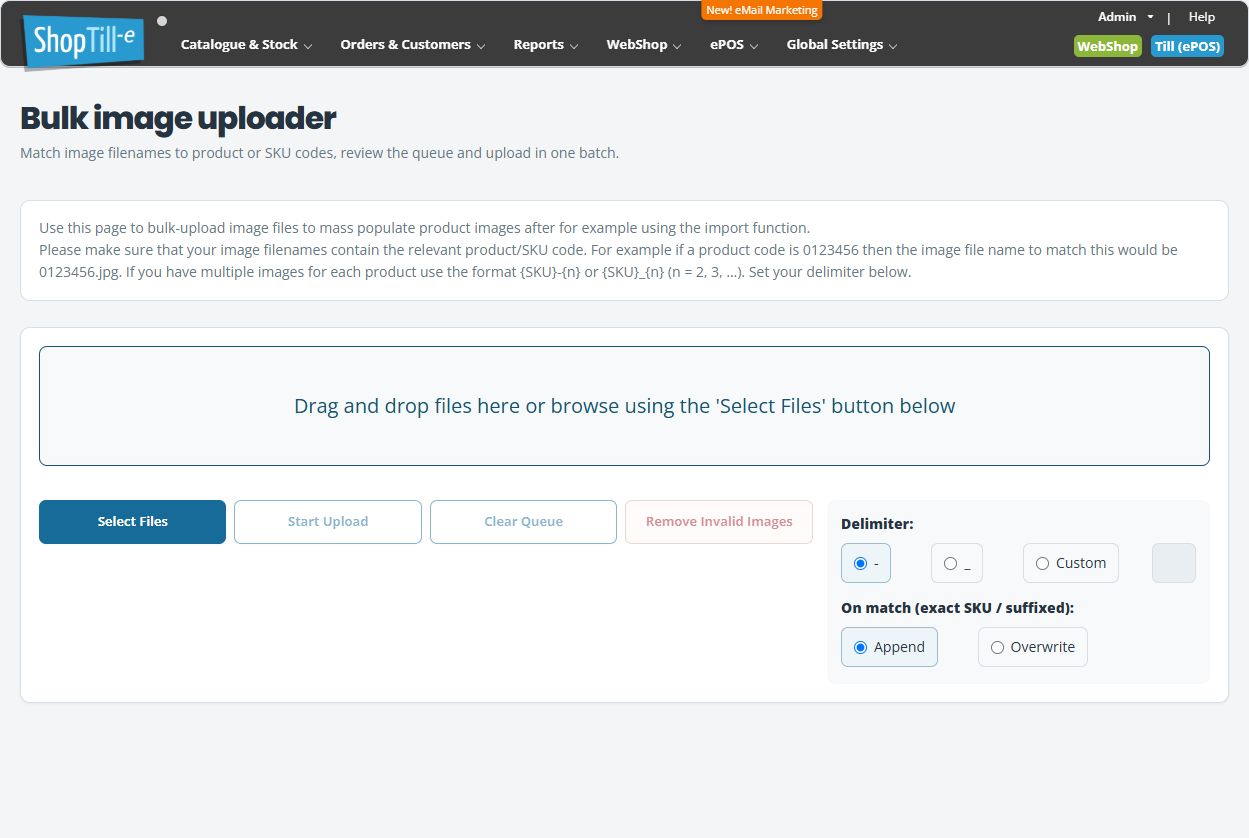
- Open Catalogue & Stock → Bulk Image Manager.
- Choose the delimiter and Append/Overwrite policy deliberately.
- Use Select Files or drag files into the drop area.
- Wait for each file's product lookup. Compare its filename, size, thumbnail and target description. Check product and variant names together.
- Use a row's Remove to leave that file out. Use Clear Queue to remove the unstarted batch and prepare it again; clearing a queue is not a rollback of images already uploaded.
- Resolve or remove every invalid entry before Start Upload. The button can remain unavailable while lookups are pending or invalid entries remain.
- Review the complete batch again, including repeated codes and suffixes. Then choose Start Upload only when you intend to add or replace those images.
Handle invalid entries
- Product Not Found: compare the SKU, filename and delimiter. Check whether trailing digits were interpreted as an image suffix.
- Unable to validate product: do not upload that file until you can review a valid target.
- Product lookup failed: check the connection and prepare the affected entry again before starting a batch.
- Can't queue: read the file-specific message and check the actual image format and size.
Remove Invalid Images removes invalid entries from the queue and attempts to download a CSV list for review. Keep that list if offered, but compare it with the on-screen messages: a lookup failure is not necessarily a missing product. Review any files left in the queue before uploading.
Check the saved images and display order
After the upload finishes, open representative products and their Images tabs. Check every intended product/variant group, the actual photographs, their order and any replaced image. A completed progress display or success notice does not replace checking the saved images.
Numeric filename suffixes do not guarantee the final order of appended images. Arrange photographs in the appropriate product or variant group and check the webshop result, including option switching. If some images failed, inspect the current group before retrying so you do not add duplicates or replace another image unintentionally.
Example: add two views without replacing the existing photo
For SKU 0123456, prepare 0123456-2.jpg and 0123456-3.jpg, choose the hyphen delimiter and Append, then review both target descriptions. After uploading, check the product's Images group and arrange the views as intended. If you instead intend to replace an existing view, keep the original and review the Overwrite behaviour on a small sample first.
Manage one product's images · Prepare catalogue records · Find the intended product.
