
Export store data to CSV
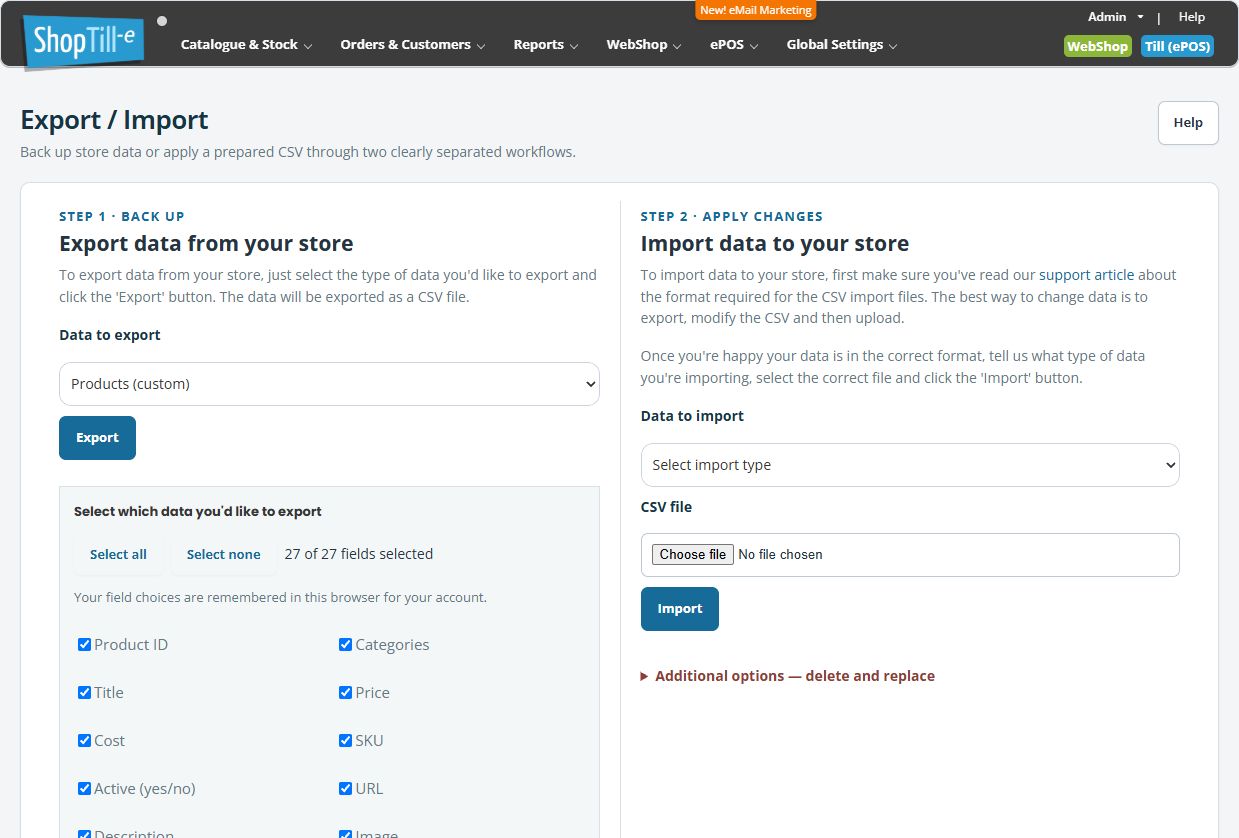
Export / Import has separate areas for downloading data and applying an import. Use the export area when you need a reference copy of your store data or a starting format for a planned CSV update.
Download an export
- Open Catalogue & Stock → Export/Import.
- Under Export data from your store, choose Data to export.
- Select the type that matches your task. The choices include Products (standard), Products (custom), Categories, Prices, Stock/SKU, Customers and Shipping/Label Details.
- Select Export and check that the CSV downloaded.
- Keep that original file unchanged. Make a separate working copy if you plan to edit and import it.
Choose the export for the job
For a catalogue review, begin with product data. For a stock-only update, begin with Stock/SKU. Before bulk price updating, the updater specifically asks you to retain Products (standard), Prices and Stock/SKU.
Example: prepare a stock correction
Download Stock/SKU, retain the original and edit a separate copy containing the intended quantities. Check identifiers and location scope before preparing an import. You do not need to change product titles or categories for a stock-only correction.
Check the file before using it
Confirm the export type, headers, sample identifiers and expected records. Keep a note of when you downloaded it and what scope it represents. A CSV export is a useful data reference; do not assume it contains every image, template and related record needed for a complete site restoration.
Prepare a catalogue CSV · Prepare a stock-only update
Products (standard) or Products (custom)?
Products (standard) provides the standard catalogue structure. Products (custom) lets you choose which available product fields to download for a review or spreadsheet task. A custom export with fewer fields is not automatically a supported partial-update import.
- Choose Products (custom) under Data to export.
- Review Select which data you'd like to export. Available choices include Product ID, Categories, Title, Price, Cost, SKU, Active (yes/no), URL, Description, Image, Brand, GTIN and Product Extra fields.
- Choose the fields your task needs. Keep Product ID and SKU when you need to identify rows reliably. Select all includes the available choices; Select none clears them so you can choose a smaller set.
- Check the selected-field count and the individual ticks before choosing Export. The page remembers field choices in this browser for your account, so review them each time rather than assuming every field is included.
- Open the downloaded CSV and compare its headers with your selection. An Image column is a reference to an image; it is not an archive containing the image files.
For example, a catalogue price review might use Product ID, SKU, Title, Price and Cost. Keep this review copy separate from the fuller originals required for a planned bulk price update.
Understand related export rows
- Products: the catalogue's main product details. A standard product file and a custom review file can have different columns.
- Prices: identifies product, group and base/option pricing rows. Preserve productid, itemid and customergroup alongside price and cost when preparing a price review.
- Stock/SKU: can contain a main-product row and separate option or variant-combination rows. Keep productid, itemid1 and itemid2 with the stock and sku values; repeated product names do not necessarily mean duplicate records.
- Customers: customer records for the relevant task. It is not one of the import types offered on this page.
- Shipping/Label Details: a separate order-related export with its own filters. Review the channel, status, payment and date/time scope shown for that type before downloading.
The list you were viewing on another Builder page is not a selection for this export. Check the downloaded records rather than assuming a catalogue search or a bulk-price filter carried over.
Plan a bulk price adjustment · Read CSV import results.
Check a standard product file
Keep the download unchanged and inspect a working copy as text data. Check the header row and representative product IDs and SKUs, then compare a few known products with their Builder records. Standard product exports can contain variant-definition fields as well as the main product columns; a smaller historical sample does not show every available field.
Check the scope of the actual file before editing it. Retain the complete original even if you only need a few columns for a review. Reading the file successfully does not establish that importing it will recreate every product relationship or restore images.
Keep the identity fields for each file type
| File | Fields to retain when reviewing rows |
|---|---|
| Categories | id and parentcategory, alongside title and url. Do not identify a category solely by its title. |
| Prices | productid, itemid and customergroup, alongside item, price and cost. Several rows can belong to the same product. |
| Stock/SKU | productid, itemid1 and itemid2, alongside item, stock and sku. Keep option identities with their quantities. |
If the same identity appears more than once, retain the original file and compare the full rows before preparing an update. Different option or customer-group identities can legitimately share a product name. An identical repeated identity needs investigation; do not remove rows merely because the names look alike.
Review customer and shipping files separately
A Customers file can include contact details, group assignments and account-summary fields. Keep it with the people handling the intended task. An exported account total is not a complete transaction history, and Customers is not offered as an import type on this page.
Shipping/Label Details opens its own Order type, Order status, Payment method and date/time controls. Review all four before downloading. A displayed date is not an active date filter when its checkbox is not selected.
The demonstrated shipping file uses numbered labels 1–17 and an empty trailing field, rather than named customer-export headers. Keep the original structure and confirm the receiving carrier or label system’s required format before using it. Do not rename columns, discard the first row or submit the file to another service merely because it opens as a spreadsheet.
If a custom export has different columns
Return to Products (custom), compare the selected-field count and individual ticks, then compare the downloaded header names. Its available fields can differ from Products (standard); do not assume either format is a substitute for the other. Record the selected fields and file headers for support before preparing an import.
Example: learn the file structure from a prepared product
- Choose a representative product you intend to keep in your catalogue, or use a clearly identified item in a test shop.
- Follow the product-creation steps, then reopen the saved record and check its name, SKU, price and category.
- Export Products (standard) and keep the download unchanged.
- Find that product by its exact SKU and compare its exported fields with the saved record.
- If it has options, review the variant-definition columns as well. Use Prices or Stock/SKU separately when the task concerns their related row identities.
- Use a working copy to plan changes. Understanding the exported example does not establish how an import will treat blank, omitted or repeated fields.
