
Plan and apply a bulk product price update
Use Bulk Price Update when the same price or cost rule needs to be applied to a set of products. Decide which products and pricing fields should change before opening the adjustment dialog. Keep original exports: this operation has no automatic Undo.
Back up and identify the products
- Open Export / Import and retain Products (standard), Prices and Stock/SKU. Keep the original files separately from any working copies.
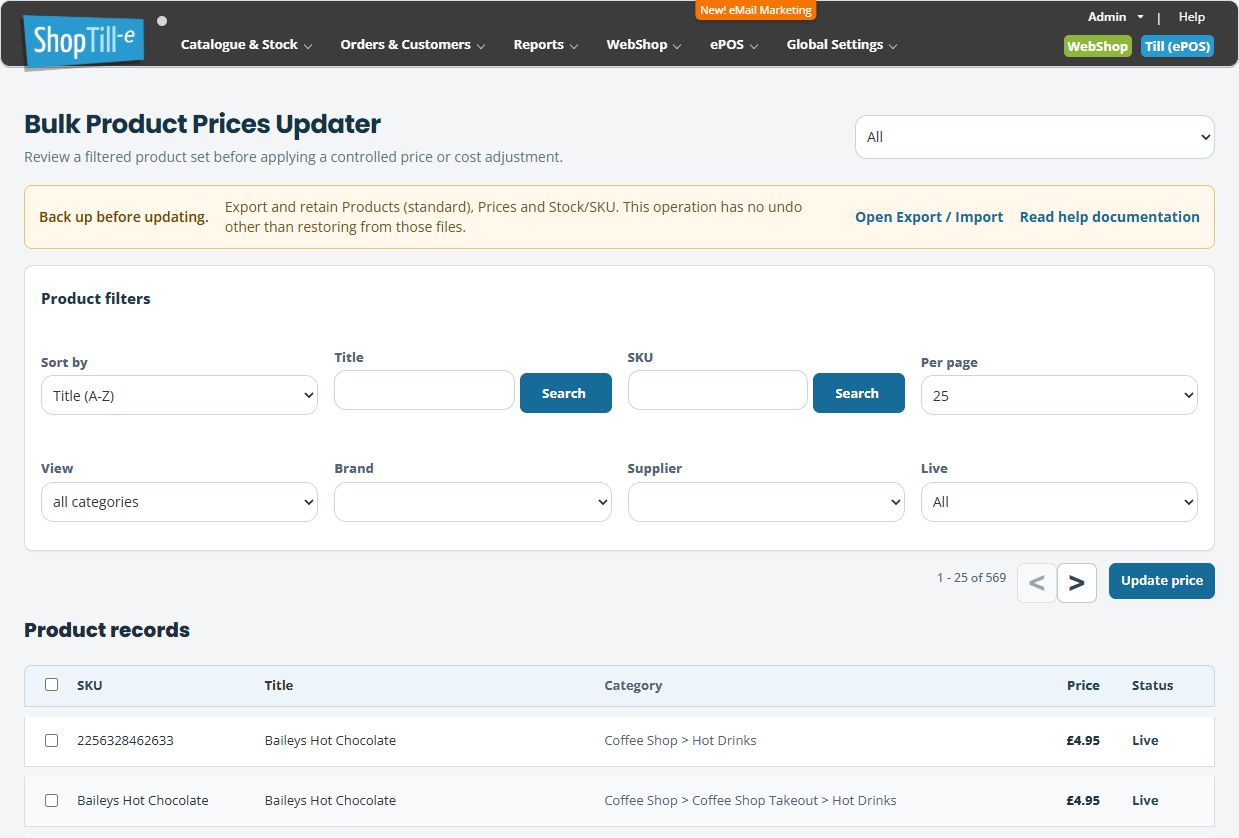
- Open Catalogue & Stock → Bulk Price Update.
- Review the location selector at the top. Choose the intended shop, webshop or outlet scope where available.
- Narrow the product list using Title or SKU and its Search button, View (category), Brand, Supplier and Live. Do not leave a filter broad merely because the first page looks right.
- Review the result count and relevant pages. Compare product titles, SKUs and existing prices against your intended list.
- For a small selection, tick the required product rows on the displayed page. Recheck the ticks after changing filters or pages.
- Choose Update price to open the parameters. Opening this dialog does not apply the adjustment.
Choose the product scope
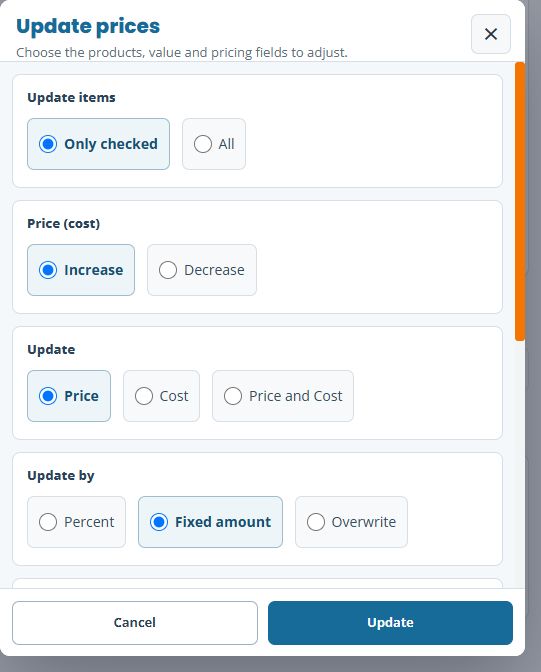
- Update items → Only checked: use the ticked rows currently present in the list. Do not assume ticks made on another page are retained.
- Update items → All: includes products matching the current location and filters across the result set, including other result pages. It does not mean just the rows currently visible.
For example, a list showing 1–25 of 120 contains more products than the first page displays. With All, review the filters for all 120 intended matches before proceeding. If the matches are unclear, choose Cancel and refine the list.
Choose the fields and calculation
| Control | How to use it |
|---|---|
| Price (cost) | Choose Increase or Decrease for percentage and fixed-amount adjustments. |
| Update | Price adjusts selling prices; Cost adjusts costs; Price and Cost applies the rule to both. Check this choice separately from the product selection. |
| Update by → Percent | Enter the percentage in Value (rate), for example 10 for ten per cent. Each selected field is adjusted from its own existing value. |
| Update by → Fixed amount | Enter the amount to add or subtract in Value (rate), for example 1 for one currency unit. |
| Update by → Overwrite | Replaces each selected field with Value (rate). Increase/Decrease does not change this replacement rule. With Price and Cost, the same entered value replaces both selling price and cost. |
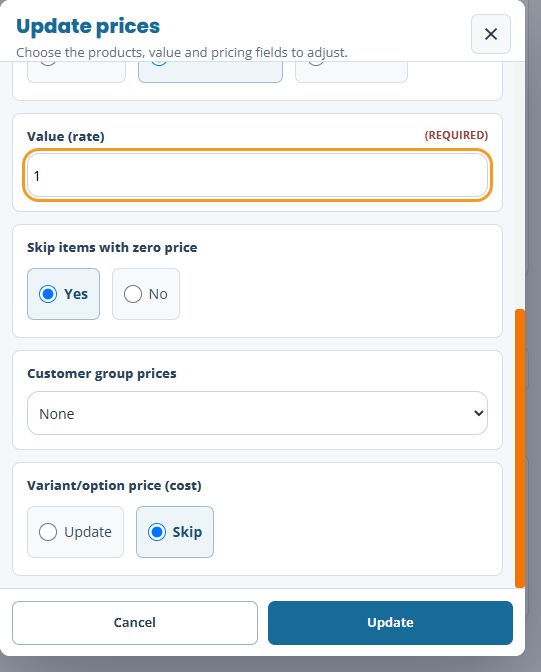
| Skip items with zero price | Yes excludes entries with a zero selling price. This check concerns selling price even when updating Cost. Review zero-priced products and any group/option prices separately before choosing No. |
For an increase or decrease, enter a positive number and use the direction control. Calculate expected results for representative products first. Do not depend on an invalid or negative entry being rejected.
Customer groups and variants/options
Where advanced pricing is enabled, the dialog also provides Customer group prices and Variant/option price (cost).
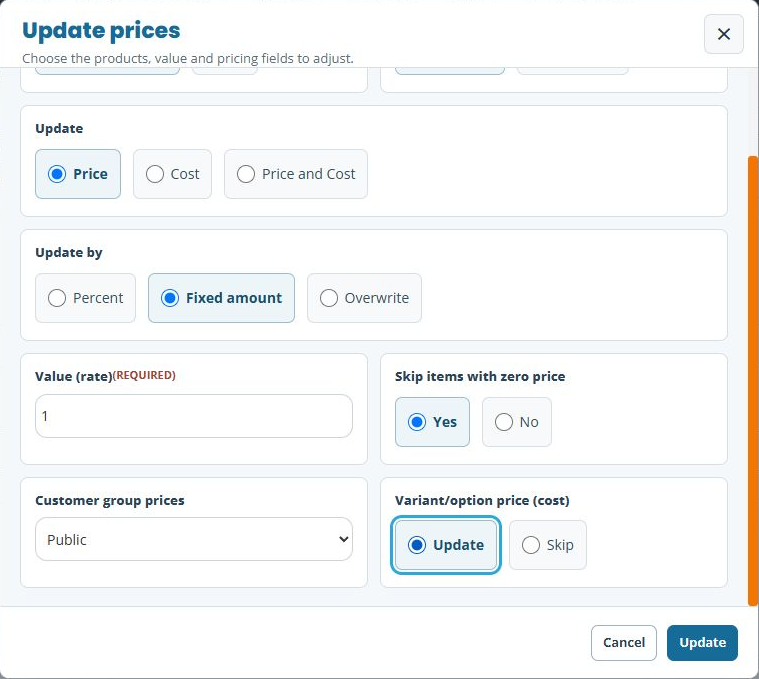
Customer group prices adds to the standard product update. Choosing a named group, Public or All does not restrict the operation to that group's prices: standard product prices or costs remain in scope. Choose None when you intend to adjust standard values without also adjusting existing group overrides. A group choice adjusts existing overrides; it does not create every missing group price.
Variant/option price (cost) → Update includes existing variant/option overrides within the chosen customer-group scope. Skip leaves those option/variant overrides out. Choosing Update while Customer group prices is None does not add those overrides to the operation.
If your intention is to change only a particular group's or option's price while preserving standard values, use the relevant product's Advanced Pricing controls and check the resulting price there.
Example: Public option prices also change the standard price
A product has a standard selling price of £10 and an existing Public size-B addition of £2. With Increase → Price → Fixed amount → Value 1, Customer group prices → Public and Variant/option price (cost) → Update, check both components:
| Stored price component | Before | After the £1 increase |
|---|---|---|
| Standard product price | £10 | £11 |
| Existing Public size-B addition | £2 | £3 |
This selection changes the standard price as well as the included option override. If you intend to change only size B’s addition, use that product’s Advanced Pricing row instead. Compare the complete customer price afterwards, including any other rules that apply.
Examples: compare the intended results
These examples use simple values to explain the calculations. Check the actual saved prices and rounding after your change.
- Ten per cent selling-price increase: choose Increase, Price, Percent and Value 10. A price of £20 becomes £22; £10 becomes £11. If Customer group prices is None, existing group overrides are outside this adjustment.
- Add £1 to selling prices: choose Increase, Price, Fixed amount and Value 1. £20 becomes £21; £10 becomes £11. This produces a different result from ten per cent for the £20 product.
- Reduce cost by five per cent: choose Decrease, Cost, Percent and Value 5. A cost of £8 has an expected result of £7.60. If that product's selling price is zero and Skip items with zero price is Yes, it is excluded even though its cost is nonzero.
- Replace a selling price: choose Price, Overwrite and Value 12. Both a £9 product and a £20 product are assigned £12. Choosing Price and Cost instead would also replace each cost with £12.
Change Price and Cost together only when intended
Update → Price and Cost applies the chosen rule to both standard fields. With Overwrite, the entered amount replaces both values; it does not preserve the difference between selling price and cost. For example, with Only checked, Customer group prices None and Variant/option price (cost) Skip:
| Rule applied in sequence | Selling price | Cost |
|---|---|---|
| Starting values | £10 | £0 |
| Price and Cost → Overwrite → Value 2 | £2 | £2 |
| Price and Cost → Decrease → Fixed amount → Value 1 | £1 | £1 |
| Price and Cost → Increase → Percent → Value 10 | £1.10 | £1.10 |
If only one field should change, select Price or Cost instead. After a combined update, check General → Price and Advanced → Cost separately.
Example: protect zero selling prices during a fixed increase
Suppose a selected product has a selling price of £0. Choose Only checked → Increase → Price → Fixed amount → Value 1, with Customer group prices → None and Variant/option price (cost) → Skip. With Skip items with zero price → Yes, its selling price stays £0. With No, it becomes £1. Use Yes when zero-priced products should stay outside the increase, and check an excluded product after applying.
Compare a fixed decrease with a percentage decrease
For a £1 selling price, Decrease → Price → Fixed amount → Value 0.10 produces £0.90. A later Decrease → Price → Percent → Value 10 uses that current £0.90 price and produces £0.81. Review the current saved value before the next adjustment; each change uses the price at the time you apply it.
Overwrite replaces the value. It does not subtract the entered amount when Decrease is selected. For example, Price → Overwrite → Value 10 assigns £10 even when the previous price was £0.81 and Decrease was selected.
Example: update Cost when the selling price is zero
Skip items with zero price checks the selling price, even for a Cost-only update. Suppose a selected product has selling price £0 and Cost £0. With Only checked → Cost → Overwrite → Value 5, Customer group prices → None and Variant/option price (cost) → Skip:
- Skip items with zero price → Yes: the product is excluded, so Cost remains £0.
- Skip items with zero price → No: Cost becomes £5 while the selling price remains £0.
If its Cost is already £5, choosing Yes still excludes it because its selling price is zero. For example, a Cost overwrite of £7 with Yes leaves that £5 Cost unchanged. Choose No only when you intend to include zero-selling-price products. After applying, reopen the product and check General → Price and Advanced → Cost separately.
Apply once, then check the result
- Review the product scope, fields, direction, calculation, value, zero-price choice and any group/variant choices together.
- Choose Cancel to close without applying. Choose the dialog's Update only when you intend to change the values. This is the apply action; do not expect another confirmation.
- Wait for the result before taking another action. Keep the exact message if the page reports a problem or remains on Updating Price.
- After completion, reopen representative products and compare their standard prices/costs with your calculated values. Check group and variant/option overrides when included, plus products that should have been excluded. Recheck row selections before another adjustment: after a completed update, the refreshed list can have its checkboxes cleared.
- Keep the original exports and a record of the filters and rule until the full intended result has been checked. A Done message does not replace checking the actual prices.
Example: change one item in a filtered pair
Suppose two products each have a selling price of £10, but you intend to increase only one by ten per cent. Tick that product alone and choose Only checked → Increase → Price → Percent → Value 10. If you intend standard prices alone, review Customer group prices → None and Variant/option price (cost) → Skip. After applying, check both records: the chosen product should be £11 and the unchecked product should remain £10. Inspecting an excluded record helps distinguish a selection mistake from a calculation mistake.
Troubleshooting and recovery
- Please fill in the highlighted fields: enter the intended number in Value (rate). A blank value keeps the adjustment dialog open. Recheck the calculation and product scope before choosing Update again; use Cancel if you are not ready to apply it.
- Nothing checked: cancel, review the displayed rows and tick the intended products. Do not switch to All just to clear this message.
- A product did not change: check the location, filters, checked-row scope and zero selling price. For group/option values, check that the intended existing override and inclusion settings were in scope.
- Standard prices changed when you selected a group: the group selection adds existing group overrides to the standard update. Retain the before-and-after values and seek help with a controlled correction.
- The result is missing, mixed or unexpected: inspect current values before repeating the action. Repeating an increase or decrease can apply it again to products already changed.
- You need the original values back: retain the exports and arrange the appropriate restoration/import using those originals. An untested CSV re-import is not an automatic Undo. Decreasing by the same percentage does not reverse an increase: £100 increased by 10% is £110, then decreased by 10% is £99.
Review Advanced Pricing · Customer-group pricing · Record a product cost · Export store data.
