
Prepare a catalogue CSV import
Start by deciding whether you are adding new catalogue records, updating existing ones or changing stock only. The correct file type and matching method depend on that decision.
Prepare the working file
- Use Export / Import to retain the relevant current data.
- Start with a fresh export for the intended shop and data type. Keep the required header names. Use a sample only after comparing it with the current format for your task.
- Write down which records and fields you intend to change. Use the current file structure and confirm how blank or omitted columns are treated for the chosen import; do not assume leaving out a column preserves its value.
- Check product IDs and SKUs against the current catalogue. Review the matching method before applying the file; an identifier for an existing record and a new item identifier are different cases.
- Check the category paths in a Products file. An older category value can conflict with work already done in Builder.
- Save the working file as CSV, then reopen it in a way that lets you check the actual stored identifiers and values.
Example: update descriptions without changing categories
If staff have reorganised departments since an older export was created, do not import that file’s old category values just to change descriptions. Agree the supported update method and matching identifiers with support so current category work is preserved, then verify a controlled sample before applying the file.
Preserve identifiers in your spreadsheet
Check codes with leading zeros and long numeric-looking identifiers before saving. Compare the actual CSV values with the originals rather than trusting only the spreadsheet’s display formatting. Keep a separate unchanged export for comparison.
Review the import controls
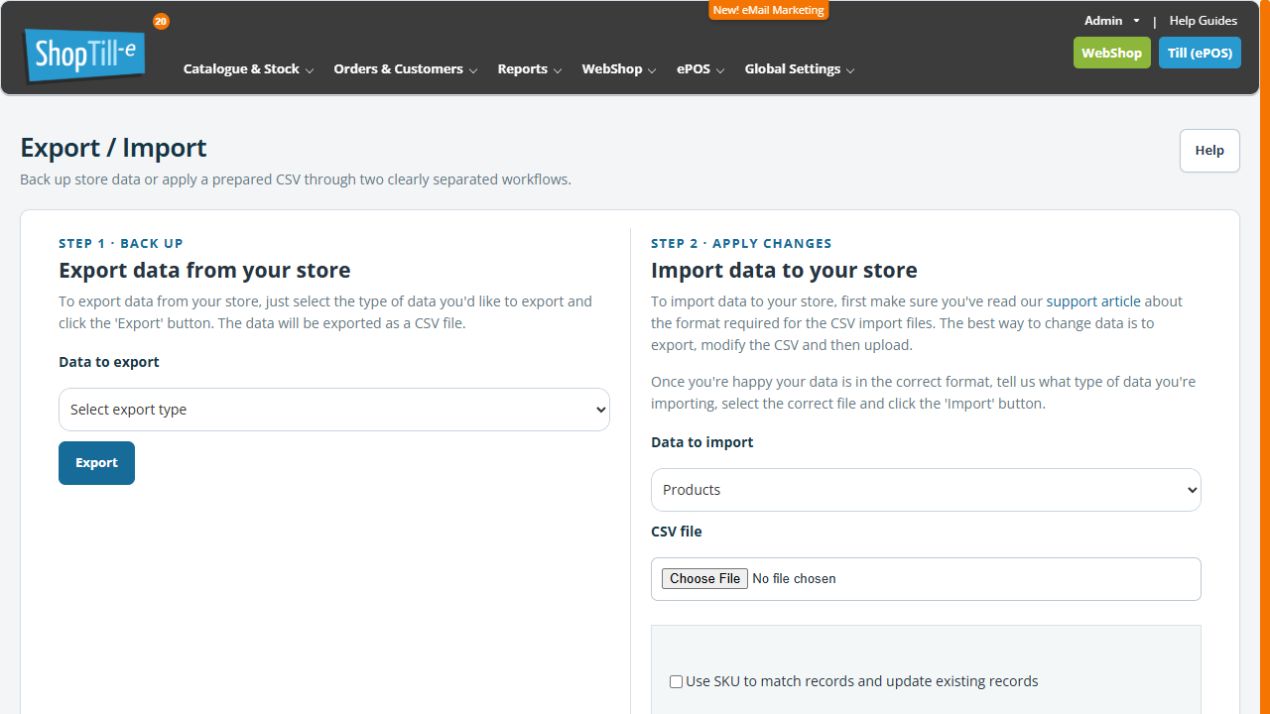
The Import data to your store area provides Data to import, CSV file and Import. Choose Products or Categories only for the corresponding task. The page also has additional delete-and-replace options; those are not part of an ordinary limited update.
Replacing existing data is a different operation
Delete-and-replace options can remove existing catalogue records and affect related catalogue work. Keep replacement separate from adding or updating records, and have its exact current behaviour and recovery plan checked before using it.
Use the stock-only route for quantity changes.
Migration planning · Preserve exact identifiers.
Read the result before retrying
After submitting an import, review Import results and its row numbers. A category or variant problem can be reported alongside a product update. Do not treat an error heading as proof that nothing changed, or re-import the whole original file without checking the affected records.
Using an older sample file
The legacy Products sample is a small example of column names and category paths. It does not include all fields available in newer product exports, including record IDs and variant definitions. Keep it as a reference rather than assuming it is a complete current update template.
- Export the relevant current shop data and keep an unchanged copy.
- Compare the headers and identifier fields with the task you intend to perform.
- Remove or replace demonstration rows in a working copy; do not import sample products accidentally.
- Check matching and blank/omitted-column behaviour before applying a limited update. Missing columns in an older sample do not establish that the corresponding existing values will be preserved.
Compare a sample with your export
Compare header names as well as the example values. A current Products (standard) export can include IDs, cost, stock controls and variant-definition columns that the older sample omits. Identify which fields your planned task needs before building the working file. Keep the current export and legacy example separate; matching header names alone does not establish safe update or replacement behaviour.
Review SKU matching and missing categories
- Choose Products under Data to import to reveal its matching and category options.
- Review Use SKU to match records and update existing records. Decide how the file should identify existing products; compare its IDs and SKUs with a fresh export before choosing a matching method. Do not assume a similar product name is a matching identifier.
- Review Automatically create missing categories (recommended). Its on-screen help describes creating category paths that do not already exist, and advises clearing the option for updates where no new categories are wanted. Check the actual selected state; the word recommended does not decide the right scope for your file.
- Compare every intended category path with the current catalogue. Check spelling, parent/child structure and whether a path belongs to an older department arrangement.
- Agree the intended matching and category behaviour before selecting the final working CSV and importing. Keep a controlled sample and recovery plan, then check actual product/category results before a larger batch.
For example, a description update should not accidentally recreate a retired department because its old path remains in the CSV. Review both the file and the category option. Clearing an option alone does not establish that every existing assignment or blank column will be preserved.
Separate new rows from updates
| Your intended task | Check before import |
|---|---|
| Add a new product | Give it its own intended SKU and values. Do not copy another product’s existing ID from an example row. Check the matching choices and whether a record with that SKU already exists. |
| Update an existing product by ID | Start with the exact product ID from the current shop’s export. Compare its SKU and name, and review the separate SKU-matching choice rather than assuming the ID alone controls every route. |
| Match by SKU | Compare every exact SKU with the current catalogue, including variants and duplicates. An unmatched SKU can be treated as a new product; the matching checkbox is not an update-existing-only safeguard. |
For example, if an update file contains BAG-001 but the existing product is BAG-01, resolve the difference before importing. Do not depend on a similar title or the SKU-matching checkbox to correct the code for you.
Omitted fields are not a preservation switch
Choose a file structure and update method that have been checked for the fields you need to preserve. Do not remove all other columns and assume those stored values will remain unchanged. A blank field, an omitted column and an explicit value can have different effects.
Keep a comparison of representative existing values—such as visibility, description, prices and category assignments—before an agreed small import. Check them afterwards as well as the intended changes. Treat delete-and-replace as a committing operation, never a validation preview; an error later in the file is not evidence that earlier changes or deletions were rolled back.
Check category paths inside a Products CSV
In the standard Products file, a category path describes the parent and child names using >. Separate multiple category paths for one product with a semicolon (;) inside the categories cell. This is different from the commas that separate the CSV's columns.
| Illustrative categories cell | What to check |
|---|---|
Retail > Bags | One path: Bags beneath Retail. Compare both names with the intended existing departments. |
Retail > Bags;Gifts | Two paths for the same product: Retail > Bags and Gifts. These are illustrative names; use the paths from your own current export. |
- Open an unchanged current Products export and locate its categories column.
- Compare one product's exported paths with its categories in Builder. Keep parent and child names in the correct order.
- In the working copy, check each intended path and each semicolon-separated membership. Do not substitute commas between category memberships.
- After saving the CSV, reopen it and check that each categories value still occupies one cell/field and that the headers and following values have not shifted into different columns.
- Review matching and missing-category options separately, then verify the actual category assignments in an agreed small import before applying a larger batch.
If products appear but their categories are missing or wrong
Keep the original file and the import result. Compare the exact categories header, its stored cell values, path spelling and separators with a fresh export. Check the affected products and current categories before attempting a correction. Do not re-import the entire original catalogue just because one field was not applied: other product fields may already have changed.
If a heading looks correct but its values are still ignored, keep the original CSV for support to inspect. Repeatedly changing matching or category-creation options can make the result harder to understand; first establish the file format, intended records and fields that actually changed.
