
Prepare a stock-only CSV update
Use the Stock/SKU workflow when your intended change is stock quantity. A Products import can affect other catalogue fields, such as titles, prices, descriptions, categories and active status, and is a different operation.
Prepare the stock file
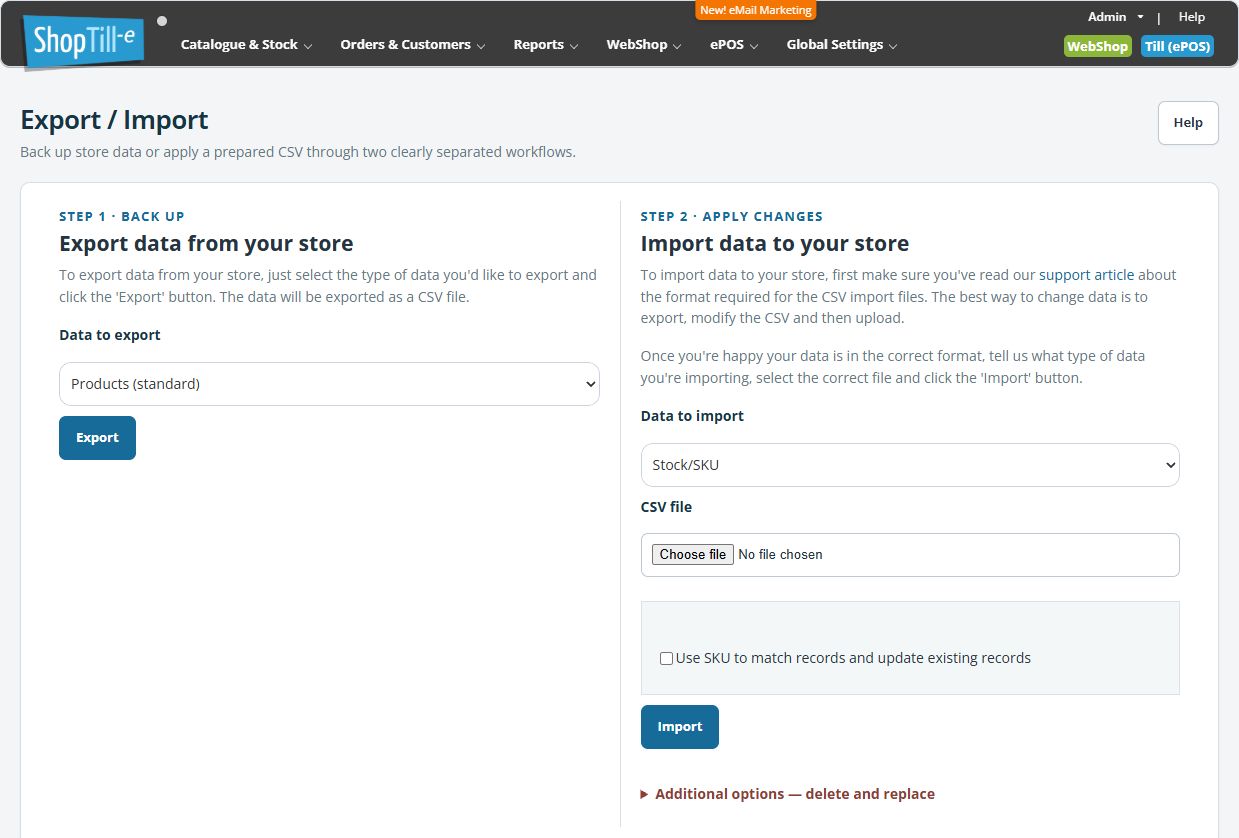
- Open Catalogue & Stock → Export/Import.
- Choose Stock/SKU under Data to export and select Export.
- Retain the downloaded original and make a working copy.
- Change only the intended stock quantities. Check product identifiers, variants and the outlet or website stock scope.
- Save the working CSV and compare several identifiers and quantities with your intended changes.
- In the import area, choose Stock/SKU, select the prepared file and review the matching options before applying it.
Keep codes intact while editing
Before opening the working copy in Excel, follow Preserve exact identifiers in CSV files. Load SKU and reference columns as text and compare them with the original. For example, the code 001234 must remain 001234 rather than 1234. A long code displayed in scientific notation also needs checking against its complete original text.
Keep stock separate from identifier fields. Review the actual quantity, including any decimal part, rather than rounding it merely to tidy the spreadsheet display. Confirm the supported units and precision for the intended stock workflow before applying fractional quantities.
- Keep all seven exported header names and preserve each intended row’s identity fields.
- Edit only the stock values required for the agreed count or correction.
- Save a separate CSV and inspect its actual text: headers, complete identifiers, decimal values and row structure.
- Compare changed rows with your intended update and confirm unrelated values stayed unchanged. Investigate repeated identities before preparing an import.
Matching by SKU
A SKU-matched stock file uses sku and stock columns and a Use SKU to match records and update existing records option. Choose that option for a file matched by SKU, and check each SKU identifies the intended product or variant. Keep identifiers exactly as used in the catalogue.
Example: protect category changes
Your team has reorganised bags into new departments but needs to update quantities from a stock count. Use the stock-only data instead of uploading an older Products file containing outdated category paths.
A stock count and a delivery are different
Prepare stock values as the intended resulting quantities, not delivery increments. For example, if the recorded stock is 12 and your count is 9, the stock-count file should contain 9, not -3. A delivery of 5 items is a different task from setting the total to 5. Use the receiving workflow for an actual delivery.
Check the outcome once
After an authorised import, inspect its reported result and compare the affected item and location quantities. If the outcome is unclear, investigate the existing result before applying the same file again.
Keep the exported row identity
A Stock/SKU export includes productid, itemid1, itemid2, productname, item, stock and sku. Preserve the identity columns when using the exported file to address existing rows. An option or size/colour combination can have a different stock row from its parent product.
For a deliberately prepared SKU-matched file, use sku and stock headers and select Use SKU to match records and update existing records. Keep SKUs unique and unchanged. Resolve duplicate or ambiguous product/variant codes before importing; do not depend on the importer choosing the item you intended.
Review the stock location separately
This form does not offer an outlet stock selector. Do not assume the stock file addresses a particular branch simply because you previously viewed that outlet elsewhere. For a branch count or transfer, establish the correct outlet workflow before importing a shop-wide file.
Sales and deliveries can change stock after an export. Agree when the count applies and compare the current quantities before applying an older file. After import, use the import-results checks and inspect the affected product/variant quantities before another attempt.
If a stock row appears more than once
- Compare productid, itemid1 and itemid2 together, then compare SKU, item and stock.
- Distinguish different options of the same product from repeated copies of the same row identity.
- Keep the unchanged export. Record the affected identities and whether the repeated rows agree before preparing an import.
- Ask support to confirm the intended matching and row scope if the repetition is unexplained. Do not change quantities, sum repeated rows or remove entries just to make the file look unique.
