
Select the customer for a till sale
Choose the customer before relying on customer-group pricing, loyalty or account-credit features. Similar names can refer to different records.
Find and select the customer
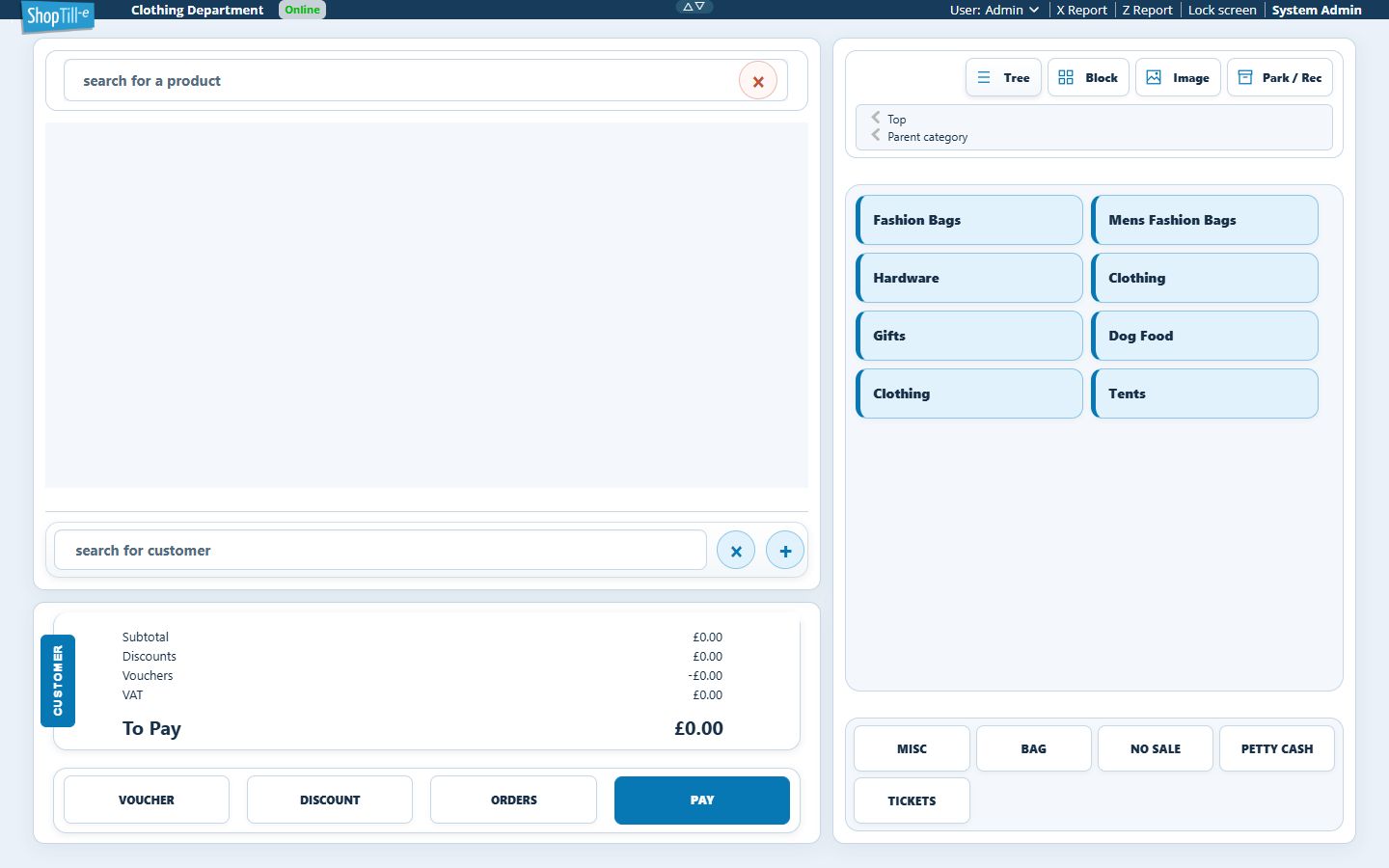
- On a compact layout, open the Basket tab. On desktop, expand CUSTOMER if the customer search is hidden.
- Use search for customer to locate the intended record.
- Compare the displayed identifying information rather than choosing by surname alone.
- Select the intended result and check the customer shown for this basket.
- Review the resulting prices, discounts, loyalty/account information and To Pay before continuing.
Change or clear the selection
- Find the selected name in the CUSTOMER area. Identify that area’s Remove control; a product line has a separate Remove action.
- Use the customer-area Remove when you intend to clear the customer association.
- Check that the selected name disappears. Review the remaining product lines, quantities, discounts, account/loyalty state and To Pay before continuing.
- If the sale belongs to another customer, search for and select that person, then check the resulting basket again.
Removing a basket selection is separate from deleting a directory record. Use the customer directory when your task is to find or review the saved customer.
Add a genuinely new customer
The +/Add control opens customer creation. Search first to avoid duplicates, then follow customer details guidance. Do not create another account merely because an existing name was difficult to find.
Example: trade customer at the till
After selecting the intended trade customer, compare the product’s group-price setup and exact variant with the basket. A customer’s name alone does not establish that every product has a trade override.
Customer groups · On-account sale.
If Customer points opens after selection
Review the customer and the displayed Available points, Can be used, Use Points and Discount. If you are selecting the customer without applying points, choose Cancel, then check that the intended customer remains shown for the basket. Selecting a customer and applying a points discount are separate decisions.
Check a cleared selection
After using the customer area’s Remove, check that the selected-customer information disappears. If you intend to continue with another customer, select that record and review the prices and account information again before payment. Clearing the basket selection does not mean the customer’s directory record has been deleted.
If items remain after clearing the customer
Clearing a customer association is different from removing products. For example, an unpaid basket containing one Carry Bag at £0.05 can keep that line and amount after the selected customer is cleared. Use the product line’s Remove control only when that item should also leave the basket, then check the remaining total.
If a price, discount or account amount differs after changing customers, keep the exact customer, product/option and before/after amounts for support. Do not change the product price simply to force the earlier customer’s result.
