
Review WebShop Pay on Account
Pay on Account is different from collecting money online and from taking an account repayment at the till. Check the intended customer and available credit before offering the method.
Review configuration and eligibility
- Open Payment Methods and identify the offered/configured Pay on Account method.
- Review its Display title and Active state.
- Check the intended customer’s account identity, credit limit and remaining credit through the customer/account setup.
- Verify the signed-in checkout journey and the actual order total against the customer’s current allowance before relying on the option.
Check the resulting order
An account purchase requires the correct customer identity and sufficient available credit. Placing the order does not mean payment has been received. Confirm the actual order, customer link, balance and allocation rather than treating an account sale as money already received.
Example: a trade purchase
A trade customer’s group pricing and account-credit permission are separate checks. Membership of a group called Trade does not establish an approved credit limit, available balance or eligibility for the checkout method.
If the method is unavailable
Check the intended login, actual basket customer, method state, configured limit, remaining amount and total. Verify exact boundary handling rather than assuming a total equal to the remaining credit is accepted. Keep the error and references for support instead of increasing a limit just to clear a checkout warning.
Account sales at the till · Receive an account payment · Account reports.
Find and review the existing method
- Open WebShop → Payment Methods.
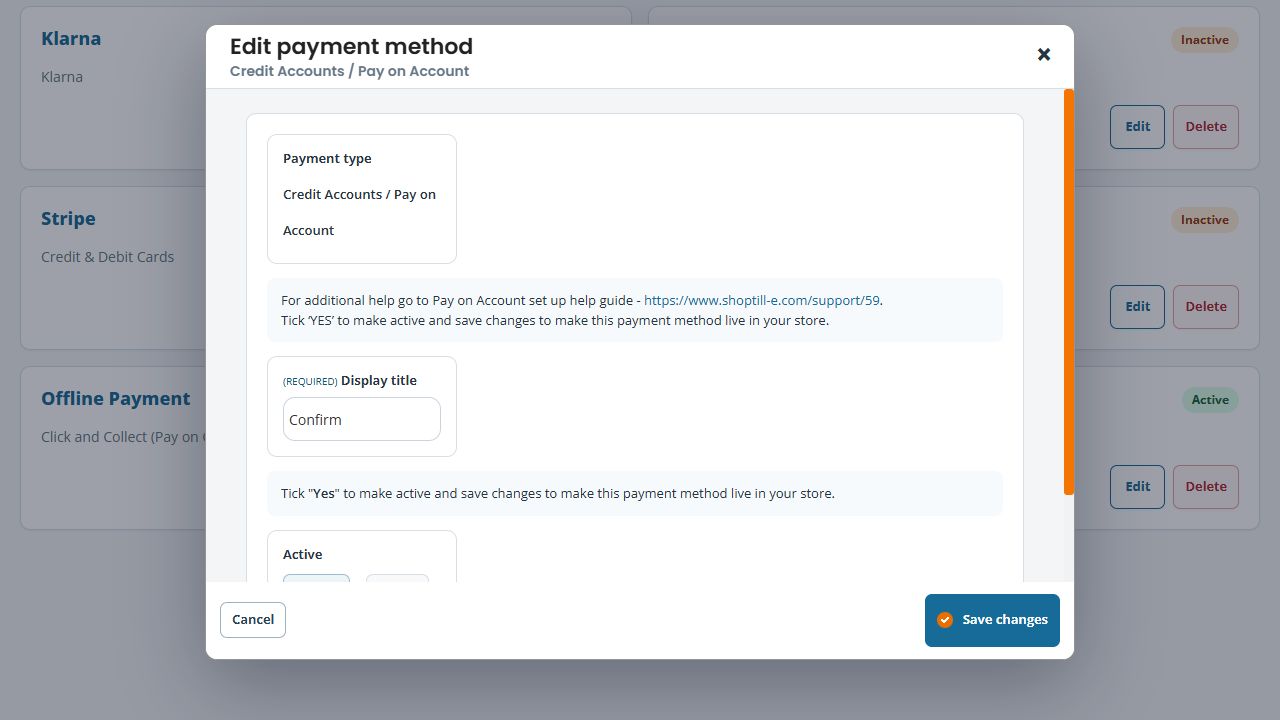
- Find the row whose method is Credit Accounts / Pay on Account. Its display title may be different, so do not identify the method by the customer-facing wording alone.
- Choose Edit on that row and confirm Payment type in the editor.
- Review the required Display title. Use wording that makes the intended checkout choice clear to your customers.
- Scroll within the editor if needed and review Active separately. For an intended change, review all fields before using Save changes; then reopen the method and check the actual signed-in checkout.
- Choose Cancel if you are only inspecting the method.
If you cannot find a method to add
Review the configured list first. The add-method dialog can show No additional payment methods available. That message does not by itself establish why the intended method is unavailable. Check the existing rows and ask support about this shop’s offered methods before deleting a configuration or changing its plan.
See Add and configure a WebShop payment method for the distinction between adding its record, configuring it and checking checkout availability.
