
Receive a customer account payment at the till
Use the account-payment workflow for money received against an existing customer account or eligible invoice. It is separate from adding new products and selling them on account.
Open the intended payment screen
- Ensure the active basket contains no unrelated sale. Resolve or park it first.
- Select the intended customer and review their existing account records.
- With the account-payment feature enabled and the basket empty, select PAY and check that the screen is Receive Account Payment.
- If your setup offers Select invoice, identify the intended order/invoice before taking payment. An account payment without a selected invoice is a different case.
Record the intended amount
- Enter the amount actually being received in Tendered.
- Check the selected customer and any selected invoice again.
- Choose the actual configured payment method and complete any required provider interaction.
- Wait for the result and retain the payment reference/receipt.
- Review the customer’s account payment and order records to confirm how it was recorded or allocated.
Example: payment towards an existing invoice
Confirm the invoice and outstanding amount before recording money. A payment greater than one invoice’s balance can need separate allocation/account-credit review; do not assume the excess completes another invoice automatically.
If the connection or payment fails
Account payments require a connection to ShopTill-e. Preserve the selected customer, amount and actual payment outcome. If a card attempt is uncertain, use its review process rather than entering the payment again.
Check the saved effect
A success message, a printed account-payment receipt and a fully paid invoice are distinct checks. Compare payment, allocation, order status and account balance, especially where an estimate/invoice was selected.
Review customer records · Uncertain card outcome.
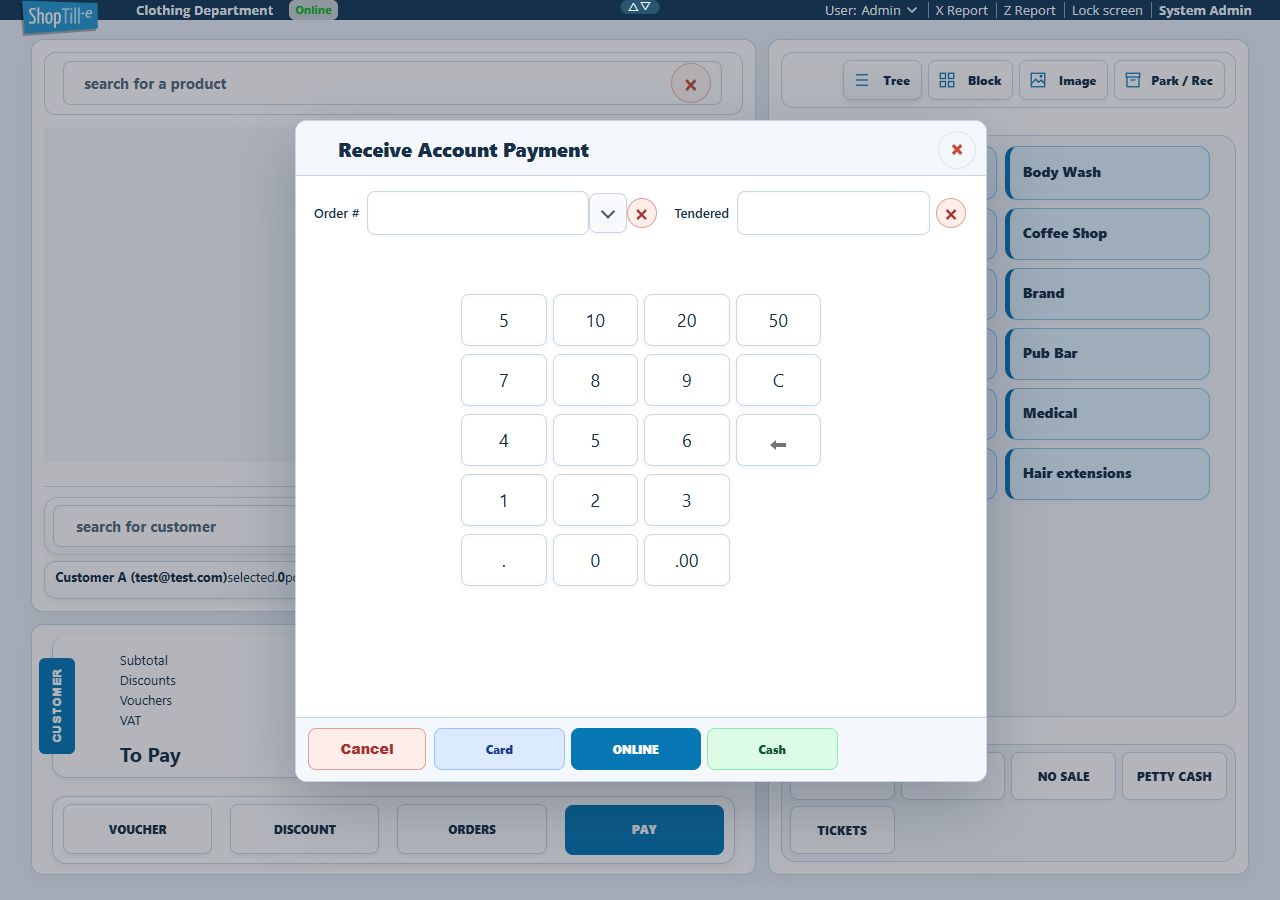
Review the form before choosing a payment method
Use the invoice selector beside Order # where appropriate, then check the selected reference. The clear control beside that reference and Clear tendered amount serve different fields. Recheck the intended customer, invoice and amount before choosing a tender.
If the invoice selector shows no entries, check the customer and the intended invoice in Builder. An empty list is not proof that the customer’s whole account is settled. Do not create another product sale or change a credit limit merely to force an invoice to appear.
Leave an unfinished form safely
Choose Cancel when you are only reviewing the screen or have not yet received money. Check which customer remains selected afterwards and use the customer area’s Remove if that selection is no longer intended. Keep an actual or uncertain payment outcome for investigation; closing a form does not prove that a previously attempted provider payment was reversed.
