
Choose an on-account sales, debtor or payment report
The on-account reports separate purchases from outstanding debtors and payments received. Choose the view that matches the question instead of treating every on-account figure as the same balance.
Choose the report
| Question | Report | Scope and filters |
|---|---|---|
| Which on-account sales are in a period? | On Account Sales | Date range |
| Which accounts have outstanding debt? | Outstanding On Account Debtors | Check the report’s balance/as-of basis |
| Which account payments were received in a period? | On Account Payments Received | Date range |
Run the intended view
- Open the matching report from Reports.
- Check the selected Report type.
- Enter the intended Date range where provided.
- Select Run report, then check the output’s date and balance definitions.
- Follow up against the actual customer and order/payment references when investigating a discrepancy.
Example: a payment after the sale
An account sale can be dated in one period and its payment in a later one. Use the corresponding sales and payments reports to investigate those events, then check the outstanding account view and underlying records. Do not expect totals from different periods to match automatically.
Keep configuration separate
Customer credit limits, account permissions and the ePOS Pay on Account switch belong to setup and transaction workflows. Running a report does not configure credit or record a payment.
Find the customer’s records · Locate related account settings
Choose the account question
On Account Sales, Outstanding On Account Debtors and On Account Payments Received show different parts of the account story. Record the period where offered and open the relevant customer or order records to investigate. A receipt, an allocation to an order and an outstanding balance need their own checks; do not expect every report to have the same date filter or row count.
If account figures do not agree
- Check whether you are comparing sales, payments received or outstanding debt. Record the report type and period for each figure.
- Find the same customer and follow the relevant order and payment references. A later payment can fall outside the sales period you selected.
- Check how the payment is recorded and allocated before treating it as settlement of a particular order.
- Keep the references and difference for reconciliation. Do not enter another payment or raise a credit limit solely to make report totals agree.
Read each report’s controls and columns
- On Account Sales: the report has From/To date and time fields, a customer search and Go. Its columns include Customer, Credit limit, Transactions, Total and Remaining credit. Recheck the period before comparing an empty result with older account activity.
- Outstanding On Account Debtors: selection does not offer the same date-range fields. The report separates Pending orders, Oldest unpaid, Pending amount, Unallocated credit and Net outstanding, with Current/30+/60+/90+ columns and Credit limit. Its explanation says net outstanding subtracts unallocated on-account payments/credit. Read the ageing amounts separately; do not assume each ageing column has already been reduced by that credit.
- On Account Payments Received: use its From/To dates and Go. Columns distinguish Amount, Used and Allocated Amount, alongside Date/Time, Customer, Payment method, Tillpoint and User. A received payment and its allocation describe different parts of the record.
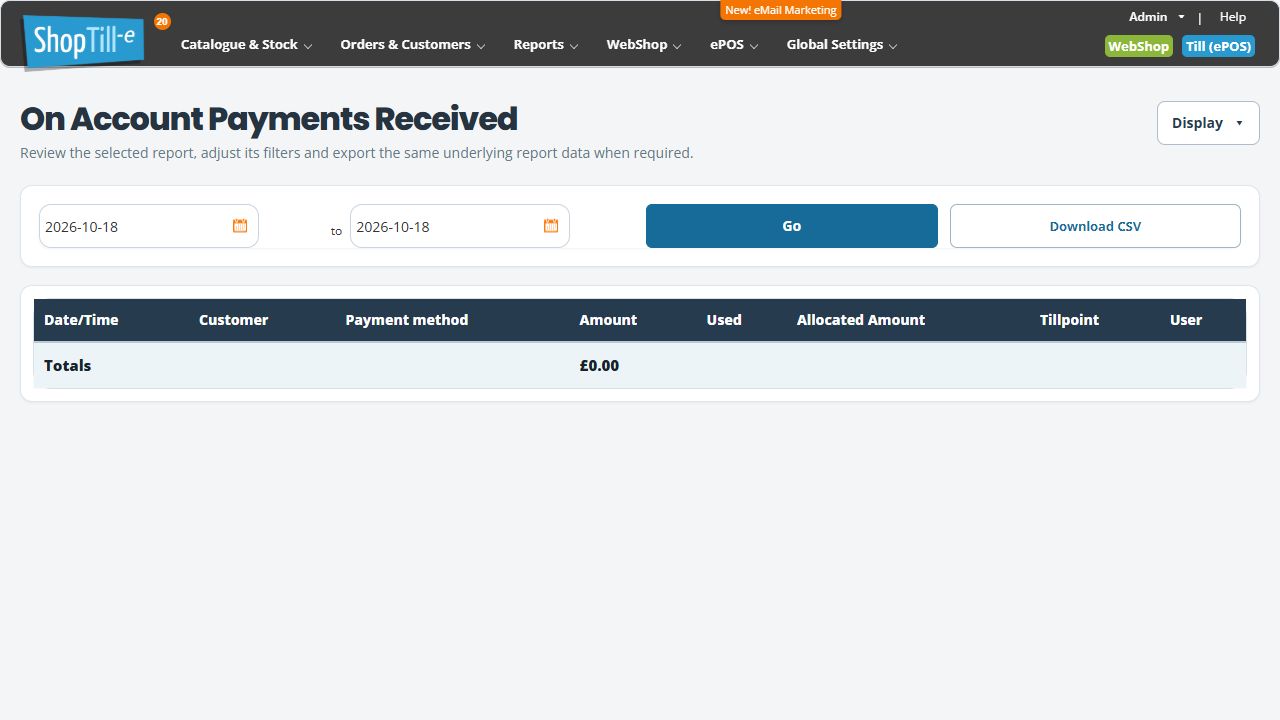
The debtor and payments-received views provide Download CSV. Check the selected report and scope before using the file; running these views does not record a new payment or change a credit limit.
