
Understand base prices and option additions
Review the price component you are editing. A customer-group Base product price override and an option amount have different roles in the resulting product price.
Start with the base product
The price on General provides the product’s standard base amount. In Advanced Pricing, a customer group can have its own Base product price override. That group amount replaces the base component for the group; it is not an extra amount to add on top of the standard base.
Then review selected options
Selected option amounts are added to the applicable base. For example, a larger size can carry an additional amount. A matrix can involve more than one selected option component. A text-entry option can have its own amount when applicable.
Review Default/Override separately for the base and each relevant option. An explicit group option amount and a default option amount are different settings.
Worked illustration
Suppose the standard base is £20 and one selected option has a standard added amount of £3. The examples below use that one option and exclude other configured price changes or discounts.
| Setup | Applicable base | Option addition | Illustrated price |
|---|---|---|---|
| Standard base and option | £20 | £3 | £23 |
| Trade base override of £15; standard option addition | £15 | £3 | £18 |
| Trade base override of £15; Trade option amount of £2 | £15 | £2 | £17 |
Check the complete price in the till
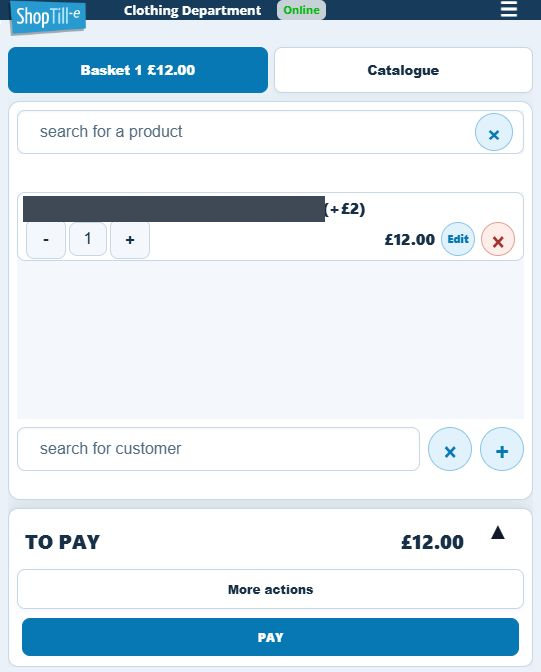
For a £10 base with a £2 addition for Size B, selecting B should give £12 before any other applicable price changes. Check both the selected option and the line total; entering £2 as an option amount is different from intending a £2 total product price.
Review your own record
- Open the intended product and check its General price.
- Open Advanced Pricing and find the intended customer group.
- Check the group’s Base product price Default/Override choice.
- Check the selected option’s Default/Override choice and amount.
- Confirm the customer’s group and the exact product/option used for the comparison.
- Check the resulting price in the intended sales channel with the same tax and currency setup, recording any other price rule or discount.
Before restructuring existing prices
Prepare the intended standard, group and option amounts together. Avoid applying a blanket rule to enter the lowest selling price first: the base replacement and option additions need separate decisions. Check representative standard/group/variant cases before changing a whole range.
Related help
Find and edit Advanced Pricing rows · Check customer assignment · Variant types.
If the selling price is unexpected
- Confirm the exact product, selected options and customer group used in the sale.
- Compare the General base with that group’s Base product price Default/Override choice.
- Review each selected option’s applicable amount separately. An option addition is not the complete selling price.
- Record any discount, tax, currency or other pricing rule affecting the comparison.
- For a recent bulk update, inspect both the General price and the relevant option overrides. Correct the intended component rather than adding a compensating amount elsewhere.
