
Configure the till’s preset discount percentages
Preset percentages give cashiers a short list of discount amounts to choose from. Plan the values your team should use and check the resulting basket calculation before relying on a new setup.
Find and prepare the values
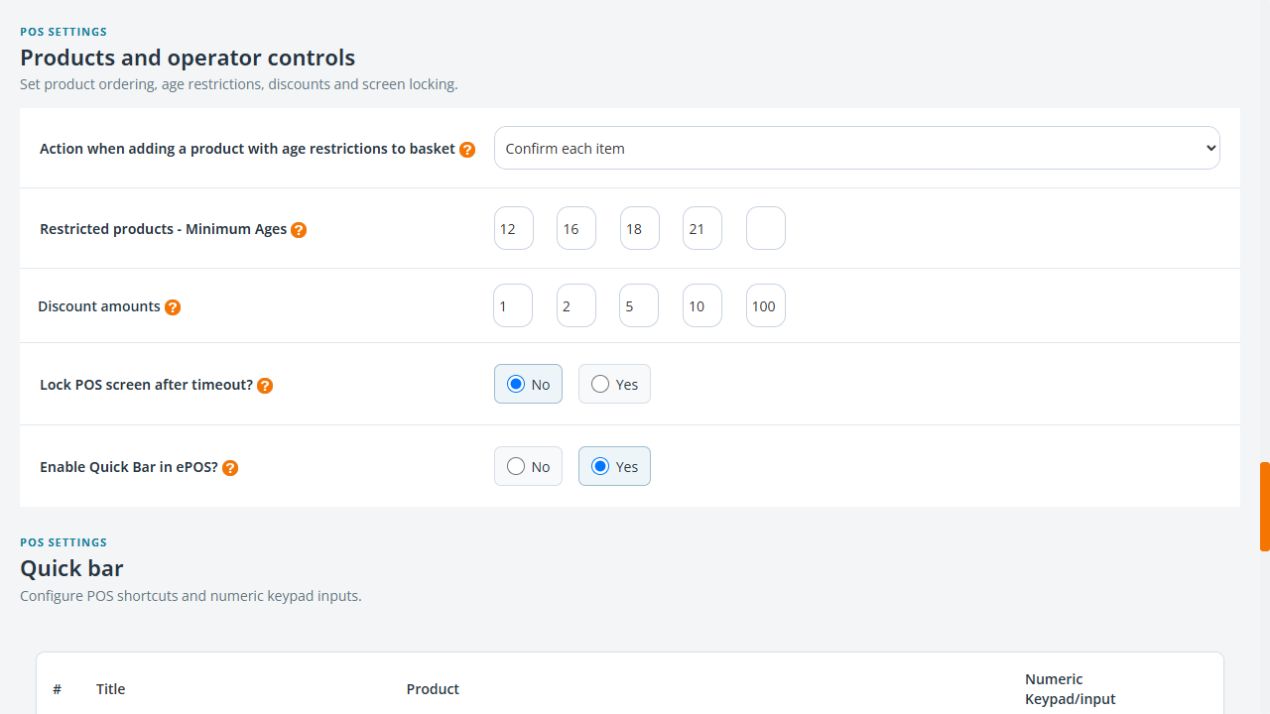
- Open Global Settings → ePOS/Till Setup.
- In Payments and order options, find Enable preset discount amounts? and review its current Yes/No state.
- Go to Products and operator controls and locate Discount amounts.
- Review the percentage values in the displayed fields. Review each of the five fields and compare the intended values with the buttons in the till’s order-discount panel.
- Enter the intended values for an authorised change, checking each number and the existing settings before using Save Settings.
- Reopen POS Settings to confirm the values, then review the till’s order-discount panel on the devices your staff use.
- Test the intended percentage against a representative basket before completing any real payment.
Example: a consistent staff choice
If staff are permitted to use a specific percentage for an agreed circumstance, configure the intended value and make its purpose clear to the team. A convenient button does not explain which customers or situations should receive it.
Check scope as well as percentage
Whole-order discounting and a change to one product line are separate tasks. Confirm which route the cashier used when reviewing a result. Check tax, rounding and any promotion already applied to the basket.
If the till shows different buttons
Compare the saved fields with the actual till panel, and note the user and device. Do not assume the percentage values in another shop’s screenshot apply to your account. Unused preset percentage fields can be set to 0 to hide them.
Use the intended discount scope
A line-price change and a whole-order discount can produce different results. Check the selected item or basket before applying the percentage.
Related help
Find order discounts · Promotion rules.
Leave an unused preset hidden
To leave one of the five preset percentages unused, enter 0 in that Discount amounts field. Review the other percentages, use Save Settings for the intended change and reopen the settings. Check the order-discount and line-price controls on the till: the unused preset should not appear. Check the actual basket result before payment.
