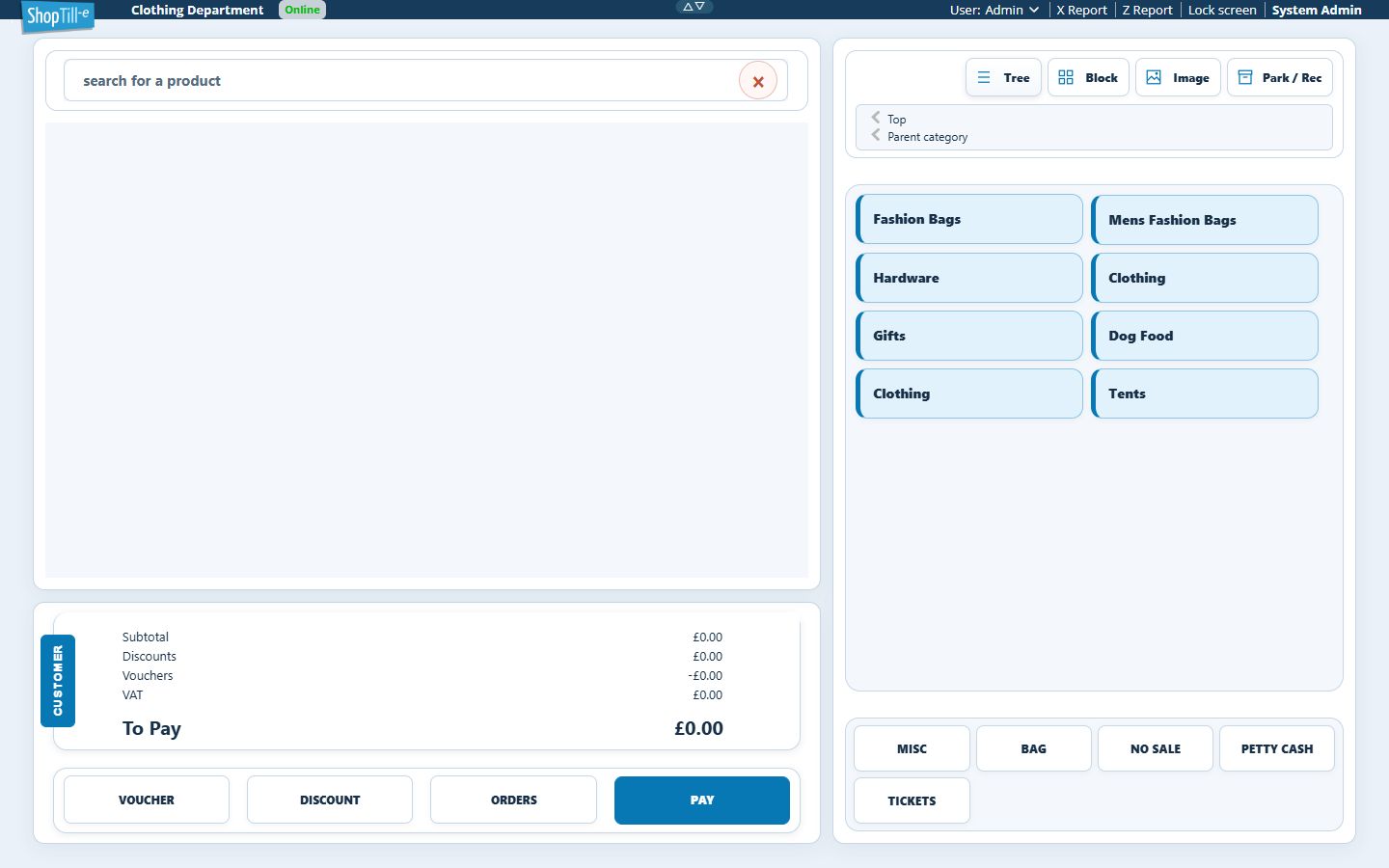
Find till lock and cashier settings
Till locking and staff identity need a deliberate setup. Identify the relevant controls before changing an established cashier process.
Find the lock controls
- On the till, find Lock screen in the header.
- In Builder, open Global Settings → ePOS/Till Setup → Products and operator controls.
- Find Lock POS screen after timeout? and note its current choice.
- Open Global Settings → Users when reviewing the staff records used for Builder or till access.
Keep lock, switch and logout distinct
Use the separate Lock screen control when you intend to lock the till. Check the user-name account menu for Logout. Review the controls available to the intended staff role and device before changing your staff-switching routine.
Before changing an existing workflow
Confirm the intended users and access roles, the timeout process and how staff regain access. With a sample basket, check locking and regaining access, and compare the basket contents afterwards. Review pending offline work separately before ending a session. Keep an administrator access route available during testing.
Review the staff PIN and access setup
Use the till header and account menu
- Use Expand till information header when you need the additional header controls. Collapse it again to give the working area more space.
- Read the displayed user and till identity before changing staff or device settings.
- Use System Admin to open Builder administration. This is a navigation link, separate from the signed-in user's name.
- Select the user-name control to review the account menu. The current menu includes Logout; close the menu without selecting it if you are only checking the identity.
- Use Lock screen for the intended locking workflow rather than assuming it is the same as Logout.
The header layout can differ with screen size and device. Expanding it changes the presentation; it does not switch the till, move stock or complete a sale.
Before leaving an account
Finish or deliberately park the current basket and check any pending payment or locally saved order first. Follow your shop's agreed staff-change procedure. If a payment outcome or unsynchronised order is uncertain, preserve its reference and investigate before logging out, closing or refreshing the till.
Header and navigation example