
Add a customer group
Customer groups are referenced by settings such as product pricing and discount eligibility. Choose a clear name, then configure the rules that refer to it.
Create the group
- Open Orders & Customers → Customer Groups.
- Check the list for an existing group that already serves the intended purpose.
- Select Add customer group.
- Enter the intended Title, such as Trade or Local members.
- Review Default group?. Review the selected choice before saving. Keep this separate from naming the group.
- Review Loyalty percent as a separate setting. Do not treat this field as the group’s product selling price or discount-rule amount.
- For an intended new group, select Save changes & close. Find the group in the list and reopen it to check the stored settings.
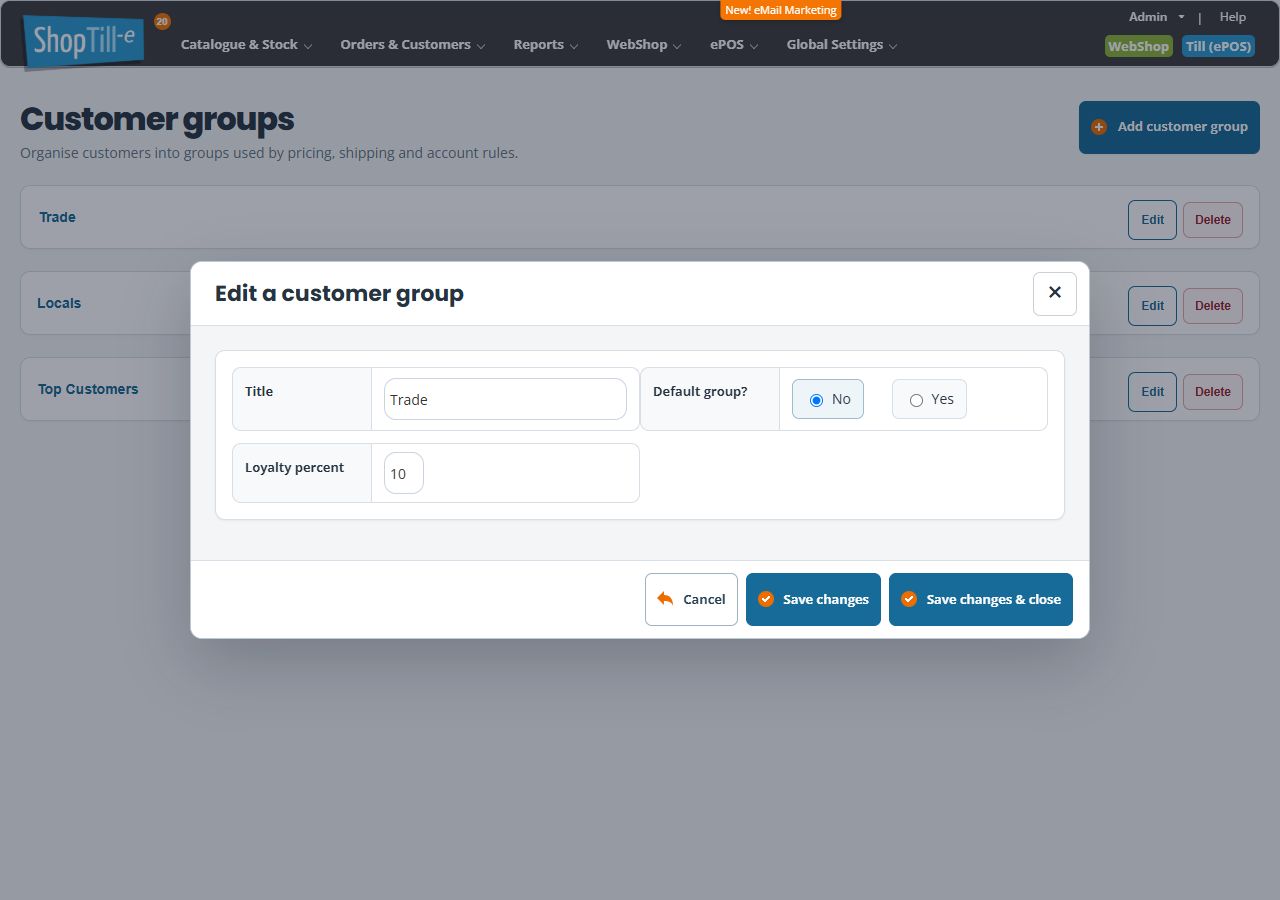
Example: a trade group
A Trade title helps staff identify the intended group. After creation, assign the right customers and review the affected products’ Advanced Pricing rows. A Trade name by itself does not set prices.
Check what depends on the group
Review customer assignments, product prices, category restrictions and discount rules that use the group. Before changing a default or loyalty setting, compare the intended result for an existing customer and a new customer. Check their saved group assignment and the prices or benefits they receive.
Changing the default
Review Default group? before making a group the default. This is separate from the title and from an explicit customer assignment. Check customers without a specific assignment and any affected prices before changing an established default.
Save and reopen the new group
Use Save changes & close to finish creation, then reopen the group from the list and compare its fields. If saving is interrupted, inspect the list before retrying so you do not create a duplicate. For later changes, see Edit a customer group and choose the default. Closing a form does not undo a save already completed.
Related help
Assign a customer · Understand group references · Review group prices.
Inspect without creating a group
The new-group form initially shows blank Title and Loyalty percent fields and selects No for Default group? in this example account. If you opened it to look around or typed a title you do not intend to create, use Cancel, then check the list before starting again. A blank field and the title of an existing group are different contexts: record the existing value before deciding what to enter.
