
Edit a customer group and choose the default
Edit a group when its name or settings need to change. Review the default carefully: a customer without an explicit group may use the default group for pricing. A familiar group name does not tell you which customers or prices will be affected.
Review the current setup
- Open Orders & Customers → Customer Groups.
- Note which group has the Default marker.
- Choose the intended group’s name or Edit.
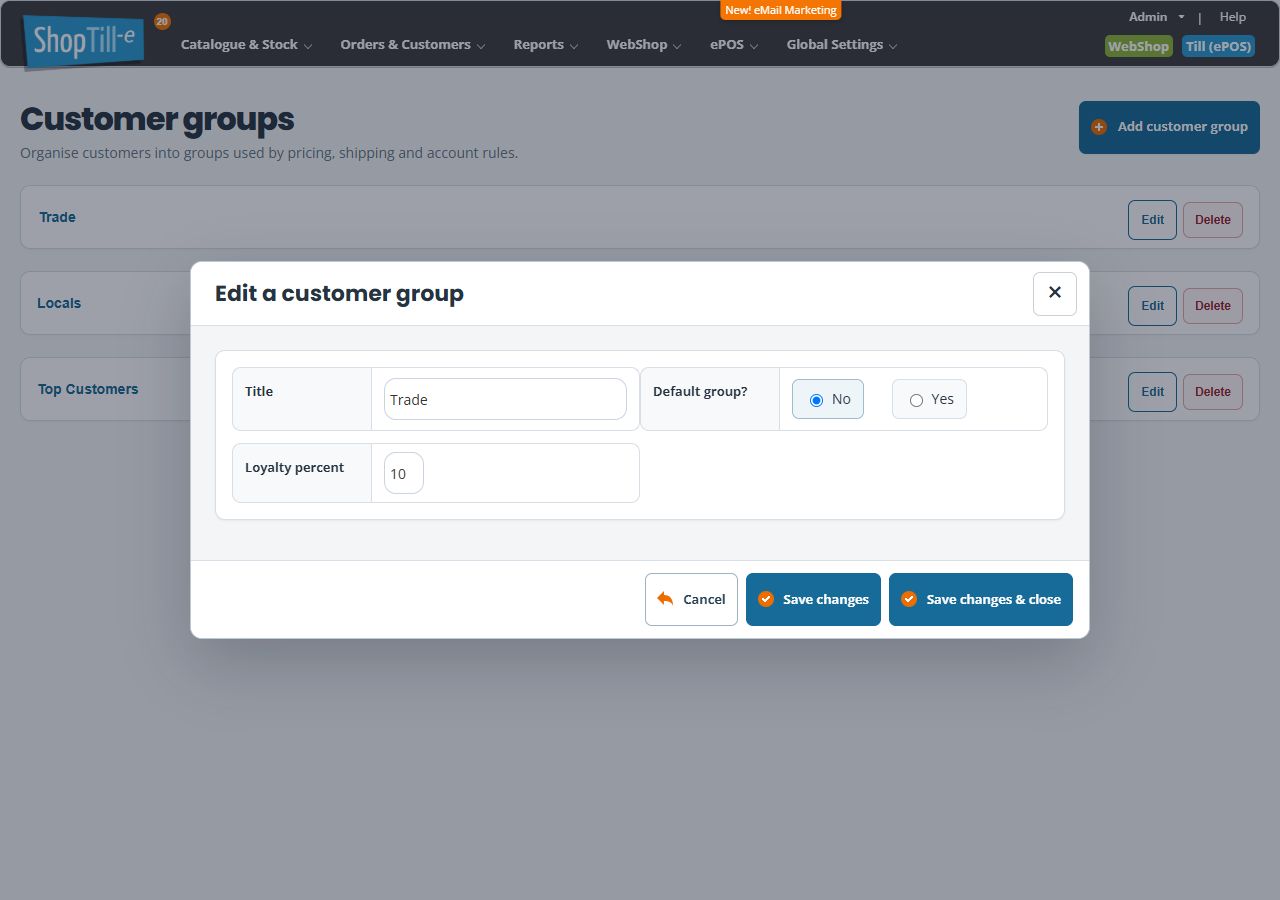
- Record its Title, Default group? and, where shown, Loyalty percent.
- Before changing a default, check customers with an explicit group and customers with no explicit assignment. Note relevant product prices, category restrictions and promotions.
Rename the group
- Enter a clear Title that staff will recognise.
- Review the other fields before saving so a naming task does not also change the intended default or loyalty setting.
- Use Save changes & close, find the group again and reopen it to check the saved details.
A new title does not create product price rows or assign additional customers. Keep related staff instructions consistent with the new name.
Choose a different default
- Record the existing default and decide which group should replace it.
- Edit the intended replacement and set Default group? to Yes.
- Save deliberately, then check the Default marker in the refreshed list. Making a group the default replaces the previous default choice.
- Reopen both the new and previous default groups to check their saved settings.
- Compare representative customers with an explicit assignment and without one. Check the intended product and variant prices, relevant promotions and each sales channel you use.
Changing a group’s Default group? to No does not choose a replacement for you. If you intend to have a default, select and verify the replacement explicitly.
Example: introduce a general retail default
If Trade customers should receive negotiated prices while other customers use the general retail arrangement, check explicit Trade assignments first. Review which group will be the fallback for customers without a specific assignment. Then compare the same product and option for both kinds of customer; do not assume a title such as Retail controls the price by itself.
Review the loyalty field separately
Loyalty percent is separate from group selling prices and promotional discounts. It appears when customer loyalty is enabled. Before changing it, record the shared loyalty setting and the group’s value, then compare the intended points outcome for representative purchases. Do not use a zero group value as an assumed switch to disable all loyalty tracking.
Saving, closing and uncertain results
Save changes is intended to save and keep the editor available; Save changes & close saves and closes it. For a new group, save and close, then reopen it from the list to check the created record. Use Cancel or the close control when leaving without another save. Closing the editor does not reverse a save already completed.
If saving is interrupted, reopen the list before retrying. Check the group name, default marker and stored fields rather than creating another group with the same title.
Related help
- Assign a customer to a group
- Set up customer-group pricing
- Review shared account and loyalty settings
- Delete a customer group
If the expected price has not changed
Check the customer’s actual group assignment and the product’s group price rows first. Then review any promotion or delivery rule involved. Editing the group title or looking at Loyalty percent does not establish which selling price the customer should receive. Keep the customer, product/variant, group and sales channel together when asking support.
