
Add or replace your shop logo
Add your business logo, or replace the current image, from the Business section of General settings in Builder.
Before you start
Have the logo file available on the device you are using. Open it first so you can check that you have the correct business name, artwork and colours. You will also need access to General settings.
The Shop logo Help recommends an image roughly 376 × 150 pixels; the system resizes it where necessary. Keep the artwork’s proportions and check the stored preview. This is approximate guidance, not a confirmed file-size limit or a guarantee for every theme or printer.
Upload your logo
- In Builder, open Global Settings → General.
- On the General settings page, choose Business to find the business-details section.
- Find Shop logo. If a logo is already stored, use the preview to check which image you are replacing.
- Select Choose File, then choose the new logo from your device.
- Check that you selected the intended file. Leave Remove current logo unticked when following this replacement guide.
- Go to the end of the settings form and select Save Settings.
- Return to the Business section and check the logo shown. Check the customer-facing location you intended to update as well.
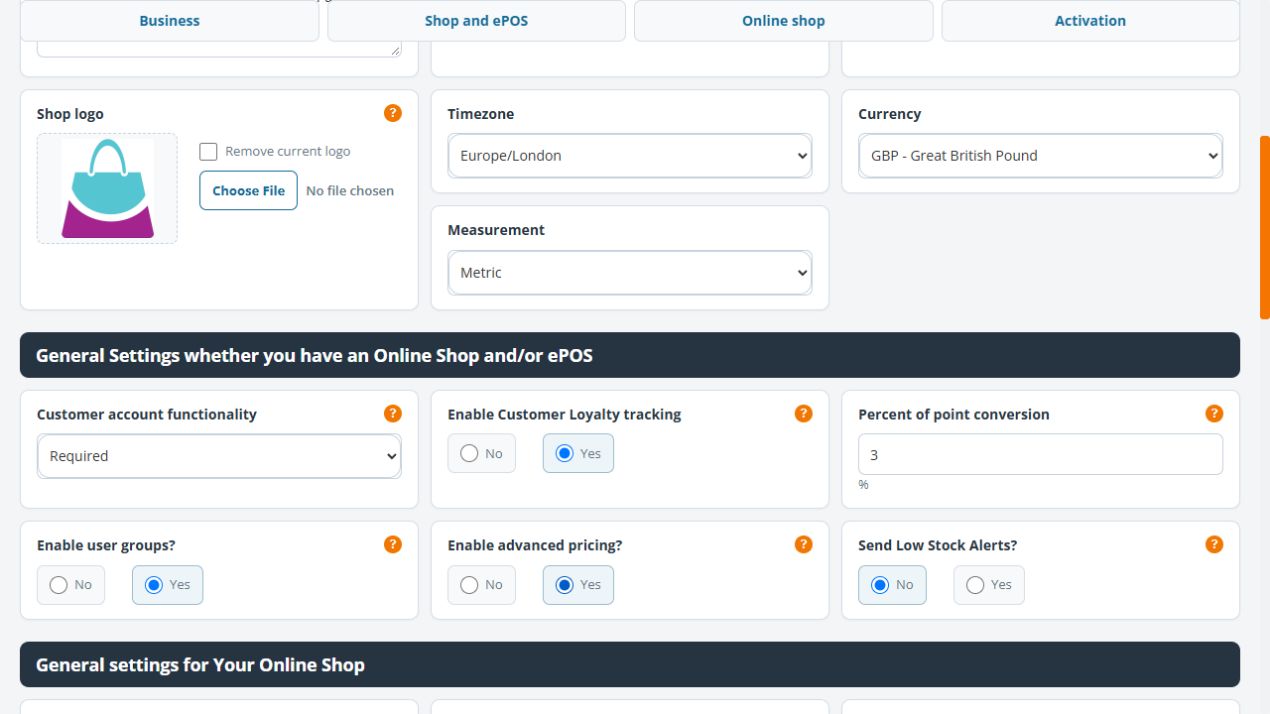
Example: replace an old business logo
If your business has refreshed its branding, first open the new artwork on your computer. Then follow the steps above and compare the stored preview with that file. Keep a copy of the original artwork until you have checked the new result.
If the result is not what you expected
- I cannot find Shop logo
- Check that you opened Global Settings → General, then selected Business. If you cannot access that page, ask your account administrator to check your access.
- I chose a file but still see the old logo
- Check whether you completed Save Settings. If a message was shown, read it before trying again. Reopen General settings to check the stored preview.
- The preview is correct but another screen still shows the old logo
- Note which screen still has the old image. Your shop’s presentation may have additional settings; ask support to check that specific location rather than repeatedly uploading the same file.
- The logo looks blurred
- Compare it with the original image opened on your device. Start with clear original artwork rather than a small image enlarged from a screenshot.
Remove the stored logo
- Keep a copy of the original artwork if you may need it again.
- Open General → Business and check the existing preview.
- Tick Remove current logo only when removal is intended. Leave the file chooser empty when your task is removal alone.
- Review the other settings before Save Settings.
- Reopen the Business section and check the preview and intended customer-facing locations.
Do not assume a failed save message proves the image is unchanged. Inspect the stored result before retrying. If you also need replacement artwork, follow the replacement steps deliberately and retain the original file until the result is checked.
Check the locations that use your logo
- Reopen General settings → Business and compare the stored preview with your intended artwork.
- Open the actual public shop address, including the final address if it redirects to your custom domain. Review the header and any footer logo on the intended storefront.
- For document output, open a suitable saved order in Builder and use Printables → Invoice or Printables → Receipt. Compare the artwork, proportions and business details in the exact document your team uses.
- Check the intended till or printer output separately when that is part of your task. A browser document preview does not establish the result on every receipt printer or layout.
The same logo can occupy different spaces in a website header, footer and document. Check each intended use rather than judging the artwork only by the small stored preview. If another location differs, keep its exact page or document name for support and review the active shop theme before repeatedly uploading the image.
