
Run a purchase-order data report
Use Purchase orders - Data report to review supplier-order lines for a purchase-order date range. Use the Purchase Orders management list when you need to maintain a specific document or check delivery progress.
Choose the period and run the report
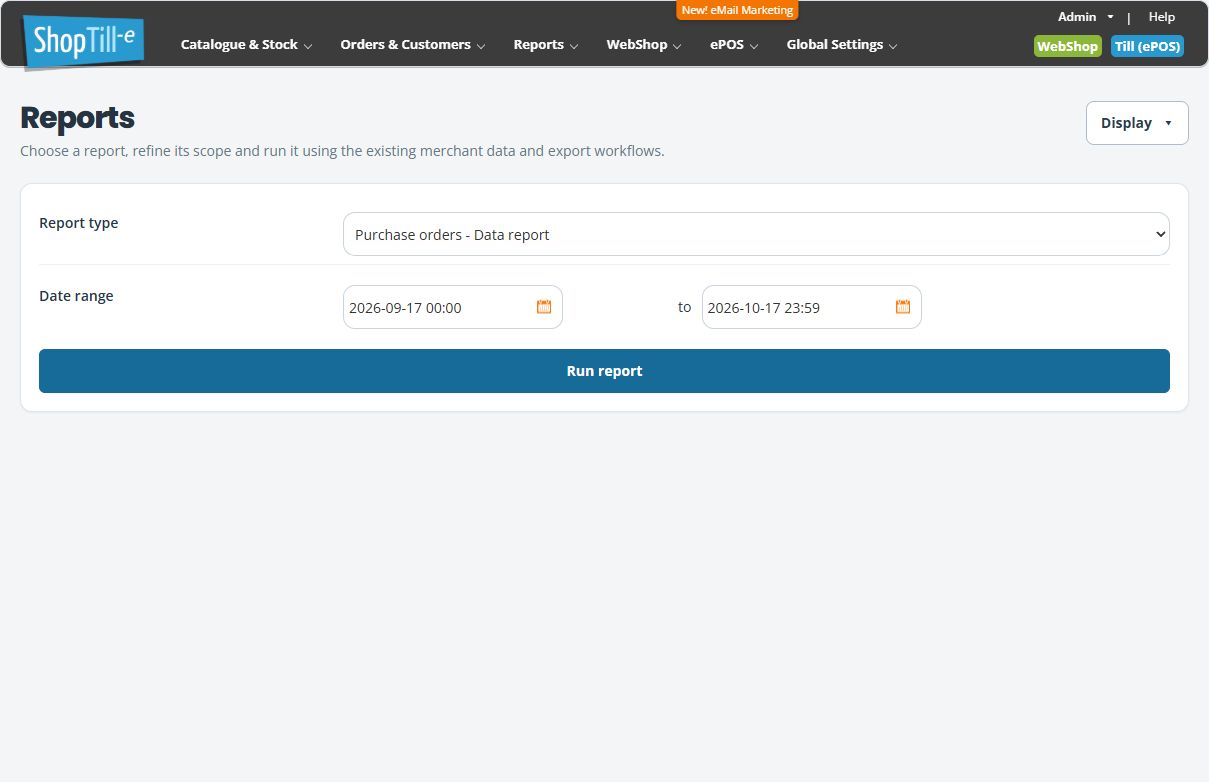
- Open Reports → Purchase orders - Data report.
- Check Report type, then enter the intended start and end of Date range, including the times shown.
- Select Run report.
- On the result page, check the dates again. Use Supplier and Go when you need to narrow the result to one supplier.
- Compare representative supplier, purchase-order and product references with the underlying purchasing documents.
Read the columns
| Column | What to compare |
|---|---|
| Supplier Code / Supplier Name | The supplier reference and company associated with the purchasing record. |
| PO Order No / PO Order Date | The purchase-order reference and date. The period uses the purchase-order date, not the date goods physically arrived. |
| Product Code / Product Name | The line’s identifier and product, including option information where present. |
| Ordered Qty | Read the quantity qualification below before treating this as the original order quantity or a goods-received total. |
| Product Unit Cost | The unit cost on the purchase-order line. It is not a line subtotal or the customer’s selling price; check the relevant tax/cost basis before comparing other reports. |
Understand the Ordered Qty qualification
Despite its heading, this report uses a positive Actual quantity recorded on the purchase-order line when one is present. Otherwise it uses the original quantity. For example, a line ordered as ten with an Actual quantity of four can appear as four. A blank or zero actual quantity does not by itself make this report show zero.
Check the purchase order’s delivery quantities when you need to explain that difference. Do not treat this column alone as a dated goods-received ledger, proof that stock was added, or confirmation that an order is fully delivered.
Example: an order placed before month end
Suppose a supplier order is dated in March and its goods arrive in April. A report for April’s purchase-order dates is a different question from April’s deliveries. Check the original document date and actual quantities before treating an absent line or a changed quantity as missing stock.
Download and check a CSV
- Review the result’s date range and supplier selection.
- Select Download CSV when you need a file of that report.
- Keep the downloaded original and compare a few supplier, order and product references with the on-screen result.
- When opening it in a spreadsheet, preserve product codes as text, especially leading zeros and long identifiers.
A download is reporting output. It does not send a supplier order, receive goods or change stock.
If the result differs from what you expected
- Check both dates and times and the selected supplier; do not assume a supplier filter is the same as a delivered-status filter.
- Use Purchase Orders to inspect the document’s actual status and line quantities. Do not assume every listed line is delivered.
- Compare the exact product option and purchase-order reference, rather than matching only a product name.
- Keep the period, supplier and a representative line with your support query. A calculated total from this report should not be substituted for supplier invoice or receipt reconciliation without checking its basis.
Related help
Find a purchase order · Review delivery quantities · Choose a report.
