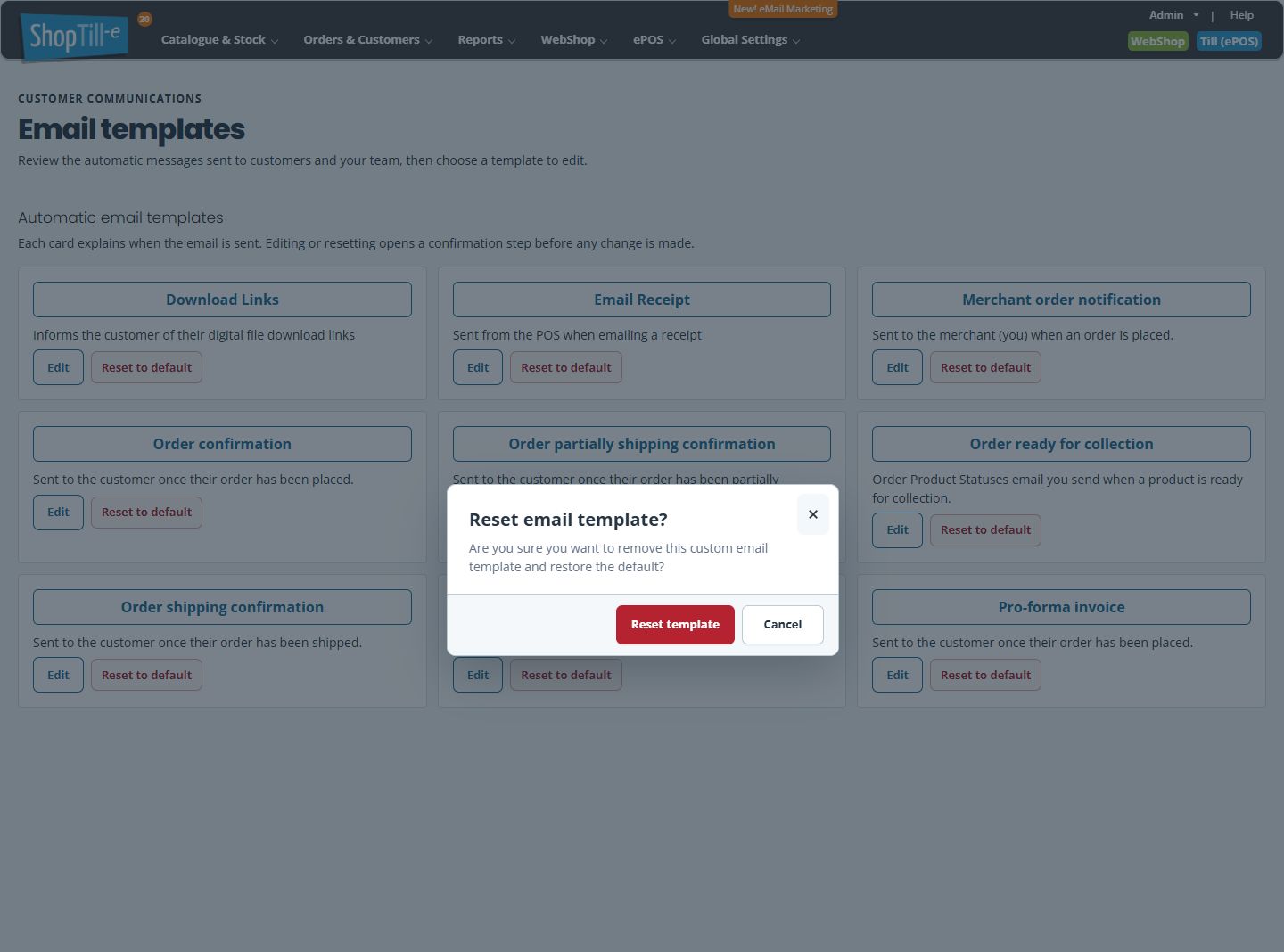
Reset an automatic email template to its default
Reset to default removes the custom version of the selected email template so its default version can be used. Choose this only when replacing that customisation is the intended outcome. It is not needed to open a template or repair an email delivery problem.
Keep the current version first
- Open Global Settings → Edit Email Notifications.
- Find the intended card and choose Edit. Check the Title.
- Copy the Subject and complete message into a separate document. Preserve formatting tags, variables and repeated sections, and note the selected Template.
- Choose Cancel to return to the list without saving a change.
Reset the selected notification
- Choose Reset to default on the intended card. Check the card title before opening the confirmation.
- Read Reset email template?. It asks whether you want to remove this custom email template and restore the default.
- Choose Cancel to leave the custom template in place. Choose Reset template only when you intend to replace it.
- Read the result message. After a successful reset, reopen that same template and review its Subject, Template and complete message.
- Check for shop-specific wording or instructions that still need to be added, then arrange a representative test of the affected notification.
Example: restore a damaged shipping message
If a custom shipping message has lost its item section, keep a copy before resetting. Review the default message carefully afterwards. Your previous collection, carrier or shop instructions may need to be added back deliberately; resetting is not a merge of your custom text with the default.
If the result is unexpected
- The reset reports an error: reopen the template and inspect the current version before trying again. Keep the exact message for support.
- You want the old custom text back: use your retained copy when reviewing a new edit. Do not rely on Reset to provide a history of previous custom versions.
- The email still is not received: check the relevant event, recipient and delivery separately. Reset changes the template; it is not a resend action.
- The layout still looks different: review the Template choice and the actual received email. Resetting wording is not proof that every branding or layout component was replaced.
Edit notification wording · Preserve variables · Find automatic templates.