Use order and shop details in email templates
A variable is a field that is replaced with details for the particular shop or order when a message is produced. Use it when the value should vary between messages. Do not type a real customer name or order number into a shared template as an example.
Insert a variable
- Open the intended notification through Global Settings → Edit Email Notifications → Edit and check its Title.
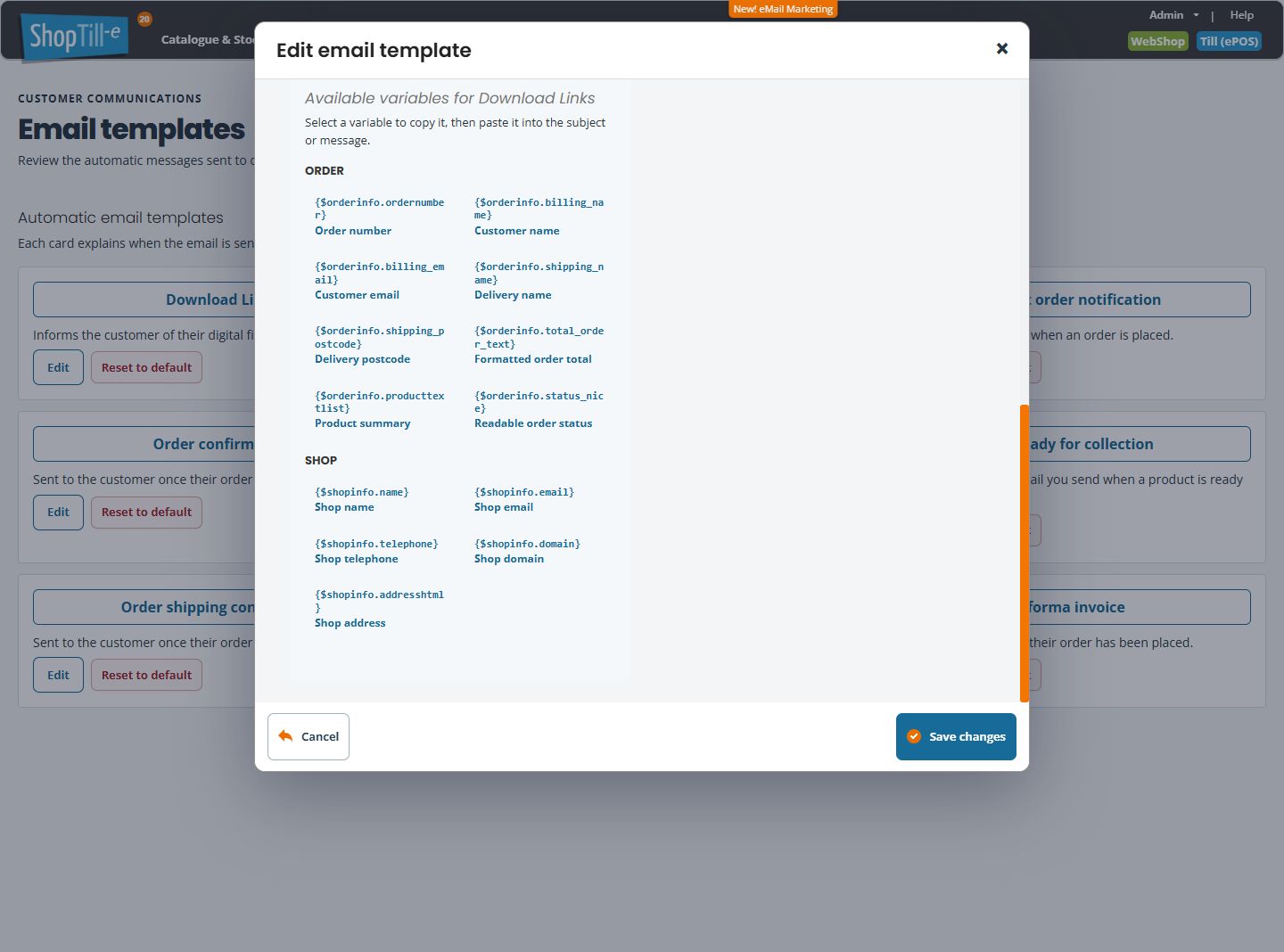
- Scroll within the editor to Available variables for that template. The panel groups fields under Order and Shop.
- Select the field you need. The button copies the variable rather than inserting it into the message automatically.
- Place the cursor in the Subject or message where the value should appear, then paste.
- Keep the complete expression, including braces, the dollar sign and field name. Add ordinary words and spacing around it.
- Review and save the template when ready, then check a representative received message for the intended notification.
Examples
A subject such as Your order {$orderinfo.ordernumber} from {$shopinfo.name} combines fixed words with an order number and shop name. A greeting such as Dear {$orderinfo.billing_name}, uses the name recorded for the order. Check that this wording suits the recipient and the data available for that workflow.
Choose a suitable field
- Order number: helps the customer identify the order being discussed.
- Customer name and Delivery name: can refer to different people. Use the field appropriate to your sentence.
- Formatted order total: provides an order-total field. Check the rendered result rather than typing a fixed total into the template.
- Product summary: is a general order field. Keep existing shipment, collection and download sections when the message needs those specific items or links.
- Shop name, email, telephone and domain: avoid repeating fixed contact details throughout every template.
- Shop address: can contain address formatting; check the received message’s layout before using it in a different position.
Keep existing template expressions
Some messages contain repeated item sections and conditional text as well as individual variables. These expressions are not ordinary prose. Preserve them and their matching closing expressions when updating surrounding words. The copy panel is a shortcut for common fields; it does not replace every message-specific expression already in the template.
If copying or rendering fails
- If copying is unavailable, select and copy the complete variable text manually, as the editor instructs.
- If a value is blank, check whether the relevant order or shop actually has that information. Do not replace the variable with one customer’s details in the shared template.
- If an expression appears literally, compare it with the existing expression or the panel’s copied value. Keep the message type and sample result when asking support for help.
- If the wrong items appear, check whether you replaced a shipment, ready-for-collection or download section with a general product summary.
Edit an automatic email notification · Find the right template.