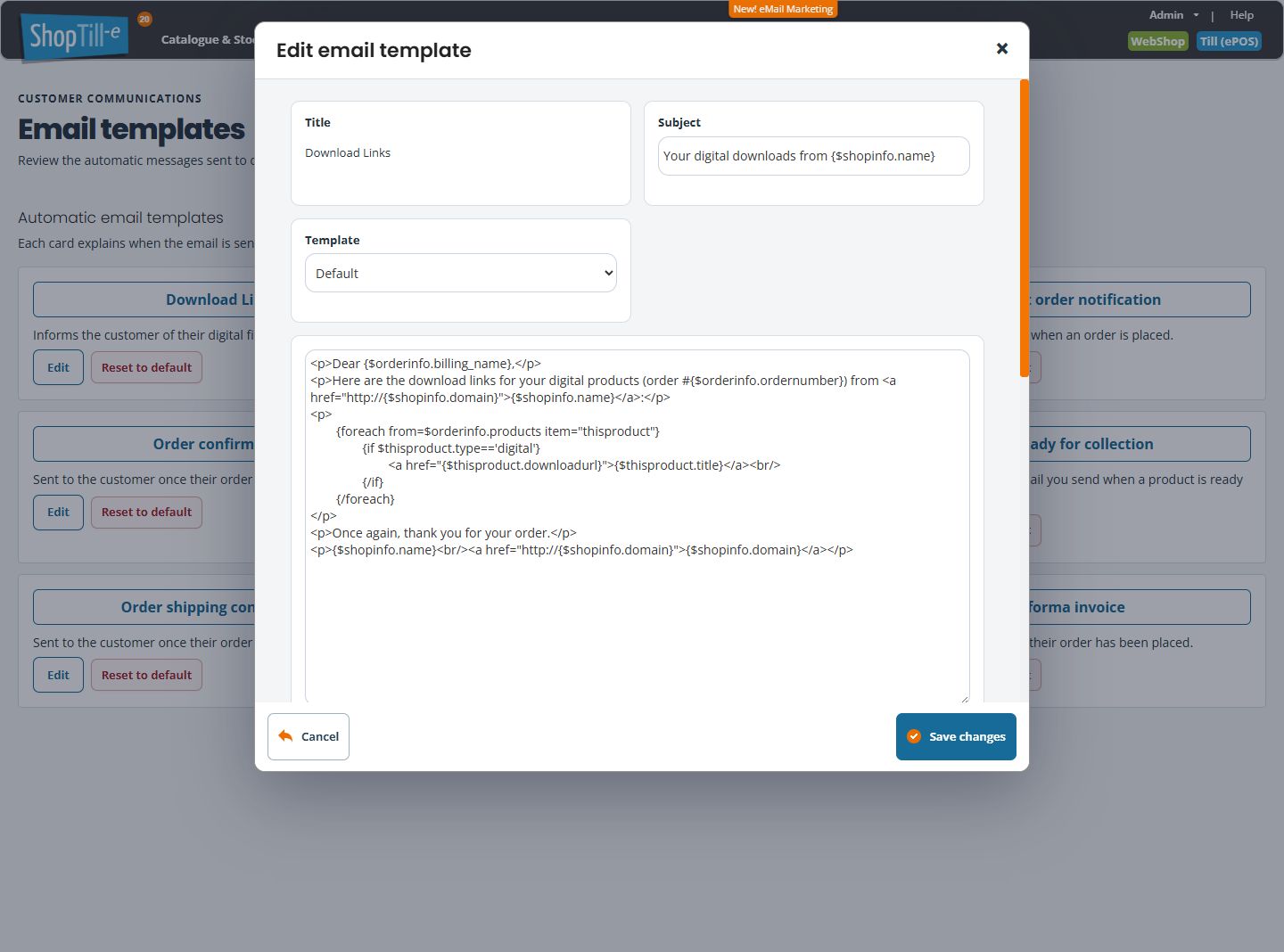
Edit an automatic email notification
Use automatic email templates to tailor customer and merchant messages to your shop. Choose the correct message first: an emailed till receipt, an order confirmation and a shipping update serve different purposes.
Keep a copy before editing
Open Global Settings → Edit Email Notifications, find the intended card and choose Edit. Check the Title in the editor. Copy the current Subject and complete message into a separate document, and note the selected Template. Keep the formatting and variable text intact in your copy.
Change the wording
- Review the Subject. Keep any useful variable fields, such as your shop name, when changing the surrounding words.
- Review Template, which selects the email layout available for your shop. Retain the existing choice for a wording-only update. The choices shown in another shop’s screenshot may differ from yours.
- Edit the wording in the large message field. The current editor displays HTML and template expressions as text; preserve the existing formatting tags and expressions around the words you change.
- Use Available variables when you need an order or shop detail. Selecting a variable copies it; paste it into the intended place in the Subject or message.
- Check the full message for repeated paragraphs, missing links and wording that does not suit this notification.
- Select Save changes when ready. Read the result, reopen the same template and check that the intended wording and layout selection were retained.
- Arrange a representative test for this message type before relying on the new wording for customers. Check the received subject, complete content, links and layout.
To inspect a template without saving, use Cancel or the editor’s close button. Opening Edit does not itself save the text. Saving a template is separate from sending a particular order message.
Example: add a collection instruction
Open Order ready for collection and add a short instruction such as “Please bring your order confirmation when collecting.” Keep the existing list of items ready for collection. Do not change a shipping confirmation to say everything is ready to collect merely because its layout looks similar.
Preserve the parts specific to the message
- Download Links: retain the section that lists each digital item’s download link. Replacing it with a general shop link would remove the useful links from the message.
- Email Receipt, order confirmations and Pro-forma invoice: retain the relevant item rows, totals and conditional sections. Change wording around those sections carefully.
- Partial/full shipping messages: retain the existing shipment, item and tracking sections that apply to that message.
- Ready for collection: retain the section listing the items ready to collect; it may differ from the full order’s item list.
- Merchant order notification: keep the wording appropriate for your team rather than copying a customer greeting wholesale.
Troubleshooting
- Highlighted fields: check the Subject and message are filled in before saving.
- A save error or uncertain result: retain your proposed text, reopen the template and inspect what is currently saved before repeating the action.
- Codes appear in the received message: check variable spelling and braces, and the message type in which the field is used. Keep the order reference and a sample for support.
- A message is not received: investigate its trigger, recipient and delivery separately. Changing its wording does not establish that delivery is repaired.
Use template variables · Reset a template · Choose the correct notification.