
Print barcode labels for a product or its variants
The product row’s Print barcodes action uses existing product or variant SKUs. It does not generate new codes or change barcode scan aliases. Check that the SKU identifies the item you want to label before printing.
Before you start
- Find the intended product and check its SKU. For variants, identify the exact option or combination, such as a bag’s colour and size.
- Have the correct label stock and printer ready. The output uses your existing barcode label template; the product chooser is not a label designer.
- Start with a sample label and check readability and scanning before producing labels for a whole range.
Open the product’s barcode action
- Open Catalogue & Stock → Product Management.
- Find the product and check its title and SKU.
- Use Print barcodes on that product’s row. A simple product with an existing main SKU can open barcode output directly. Products with options can open a chooser; do not expect every product to show the same intermediate screen.
Use the chooser when it appears
- Check the product title at the top.
- To use the main product SKU, select Print main SKU beside the displayed code.
- To print variant labels, tick the required options under Variant SKUs, or use Select all available variants. Check the option descriptions and SKUs together.
- Check the selection count, then select Print selected variants. The chooser describes one label per selected SKU; inspect the output and printer settings before printing.
- Use Cancel if you opened the wrong product or need to correct a selection before producing output.
For example, labels for a blue small bag should use that combination’s variant SKU rather than the parent product’s general SKU. Where your range uses only one SKU for the whole product, check that the main SKU matches your intended scanning workflow.
Check the result
Check the visible code, label size, alignment and print quality. Scan a sample at the till and confirm the correct item and, where applicable, variant is selected. A label that prints successfully still needs this identity check.
Troubleshooting
- Main barcode unavailable: missing SKU: review the product’s SKU before trying again.
- A variant is unavailable: the chooser marks a missing SKU or an SKU containing a comma as unavailable. Review the existing identifier carefully; changing an SKU can affect other uses of that identifier.
- Print selected variants is disabled: select an available variant first.
- No output window appears: check whether the browser blocked a new tab or window.
- The output is the wrong size or does not scan: check your label template, paper size, scaling and printer quality. Keep a sample and the affected SKU when asking support for help.
Review product variants or review the product’s main details.
Printing from inventory instead
Stock Management barcode labels use inventory row checkboxes and a separate batch action. Check row identities and SKU selection there. Batch output can open a print dialog automatically, so review the intended codes before starting it.
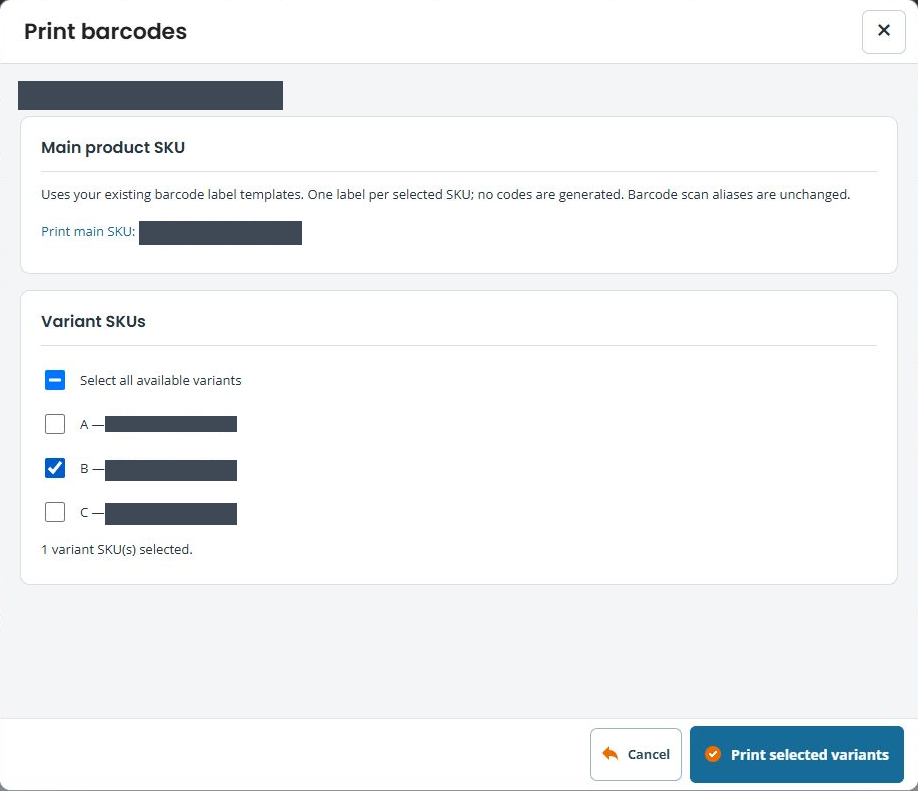
Review a partial selection
Check each option label and SKU alongside the selection count. When only some options are ticked, Select all available variants can show a partial-selection mark. That is not a statement that every option is selected. Clear unwanted choices or use Cancel if you opened the wrong item. With no variants selected, Print selected variants is unavailable; the main-SKU link is a separate action.
