Prepare an outlet stock transfer
Use a transfer for stock moving between locations. Confirm the direction and physical movement before entering products.
Choose the outlets
- Open Catalogue & Stock → Outlet Stock Transfer and check for an existing record covering the movement.
- Select Add stock transfer.
- Choose Outlet In as the destination and Outlet Out as the source. Check both selections rather than relying on their order in the form.
- Select Create Order to open the transfer editor.
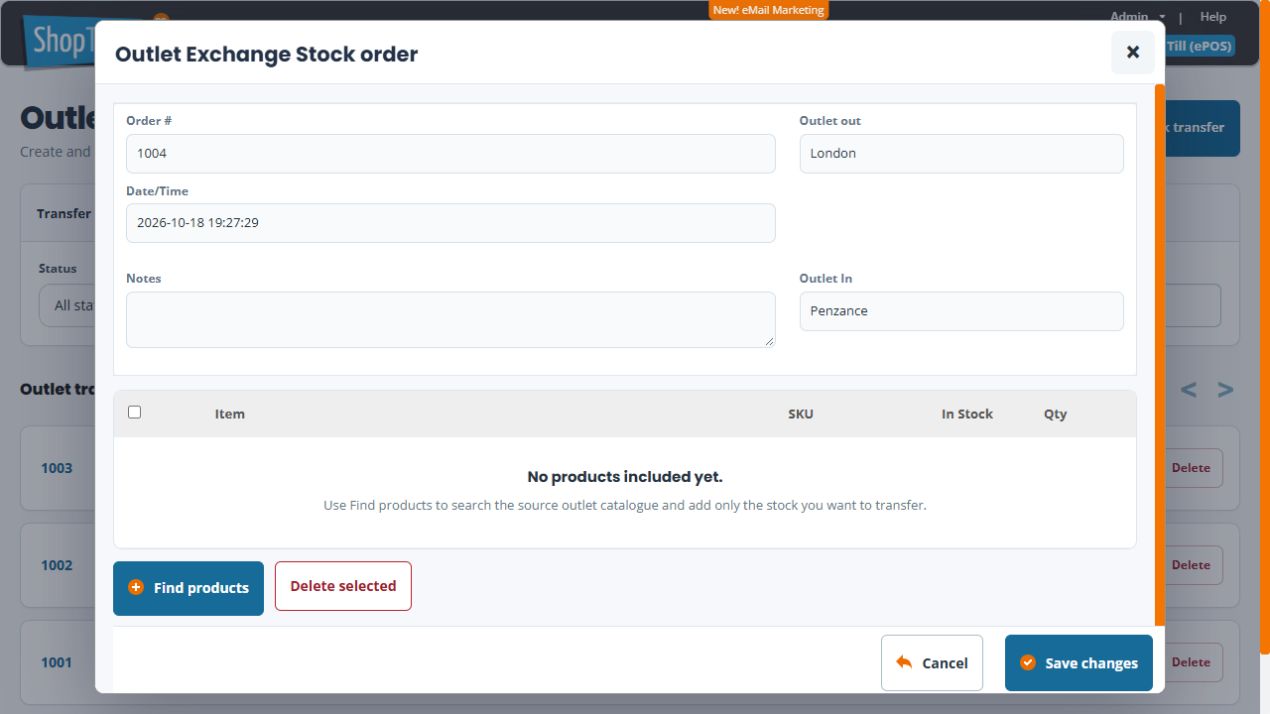
Check the empty draft and direction
After Create Order, review Outlet out as the source and Outlet In as the destination again. A new draft starts with No products included yet. Use Find products to choose the intended stock; the empty list is not a reason to recreate the draft.
Add and review the items
- Confirm Outlet out, Outlet In, the transfer reference and Notes.
- Select Find products. In Add products, type a distinctive part of the name into Search the source outlet catalogue and wait for suggestions. The search is tied to the selected source outlet.
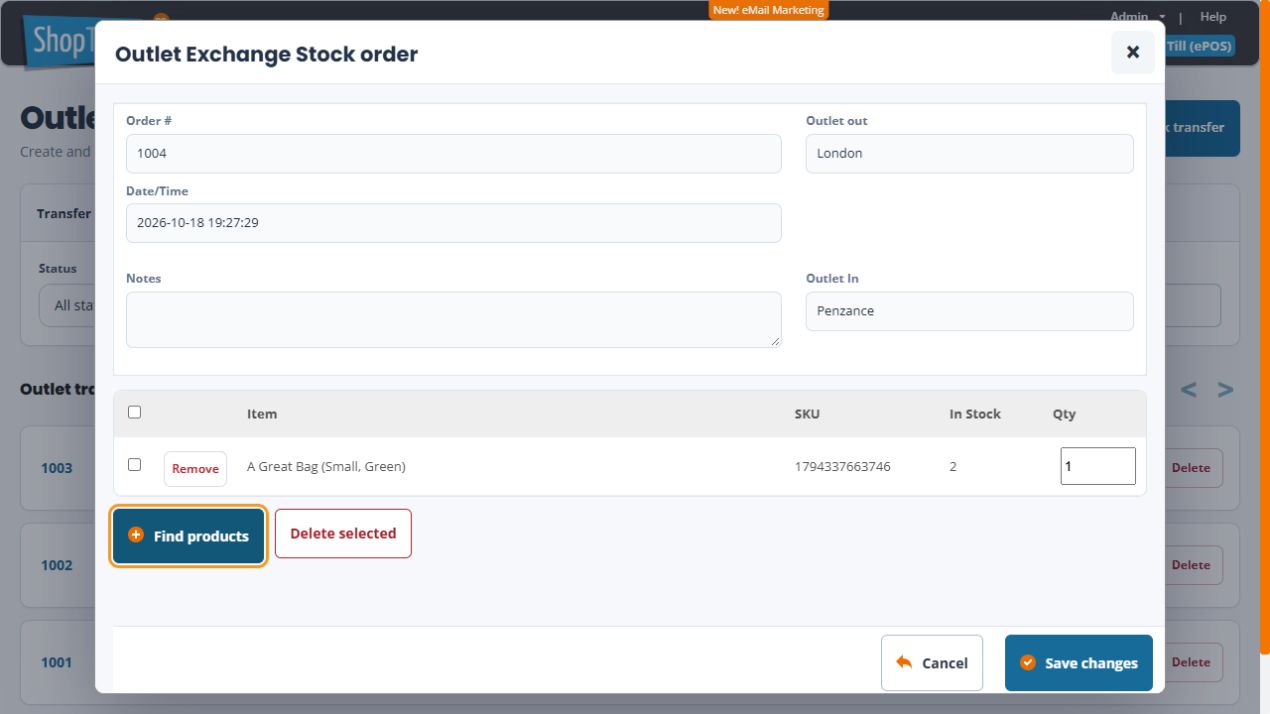
- Select the exact product or variant from the suggestions. Check Item, SKU and In Stock in the resulting row. Selection can leave Transfer quantity at zero; enter the intended quantity deliberately.
- Review all rows. Use Remove or Delete selected only for intended row removals.
- Check quantities against the actual source stock and intended movement.
- Select Save changes to record the transfer, then find it in the list and reopen it to check the saved contents and status.
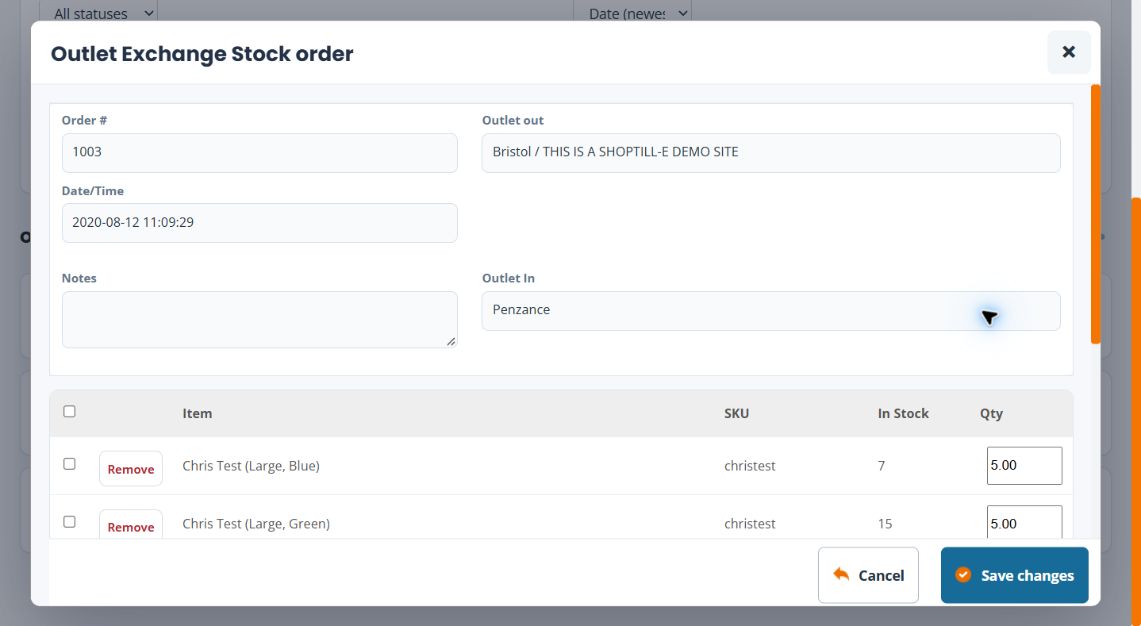
Example: four bags move between branches
For four bags moving from the main store to a branch, choose the main store as Outlet Out and the branch as Outlet In. Check the colour and size on the line as well as the SKU. Keep the transfer reference with the physical movement.
Saving and processing
Saving prepares the open transfer document. Review the saved details and follow the processing checks before marking the movement as processed.
If a product cannot be found
Check the source outlet and identifier. The source search can report that no matching product has available stock in that outlet. Review the actual product/variant holding before choosing a similar-looking item.
Remove an unsaved line deliberately
Check the exact product or option before Remove. For Delete selected, inspect the checked rows first. These changes prepare the editor’s remaining lines for Save changes. Cancel leaves without another form save; it does not reverse an earlier successful save or processing action.
Related help
Find and review transfers · Check source stock.
Example: prepare one of two available units
For a London-to-Penzance draft, choose London as Outlet Out and Penzance as Outlet In. If the selected Small/Green row shows In Stock 2 and you intend to transfer one, enter 1 in that row’s quantity. Check the SKU and physical movement separately; selecting a product or entering the draft quantity does not complete the processing task.
Keep or remove an unsaved row
Choose the row’s Remove control only for an item you intend to leave out. In Delete row?, choose No to keep the row or Yes for the intended removal, then check the remaining rows. This row action is separate from deleting a saved transfer document. Use the draft’s Cancel if you were only preparing or reviewing it and do not intend another save.