Review and process an outlet stock transfer
Processing is the transfer stage that applies the stock movement. Review the source, destination and quantities first.
Check the saved transfer
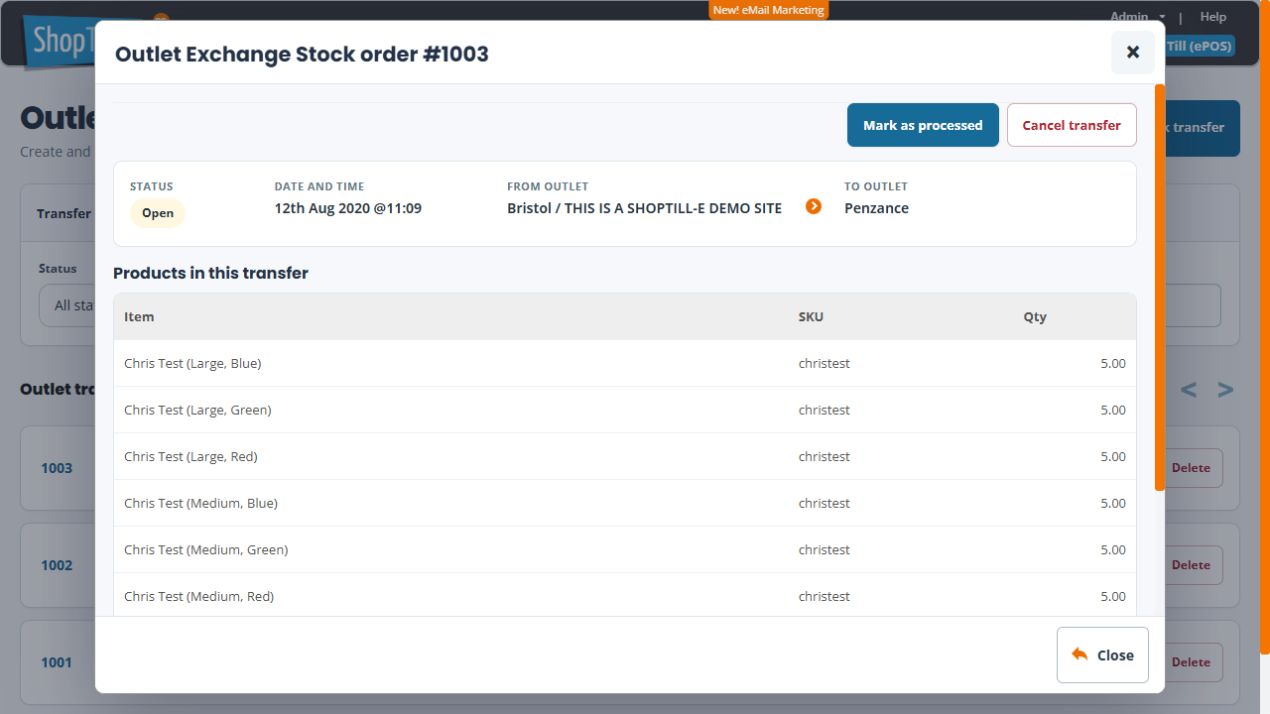
- Find the intended record in Outlet Stock Transfer and select View.
- Confirm the transfer number and Status.
- Check From outlet and To outlet, then the items, SKUs, variant descriptions and quantities.
- Compare the source holding with the physical goods being moved. Check the destination holding so the expected result is clear.
- Resolve differences before processing an open transfer.
Process the intended movement
- For the reviewed open transfer, select Mark as processed.
- Review Mark as processed? and proceed only for the intended movement. Choose No if you do not want to process it, then check the transfer’s displayed status again.
- Reopen the record and check its status.
- Check the affected product or variant at both locations and retain the transfer reference.
Example: compare both sides
If the source has ten units and the destination has three, an intended transfer of four units should leave six at the source and seven at the destination, assuming no other movements occur. Compare both sides for the exact option rather than a shop-wide total.
Processed transfers and corrections
The current processing flow accepts open transfers. Processed transfers are protected from ordinary cancellation or deletion; returning the goods requires a separate return movement. Keep the original reference when planning that correction.
Cancellation needs its own review
Cancel transfer opens a separate confirmation with Put items back into stock? and final cancellation choices. Review the stock choice already selected and the actual stock/movement history before continuing. The No choice beside the stock question is separate from declining the cancellation itself.
To keep the transfer open without cancelling it, choose No, I don’t want to cancel the order. If the stock history or the effect of the restoration choice is uncertain, leave the cancellation unconfirmed and ask support to review the transfer reference and holdings.
If processing is uncertain
Inspect the saved status and stock at both locations before retrying. Record the transfer, product/variant, quantities and any error so support can establish which part completed.
Related help
Prepare a transfer · Check outlet holdings.
Review without changing the transfer
Check the Outlet Exchange Stock order # heading, Status, From outlet and To outlet, then each option description and quantity. Several option rows can share the same base SKU, so compare the colour and size as well. Choose Close when you only needed to inspect the record.