
Edit homepage banners in Heathers
This guide describes the Heathers theme controls. Open WebShop → Choose your Theme, identify the intended storefront’s Current theme and select Edit settings. Other themes can offer different fields.
Prepare the images
The Heathers banner tabs say images should be 2400px wide and all the same height. Keep that guidance with this theme; check another theme’s own instructions before using the same dimensions there.
Edit a banner
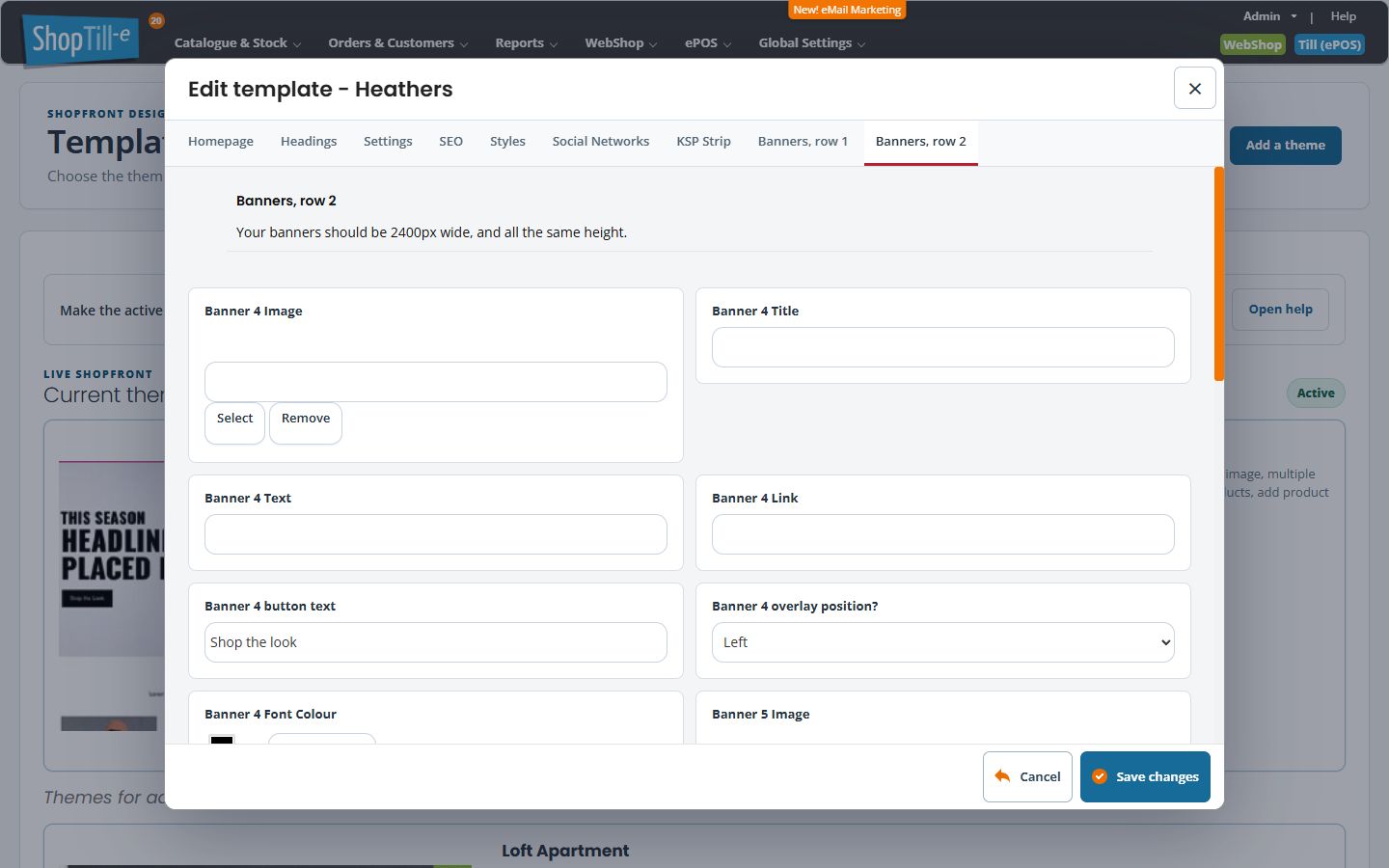
- Choose Banners, row 1 for banners 1–3, or Banners, row 2 for banners 4–6.
- Find the intended numbered banner.
- Review its Image and Select/Remove controls.
- Update the banner’s Title, Text, Link and button text as needed.
- Review overlay position?, with Left or Right choices, and Font Colour.
- Check that the link destination matches the advertised range before saving.
Example: link a seasonal banner
Use a clear heading, short button text and the intended category or collection address. Test the destination, then check that the text remains readable over the image on desktop and mobile.
For an intended update, use Save changes, reopen the settings and check the relevant storefront on desktop and mobile. Use Cancel when you only need to review the settings.
Check the numbered banner as a whole
Each banner has seven related choices: Image, Title, Text, Link, button text, overlay position and Font Colour. Review all seven for the intended banner number before saving. Removing an image selection is separate from deleting an image from the shared library; preserve useful artwork before library removal.
One save across the theme tabs
Homepage, Headings, Settings, SEO, Styles, Social Networks, KSP Strip and the banner tabs belong to the same settings form. Switching tabs does not save. Review changes across all tabs before Save changes, then reopen the correct theme and inspect its storefront. Cancel or Close leaves without another settings save; it does not reverse an earlier save or independent image-library action.
If the banner looks wrong after saving
- Confirm the intended storefront’s Current theme is Heathers and reopen its settings.
- Check the correct banner number: row 1 contains 1–3 and row 2 contains 4–6.
- Compare the saved Image, Title, Text, Link, button text, overlay position and Font Colour together. A correct image does not establish that its link or overlaid wording is correct.
- Compare image dimensions with the theme’s width and equal-height guidance, then inspect the actual homepage at desktop and phone widths.
- If the stored settings and storefront differ, keep the storefront address, banner number and affected fields for support. Avoid deleting shared artwork or changing unrelated theme tabs while investigating.
Related help
Find your active WebShop theme before changing a banner. For other Heathers settings, see Edit colours and fonts in Heathers and Edit the Heathers homepage introduction.
