
Edit the Heathers homepage introduction
This guide describes the Heathers theme controls. Open WebShop → Choose your Theme, identify the intended storefront’s Current theme and select Edit settings. Other themes can offer different fields.
Edit Homepage
- Choose the Homepage tab.
- Review Logo position in header?: Left or Centre.
- Review Homepage Intro Image and its Select and Remove controls.
- Choose Intro image position?: Left or Right.
- Update Homepage Title and the introductory text beneath it.
- Check the intended text and image positioning before saving.
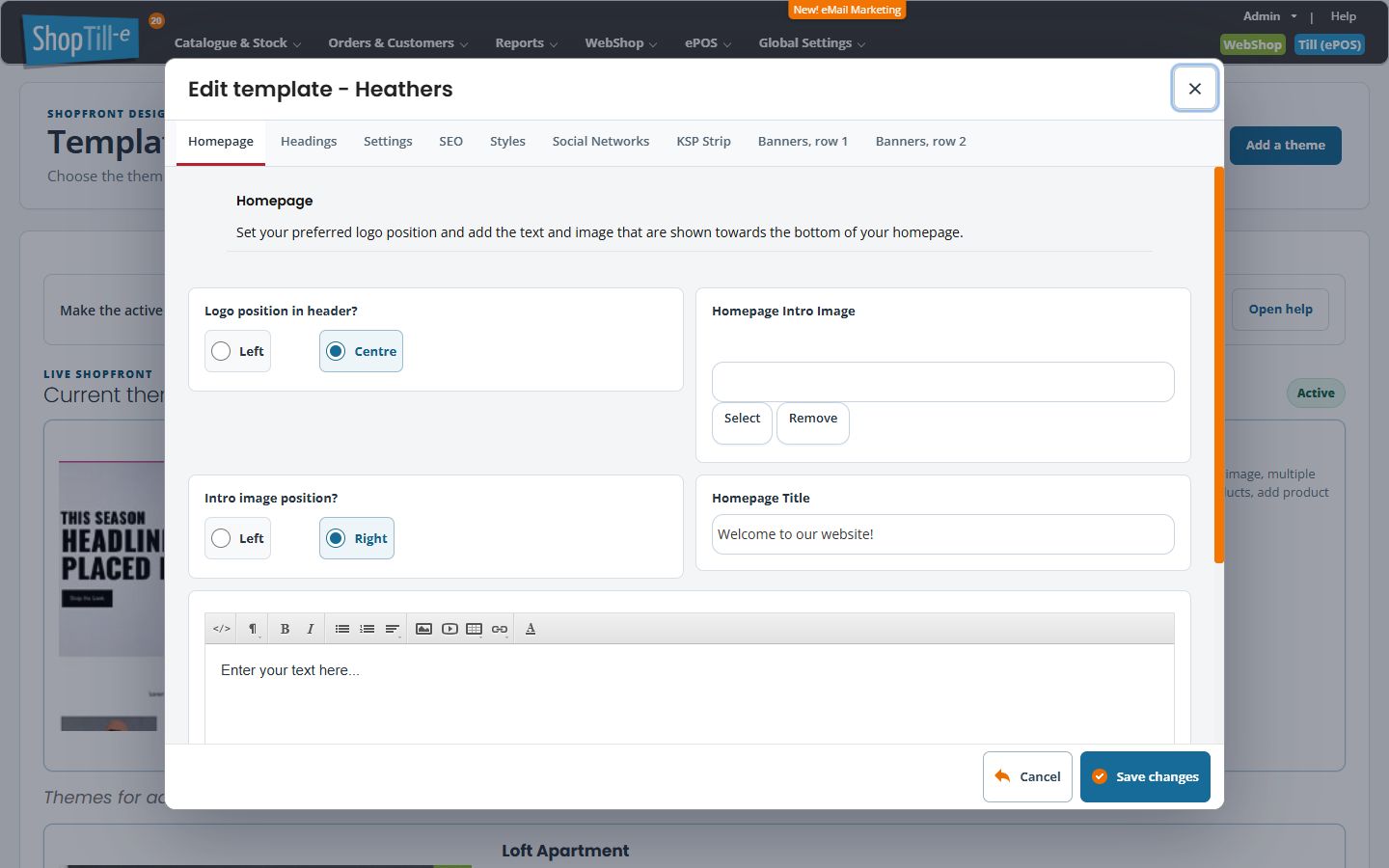
Example: introduce a new range
Use a short title and a useful paragraph explaining the range. Keep product-specific availability or prices accurate, and choose an image that remains understandable beside the text on a smaller screen.
Logo artwork versus its position
This tab controls position. To change the actual business logo file, use Shop logo in General settings. These are separate changes.
For an intended update, use Save changes, reopen the settings and check the relevant storefront on desktop and mobile. Use Cancel when you only need to review the settings.
Logo and introduction positions
Logo position in header? offers Left or Centre. Intro image position? offers Left or Right and affects a different element. Check each setting by its full label rather than treating every Left control as the same alignment choice.
Use rich-text instructions for the introduction, then inspect the saved homepage at desktop and phone widths.
One save across the theme tabs
Homepage, Headings, Settings, SEO, Styles, Social Networks, KSP Strip and the banner tabs belong to the same settings form. Switching tabs does not save. Review changes across all tabs before Save changes, then reopen the correct theme and inspect its storefront. Cancel or Close leaves without another settings save; it does not reverse an earlier save or independent image-library action.
If the homepage has not changed as expected
- Check that you edited the Current theme for the intended storefront and used Save changes.
- Reopen Homepage and compare the saved title, text, selected image and both position controls.
- If the logo artwork is wrong, review Shop logo in General settings; Logo position in header changes placement rather than selecting a new file.
- Open the actual homepage at desktop and phone widths. Check text wrapping and the image beside the introduction rather than judging the editor alone.
- If saved settings and the storefront still differ, keep the storefront address and affected theme/field names for support. Avoid changing unrelated theme tabs while investigating.
