
Create an image gallery
Create an image gallery for a collection of photographs that customers can view together. The gallery details, photographs and navigation link are separate parts of the setup.
Prepare the collection
- Choose the intended storefront and a clear collection title.
- Prepare an introduction explaining what the images show.
- Keep original photographs, intended order and caption notes available.
- Review existing galleries so you do not duplicate the intended collection.
Create and check the gallery record
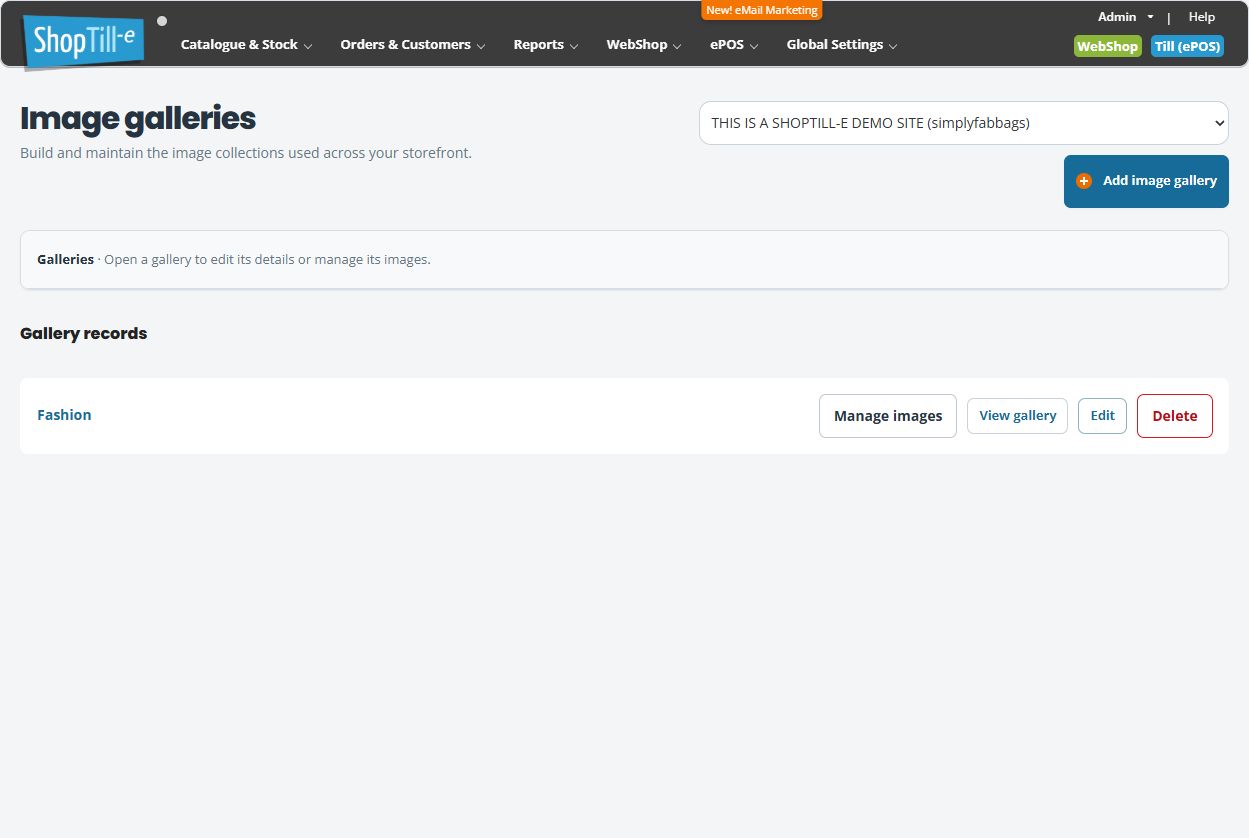
- Open WebShop → Image Galleries and check the storefront selector.
- Choose Add image gallery.
- Enter the required Gallery title and the Gallery description.
- Review the wording. Choose Cancel to leave without creating it, or Save changes & close when you intend to create the gallery.
- Find the saved gallery in the directory. Use Edit to review its generated Gallery URL under /galleries/.
- Use View gallery to check the actual address and presentation. Do not assume saving creates an unpublished draft awaiting a separate Publish step.
Add photographs and make it discoverable
- Choose Manage images beside the saved gallery and check its title.
- Follow the image upload, ordering and caption steps. Check the saved photographs rather than just the progress display.
- Open View gallery and review the introduction, image order and caption presentation.
- If customers need a menu route, add or review the navigation link to the saved gallery address.
- Test the actual menu link and gallery on the intended storefront and a smaller screen.
Example: a seasonal display
A “Summer display ideas” gallery might begin with an overview followed by detail photographs. Create the introduction, upload the photographs, arrange their sequence and caption similar views. Then check the storefront link rather than assuming a new gallery automatically appears in every menu.
If something is missing
Confirm the storefront, saved gallery and actual address. If the gallery exists but customers cannot find it, inspect the navigation link separately. If an image or caption is missing, reopen Manage images and inspect that content before uploading it again.
Edit gallery details and address · Manage photographs and captions.
