
Manage gallery images and captions
Use Manage images for the content inside a gallery. Check that you opened the intended gallery before choosing files or moving images.
Open image management
- Open WebShop → Image Galleries.
- Select Manage images beside the intended gallery.
- Check the gallery name shown under Manage images.
- Use Choose images when you intend to add files, then review the upload workflow before starting it.
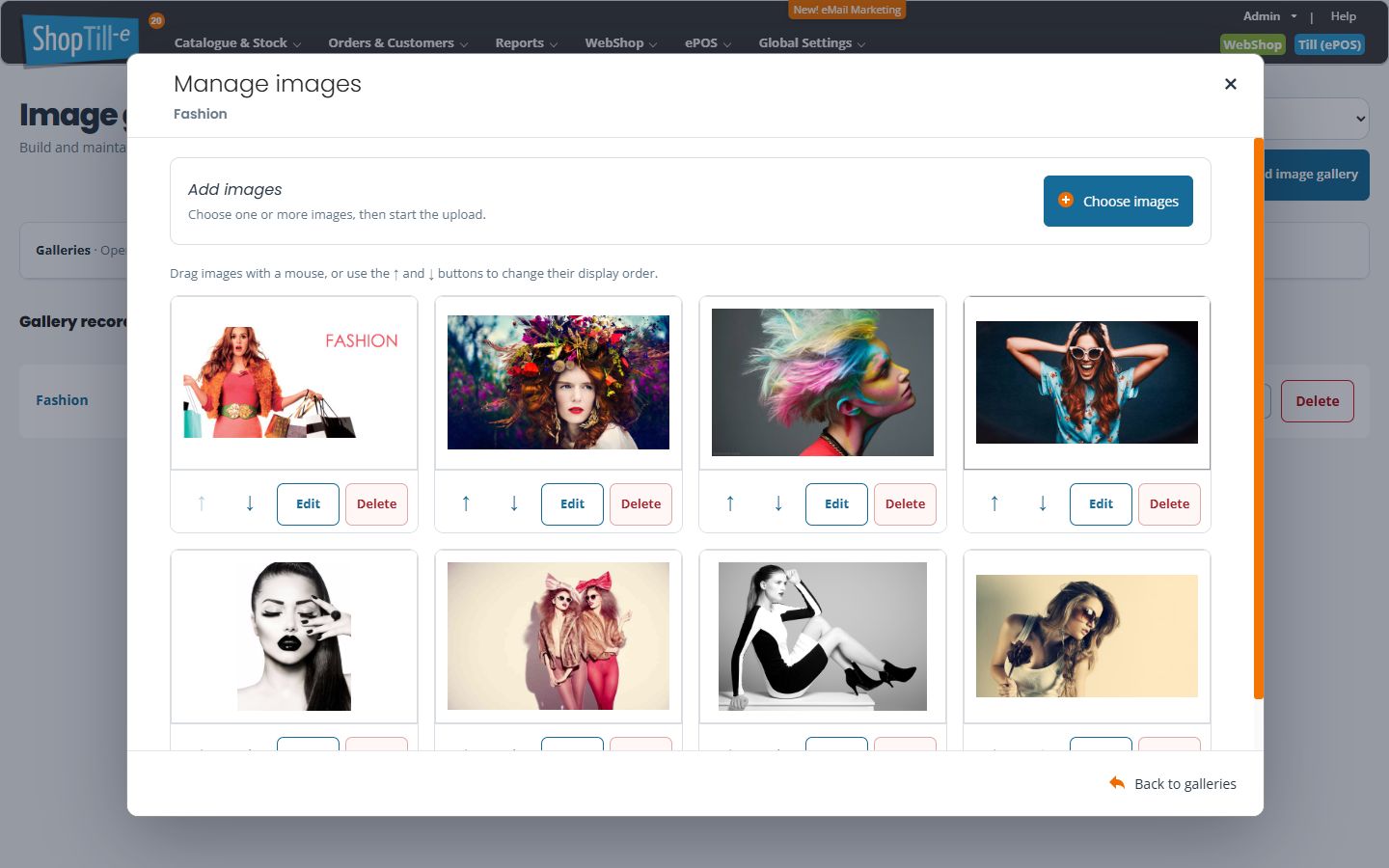
Order and caption images
The page offers mouse dragging and ↑/↓ buttons for display order. For a caption, select the image’s Edit, enter the Caption and choose Save changes for the intended update.
Example: put an overview before details
A gallery can be easier to understand when an overview image comes before close-ups. Use clear captions to distinguish similar views, then test the gallery’s displayed sequence.
Leave the manager
Use Back to galleries to return to the directory. Check View gallery after an intended update. Delete gallery image is separate from editing its caption or changing its position.
Choose files, review the queue, then upload
- Keep original photographs separately. Use genuine JPEG, PNG or GIF images suitable for the gallery.
- Choose Choose images and select the intended files.
- Review the queued filenames and sizes. Use a file's Remove button to leave it out before starting.
- Choose Start upload when you intend to add those images to this gallery.
- Wait for the operation and review any file-specific error. Reopen the gallery's image manager and compare the actual image cards with your intended files.
- Check the public gallery after arranging the order and captions.
Cancel upload clears the queued selection and hides its area. Do not treat it as an undo of files already received, or assume closing the manager reverses an active upload. Inspect the actual gallery before retrying an interrupted batch. Uploading the same photograph again can add another image.
Image moves save independently
Dragging an image or using its up/down control sends an order change. Wait before another move; controls can be unavailable while saving or at the first/last position. You do not need to save the gallery's title/description to submit this order change.
If an order error says the previous order was restored, reopen the manager and check the actual saved order before repeating the move. Return with Back to galleries and check View gallery afterwards; leaving the manager does not undo a move already saved.
Edit one caption
- Check the photograph and choose its Edit action.
- Enter a concise description in Caption, such as “Navy leather bag — side view”.
- Choose the caption dialog's Save changes for the intended update, or Cancel to leave without saving that caption edit.
- Reopen the caption and check punctuation and text. View the gallery and any enlarged-image presentation to check where the caption appears.
A caption is separate from the gallery introduction and filename. Do not assume a caption automatically supplies alternative text in every theme.
Delete the intended image only
Use Delete gallery image on the correct image card and read Delete Image?. Cancel if you selected the wrong photograph. Confirm only when that image should be removed, then reopen the gallery and check the remaining content. Keep original files and captions; do not rely on the gallery details editor's Cancel button or an automatic Undo to restore deleted images.
Check each kind of change
| Change | Action to review |
|---|---|
| Title, address or introduction | Save the gallery details editor. |
| New photographs | Start upload, then check the actual image cards. |
| Image order | Moving an image submits its order change; check the saved sequence. |
| Caption | Save changes in that image's caption dialog. |
| Remove a photograph | Review and confirm that image's Delete Image? prompt. |
Edit gallery details and address · Create a gallery.
Check the enlarged-image presentation
- Open the intended gallery on the actual storefront after an intended update.
- Select a thumbnail and check the enlarged photograph where your theme provides that viewer.
- Use the viewer’s Next and Previous controls where available, comparing the displayed image and position with the sequence you intended.
- Check any caption in the presentation where it should appear. A photograph being visible does not establish that a new caption was saved or that every theme uses it as alternative text.
- Use Close to return to the gallery thumbnails.
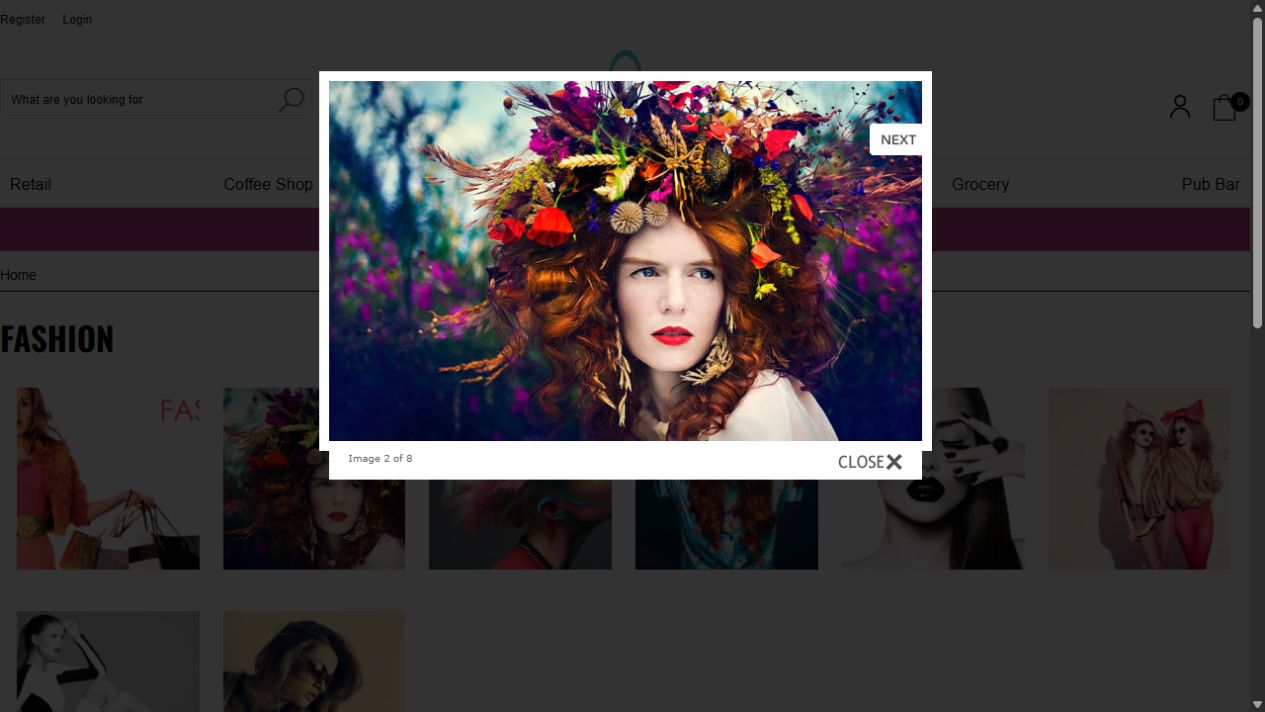
If a thumbnail opens differently
Check the intended storefront, active theme and the photograph’s actual destination. Keep the gallery address and browser/device with the enquiry. Do not upload the same files repeatedly merely because the enlarged presentation or caption differs from the editor.
