
Create a featured product list
Create a product list when you need a featured range for a storefront section. Decide whether staff will choose its products or the system will choose recent additions. Creating a list and placing it in the homepage layout are separate parts of the task.
Plan the range
- Check the intended storefront and active theme.
- Review existing lists so you do not create another list for a section already in use.
- Choose a clear purpose, such as hand-picked seasonal gifts or recent additions.
- For a regular range, keep the intended product names/SKUs and order available for comparison.
Prepare the new list
- Open WebShop → Product Lists and choose the intended Storefront.
- Choose Add new product list.
- In Select Product List, choose the intended available template list, or Create custom product list for your own range.
- For a custom list, enter its Title. For a supplied choice, check the selected title and purpose.
- Choose Type: Regular list (you can add products manually) for a hand-picked range, or Recently added products for an automatically selected recent range.
- Enter a sensible positive whole number in Default number of products, appropriate for the section. Check the actual saved value and displayed count afterwards.
- For a regular list, use the product-name search, choose each intended result and arrange its rows with the drag handle or up/down controls.
- Review storefront, title, type, count and members. Choose Cancel to leave without creating it, or Save changes & close when you intend to create the list.
- Reopen the saved list. Retain its Clean identifier and check that the intended theme section references it.
- View the actual storefront section and compare its products, order and display count with your intended range.
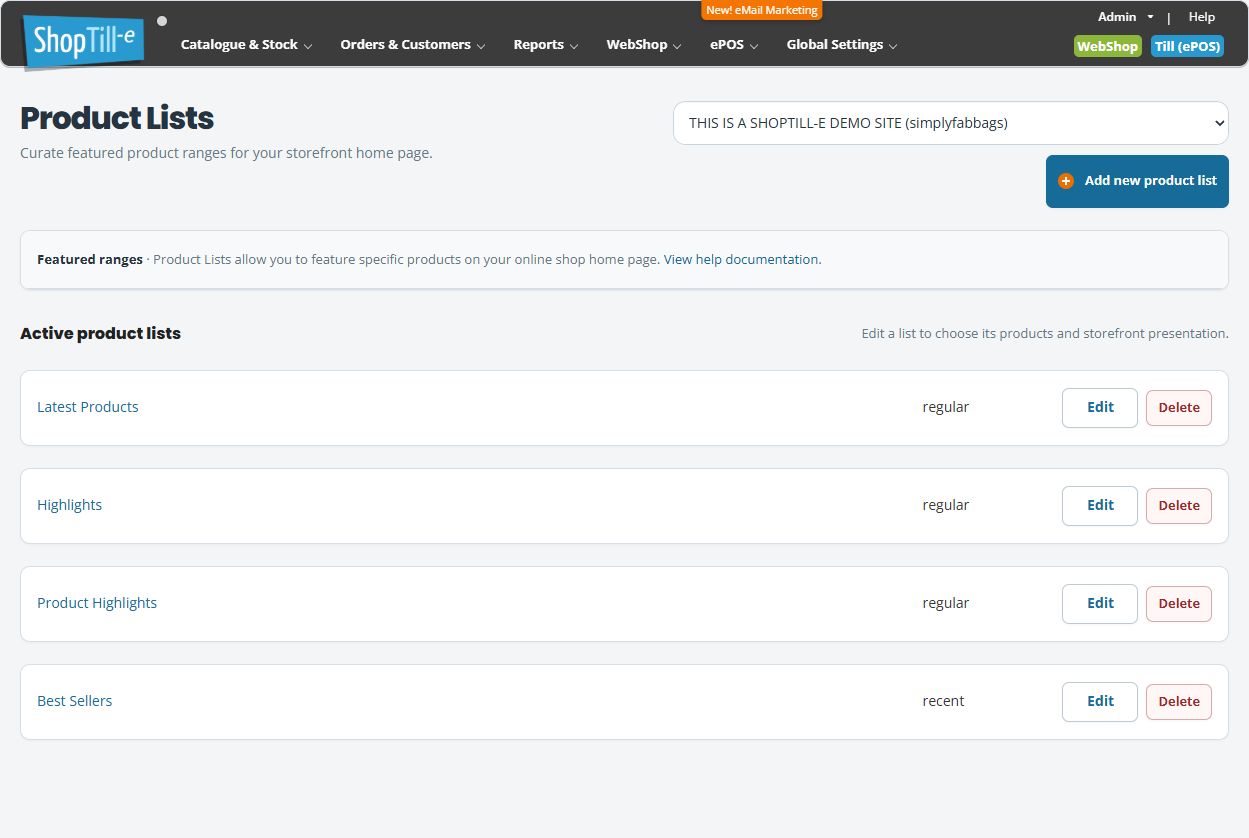
Example: seasonal gifts versus new arrivals
For a seasonal selection, use a Regular list and choose the particular gift products. For new arrivals, choose Recently added products and check the recent items it supplies. A list title describes your intention; the Type field determines which selection approach is used.
If the new list does not appear
Check the correct storefront, saved list, Clean identifier and active theme section. A custom list is not automatically a new homepage block. Review whether the theme already offers a matching section or needs its list reference configured.
If fewer products appear, check the count, product Live state, ePOS-only status and the storefront presentation. If the editor's membership differs from your intended selection, investigate before saving another change.
Edit members, order and Clean identifiers · Find your active theme · Find products.
