
View and print a subscription invoice
Use Invoice history to inspect the account document for a particular charge. Check the shop and invoice reference before treating it as the document you need.
Open the invoice
- Open Global Settings → Subscription.
- Under Invoice history, match the date, amount and displayed status.
- Choose View invoice for the intended row.
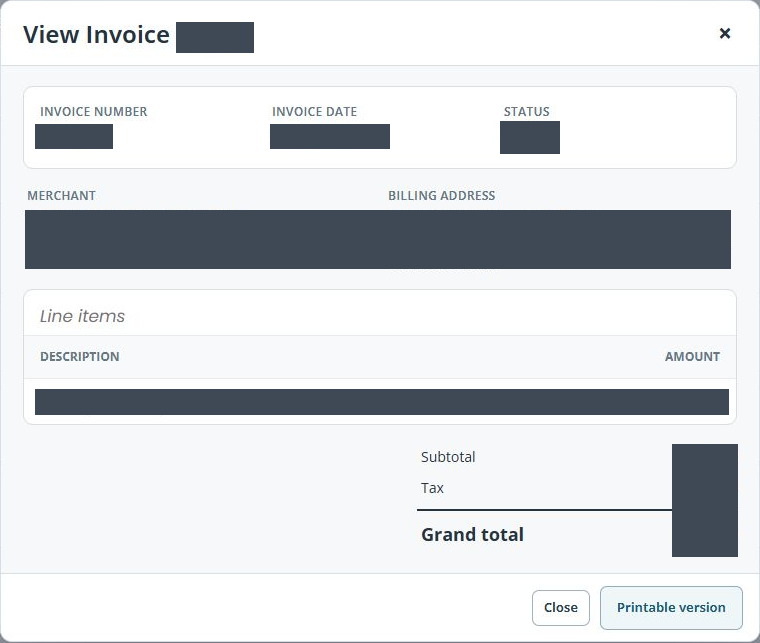
- Check the invoice number, date, status, merchant and billing address.
- Review the line-item descriptions, subtotal, tax and grand total.
Keep a printable copy
- Choose Printable version from the invoice view.
- Check the document opened is the same invoice.
- Use the browser’s print controls to print it or save a PDF where that option is available.
- Check the saved or printed copy includes the required invoice reference, line items and totals.
Example: investigate an earlier amount
Open the invoice matching the charge you are investigating and read its line items. A current subscription card or plan does not establish the details or payment outcome of that earlier invoice.
If details differ
Keep the invoice reference and describe the specific difference to support. Opening or printing an invoice does not change its billing details or settle it. Handle documents containing business or billing information privately.
Subscription overview · Payment cards.
Compare the printable document
The printable page has a different layout from the invoice dialog. Match the invoice number, date, subscription description and total rather than relying on their position on the page. Review the tax line as displayed. If the figures or billing details differ from the record you intended, keep the invoice reference and ask support to investigate before using the copy.
Check a saved PDF or physical print separately after using the browser’s print controls. Opening Printable version alone does not confirm that a usable copy has been saved or printed.
