
Understand product-line fulfilment statuses
Fulfilment Statuses provides labels for individual product units within an order. The current page explicitly states that these line statuses do not change the overall order queue.
Review the labels
- Open Global Settings → Fulfilment Statuses, also available under WebShop.
- Review the labels under Product-line statuses.
- Use Edit beside the intended label when you need to inspect its definition.
- Keep the meaning of each label clear for staff. The sample account includes In Embroidery and Ready for collection, but your labels may differ.
Example: one item is still being prepared
An order can contain items at different preparation stages. A product-line label helps staff describe an individual item’s progress without assuming that the entire order has moved to a different queue state.
Before changing the vocabulary
The page offers Add new status and Delete controls. Review which existing order items use a label and how staff interpret it before renaming or removing it. Plan a clear replacement rather than losing the meaning of historical records.
Check the intended outcome
If you need the whole order’s status to change, investigate the order workflow rather than expecting a line label to do it. If a collection message should be sent, check its own trigger separately; a status name alone does not prove a notification was sent.
Find the order · Review notification template purposes
Add a product-line status
- Select Add new status.
- Enter the intended Status, using a clear label of 1–100 characters.
- Select Save changes.
- Check the new label in Product-line statuses and confirm staff understand when it should be used.
For example, a label such as In embroidery describes an individual item's preparation stage. Creating the label does not put any existing item into that stage.
Rename or remove a status
- Identify the exact existing label and review the affected order items before changing its meaning.
- For a rename, select Edit, update Status and select Save changes. Recheck the label and a relevant existing order.
- For removal, select the intended Remove control, review the confirmation and cancel if the affected records or replacement process are uncertain.
- After an intended removal, check the status list and how the relevant existing order items are displayed.
Cancel closes the editor without another save. Renaming or removing a label does not establish that an overall order status changed or a collection message was sent. Keep a record of the old label when changing staff vocabulary.
If the setting is unavailable
This feature may not be enabled for every shop or available to every staff account. Ask your administrator or support about the intended access instead of assuming another user's screen will match yours.
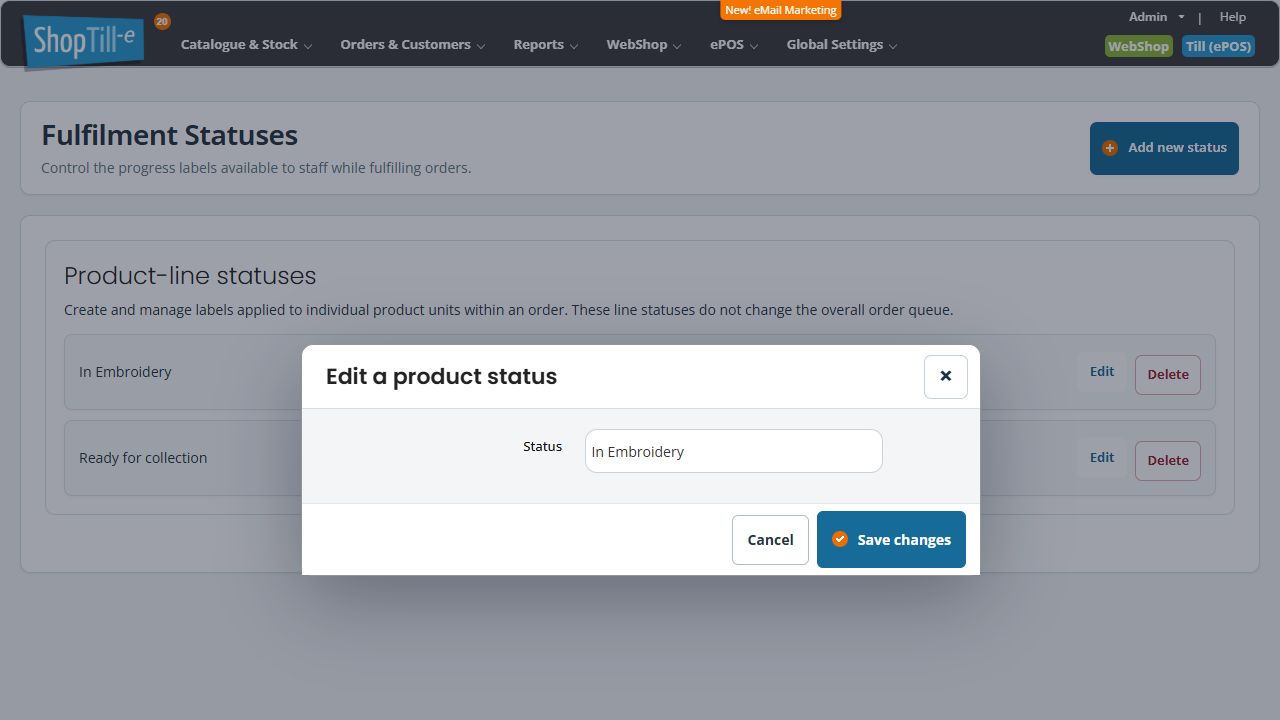
Review a label without saving it
Use Cancel if you are only inspecting the editor or have typed a label you do not intend to create. Check the list afterwards. Before an intended rename, consider how staff will interpret the same label in existing work; keep the previous wording with your change record.
If the order has not moved
Check whether you changed an available label, assigned a label to an individual unit or carried out an overall order action. Those are different steps. Find the exact order and item before deciding that a status has failed, and check any required collection notification separately.
