
Run a sales report for a period
Use the Sales report to review a defined period and sales scope. Choose the same filters when comparing two results so differences in scope are not mistaken for changes in sales.
Run the report
- Open Reports → Daily Totals.
- Check that Report type is Sales.
- Enter the start and end of the Date range, including the intended times.
- Choose Display. The screen offers All sales, ePOS sales, Web sales and Transactions.
- Choose Payment method if you need a particular payment category, or include All.
- Choose Object for the relevant outlet or WebShop, or include All.
- Select Run report. Check the resulting scope before comparing figures or passing the result to someone else.
Refine the open Sales Report
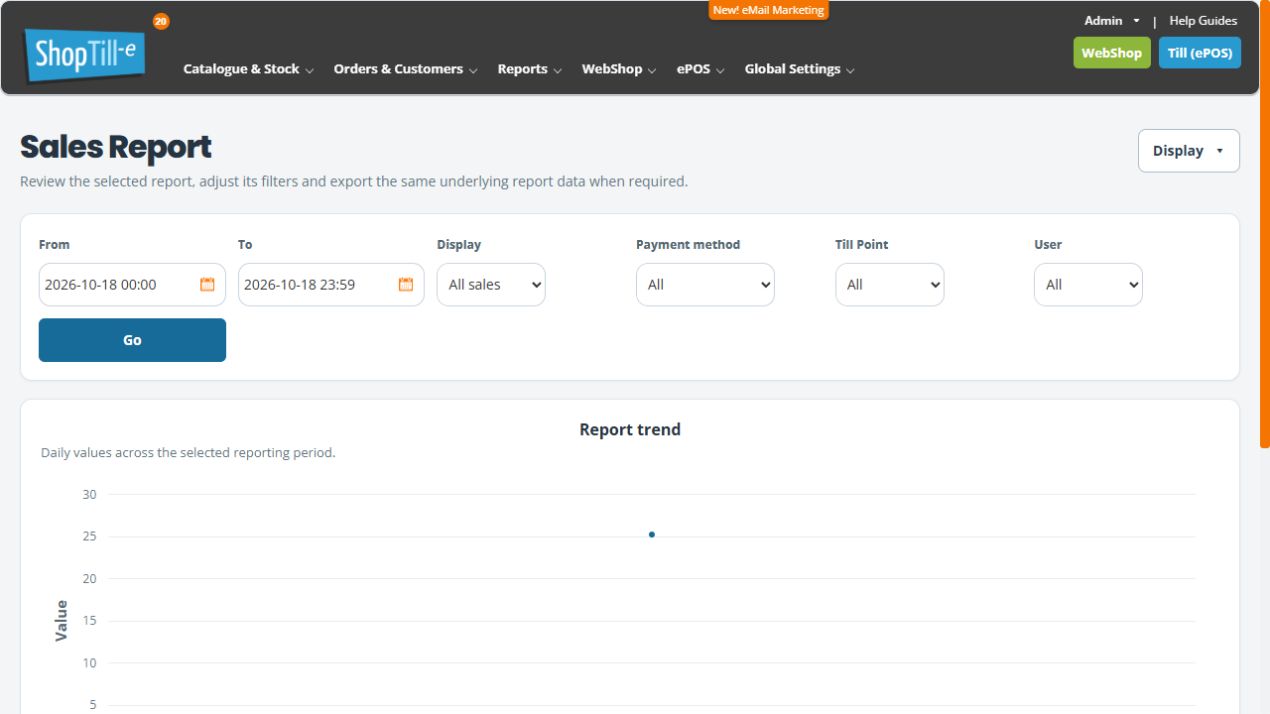
- After Run report, check the Sales Report heading and the displayed From, To, Display and Payment method choices.
- Review the additional Till Point and User filters where offered. Leave All only when that is the intended scope.
- After changing a result-page filter, choose Go to run it again. The previous results can remain visible while you have an unapplied filter change.
- Check the newly returned date rows, columns and Totals before comparing results. If a required scope choice is not offered on the results page, return to the report chooser and re-enter the complete intended scope.
Read the table and export deliberately
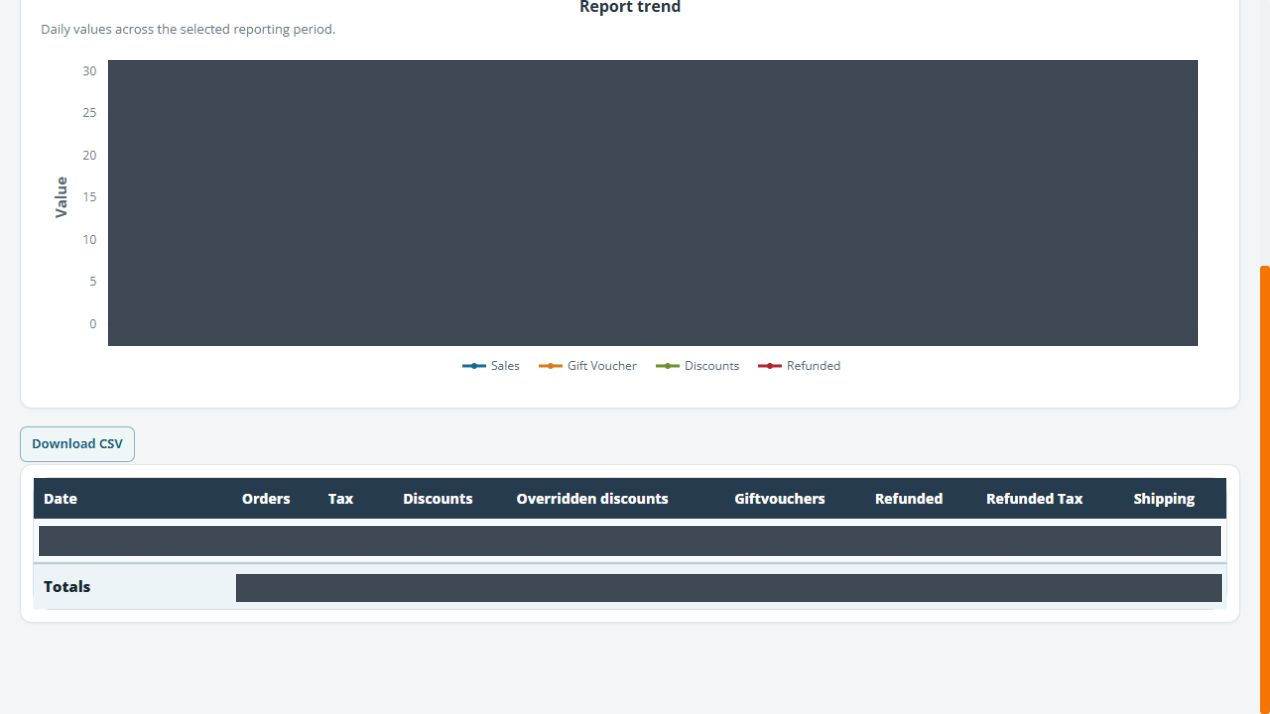
The Sales Report has daily rows and a Totals row. Read the column heading and units together: Orders is shown as a currency value on this report, rather than the number of orders. Tax, Discounts, Overridden discounts, Giftvouchers, Refunded, Refunded Tax and Shipping are separate displayed columns; do not substitute one for another.
Download CSV is offered on the result page. Apply the intended filter changes with Go first, then inspect the downloaded file and its columns against the report scope before using it. For individual order references, use the Sales Order Detail Report.
Check tax separately for mixed-payment orders
If an order was paid using more than one tender, selecting one Payment method is not evidence that its Tax has been proportionally allocated to that tender. Compare the relevant original orders and payment records before using payment-filtered tax figures for reconciliation. The CSV comes from this report; downloading it is not an independent check of the tax allocation.
If the figures cannot be reconciled, keep the date range, full filter selections, order references and displayed/CSV amounts for support. Resolve the difference before using those figures in accounting or tax records. An unfiltered result also needs its own reconciliation; changing to All is not proof that the report has been fully validated.
Example: compare branch cash sales
Choose the intended day, ePOS sales, Cash and the relevant outlet. Use the same date boundaries, location and payment scope for the comparison period. Keep those choices with the figures so the comparison can be reproduced.
Choose the report for the question
The Report type list includes sales, transactions, products, vouchers, stock, on-account activity and other reports. A sales summary and a payment transaction report answer different questions. For order and product-line export, use Sales Order Detail Report.
If two totals do not match
Compare the report type, dates and times, channel, payment method and Object. Check how refunds, cancellations and other transaction types are handled in the report you are using. Ask support about a specific discrepancy with the exact filters and relevant order references.
X and Z reports are also listed in the report selector. Use the X/Z controls guide to locate and review them. A generated report does not by itself establish that cash reconciliation or a shift close is complete; follow your shop’s agreed cash-count and closing procedure separately. Use the ordinary Sales report for a date-range sales query.
Check dates, objects and payment scope together
Before Run report, review start and end times as well as the day. Compare the same Object and channel when reviewing two periods. A report filtered to one payment method need not equal an all-sales result, and a sale’s fulfilment status is separate from the movement of money.
If the same applied scope produces unexplained differences, keep the exact filters, date rows and column values for support and reconcile them before using the figures in another document. Check the downloaded file’s actual columns; use Sales Order Detail when you need individual order references.
