
Export sales order details to CSV
The Sales Order Detail Report combines order and product-line information for CSV export. Decide whether you need the full filtered result or only specific orders before downloading.
Set the report scope
- Open Reports → Sales Order Detail Report.
- Enter the intended From and To dates and times.
- Choose Display: All sales, ePOS sales or Web sales.
- Select the required Status, or include all statuses for a broader investigation.
- Select Run report and check the preview against the period and scope you intended.
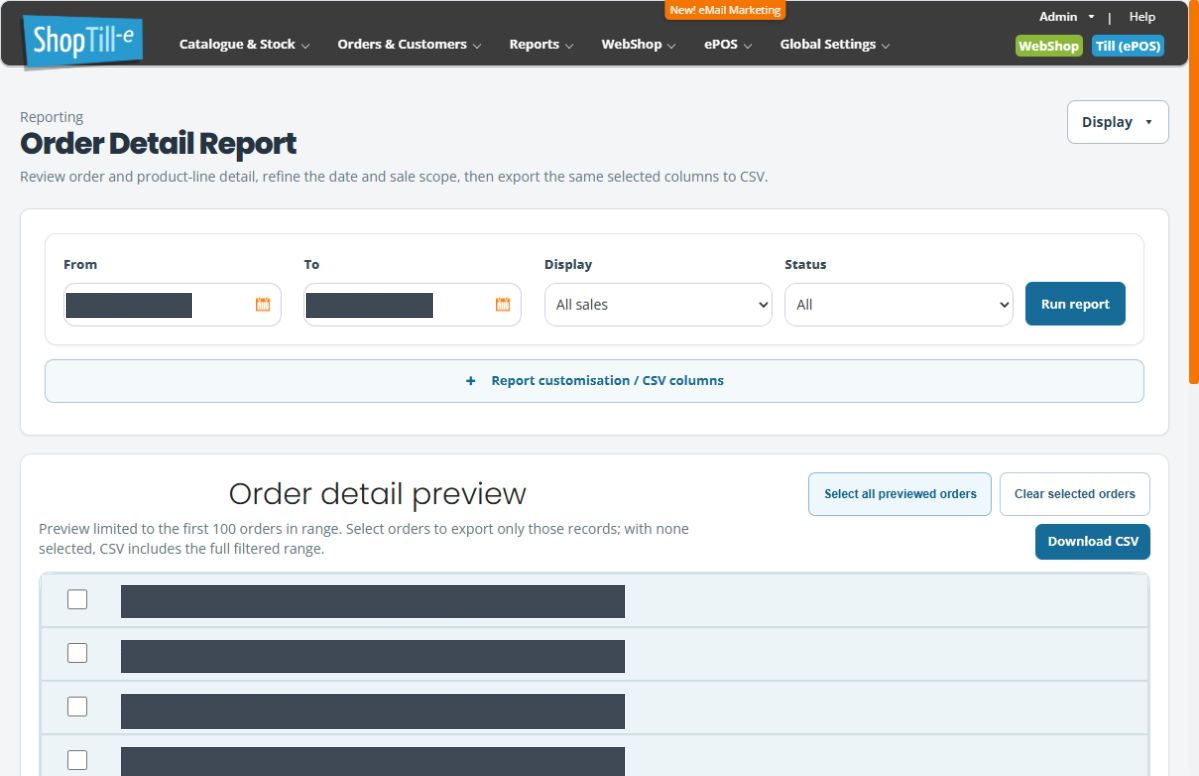
Choose all filtered orders or specific orders
The on-screen guidance says the preview is limited to the first 100 orders in range. With no preview orders selected, the CSV includes the full filtered range. Selecting orders exports only those selected records.
- For the full filtered range, use Clear selected orders so no preview records remain selected.
- For specific orders, tick only the intended records. Select all previewed orders selects the preview rather than promising every order in a larger range.
- Open Report customisation / CSV columns when you need to review the available export fields.
- Select Download CSV, then check the downloaded file’s period, order identifiers and columns before using it.
Example: one month of ePOS product lines
Choose the month’s start and end times, set Display to ePOS sales and choose the intended status scope. Run the report, clear selected orders and download the CSV. Do not select all previewed orders if your intention is every matching order in a period containing more than the preview limit.
If the export looks incomplete
Check selected rows first, then dates, channel and status. When comparing CSV lines with the preview, remember that one order can contain several product lines. Keep the exact filter and column choices with your export so another person can reproduce it.
What clearing a selection means
With no orders selected, Download CSV uses all orders matching the report filters. Clear selected orders therefore does not request an empty file. Select all previewed orders selects the previewed records, which may be only part of a larger period. After changing dates, channel or status, clear any old selection and review the intended scope again.
If no CSV columns are selected, the report falls back to its default columns rather than producing a zero-column file. Column choices can be remembered in the browser; check them when changing device or browser.
Related help
For an unexpected order or amount, Find an order in Builder before changing records. To choose a different reporting question, Choose a ShopTill-e report.
