
Inspect local till orders and download a recovery backup
Use the affected till when investigating locally saved orders. Its browser/device can contain records that are not yet confirmed on the server.
Review status
- Open the till’s Service control where available to your role and device.
- Review Order sync status and any warning about local storage.
- Use Refresh status to reread the status. This is separate from a queue retry or a new payment.
- Open Orders & backups and inspect the relevant local record and status.
- Compare its reference, amount and payment evidence with the actual server order when investigating a missing sale.
Understand the status scope
Pending, syncing, failed and confirmed describe local synchronisation records. Confirmed records should still be compared with the server when resolving a discrepancy. An empty list on another browser does not establish that the original till has no pending work.
Download a backup
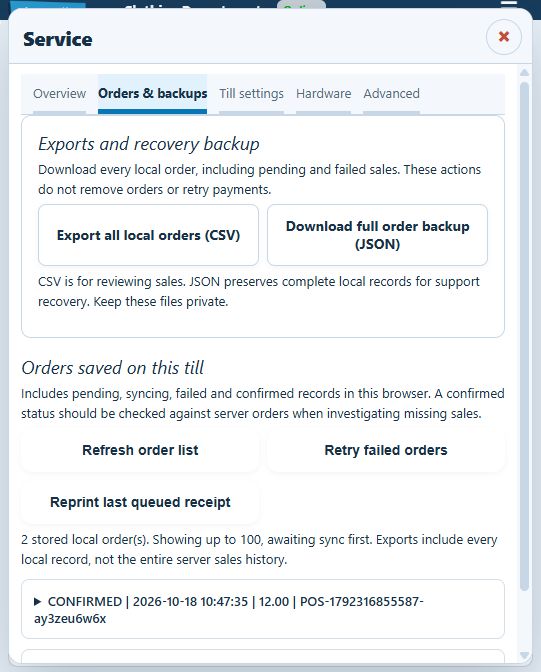
- In Orders & backups, locate Exports and recovery backup.
- Choose Export all local orders (CSV) for a reviewable sales file, or Download full order backup (JSON) to preserve the fuller local records for recovery.
- Confirm the intended file downloaded and store it securely with the till/time details.
- Keep the original local records; an export is not an instruction to remove them or replay payments.
Basket and storage reports
The Service status area also offers Download basket & storage report. Use the report appropriate to the issue and keep it private: these exports can contain transaction, customer or diagnostic information. Share it only through the support route your shop has approved.
Before retrying a failed record
Read its error and compare the server and payment outcomes first. Queue submission, recording an existing payment and initiating a new charge are different actions. Ask support to check an uncertain record before using retry or maintenance controls.
Offline status · Server order lookup.
Keep Builder history separate from local recovery
The Orders button in the till opens Builder order history. Use the device's local order and backup controls for unsynchronised work or recovery; do not assume the Builder history proves that every locally retained order has reached the server.
Find Service on a compact till
Open Show device controls, then select the button labelled with the till version and Service. Use Overview for sync status and Orders & backups for local records and exports. The displayed version changes over time.
Read an individual local record
- In Orders saved on this till, expand the entry matching the time, amount and local reference you are investigating.
- Read its status, attempts, last error and server reference where shown.
- Use the server reference to find the corresponding Builder order. Compare the actual sale and payment evidence before deciding what needs attention.
- Keep the original till records while investigating. A confirmed label alone is not proof of a bank or card-provider outcome.
If a backup does not appear
A Download started message is not confirmation that a usable file has been saved. Check the browser’s downloads and the device’s destination folder for the new file and timestamp. Keep the original local records until the file is located and support has checked what is needed. If it is missing, record the exact message, device and browser for support; do not clear storage or retry payments to make a download work.
