
Park a basket and return to it later
Park / Recall helps you set an unfinished basket aside while serving another customer. A parked basket is not a completed sale or proof of payment. Keep the original device/browser available until the work is resolved.
Park the current basket
- Review its products, options, quantities, customer and any payment already attempted.
- Select Park / Rec. On a compact screen, open More actions first.
- Enter a useful Label (optional), avoiding unnecessary customer contact details.
- Select Park and wait for the result.
- Look for the parked confirmation and check whether the current basket cleared. If the message says the current sale has been kept, inspect that state before starting another sale.
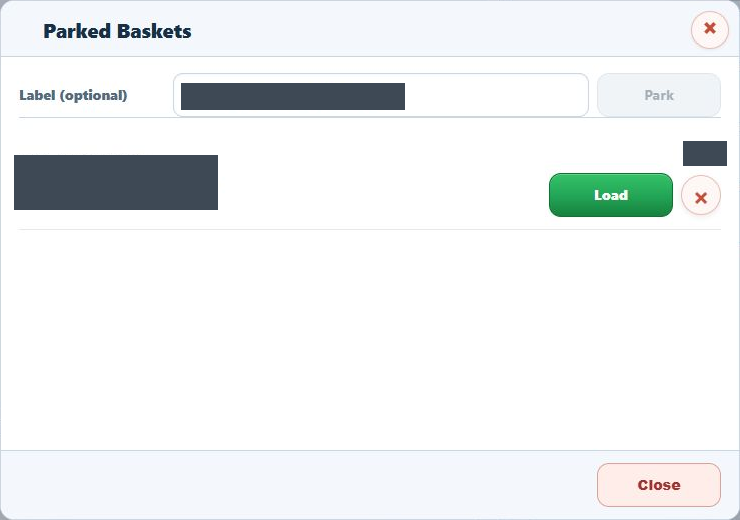
Load the intended basket
Resolve or park the active basket first. Loading another parked basket can replace the current lines without an overwrite confirmation. Do not rely on the till to merge the two baskets or preserve the active one automatically.
- Resolve or park the basket currently in use before loading another.
- Open Park / Rec.
- Compare the saved label, reference, update time and amount.
- Select Load beside the intended record.
- Check the restored customer, lines, quantities, discounts and payment state before continuing.
Example: a customer checks another item
Use an agreed label such as “Blue tote selection” so staff can distinguish it from another unfinished basket. When the customer returns, compare the saved contents rather than relying on the label alone.
If parking or loading fails
A not-parked message means you should keep the current items and inspect the error. If parking is unavailable on this device, preserve the active basket. If a card payment needs review, follow its recovery process before changing the sale.
Retention and deletion
Keep unfinished baskets on the original till while investigating them. Do not assume another device/browser has the same local list. Deletion has a separate confirmation with Keep basket and Delete basket; retention settings can also affect parked records. Review those actions separately from loading a basket.
Local order status and backups · Card-payment review.
Find Park / Recall on a compact screen
On a phone-style till layout, open More actions to reveal Park / Rec. Use the Basket tab to inspect the restored items; the Catalogue tab can remain selected after loading.
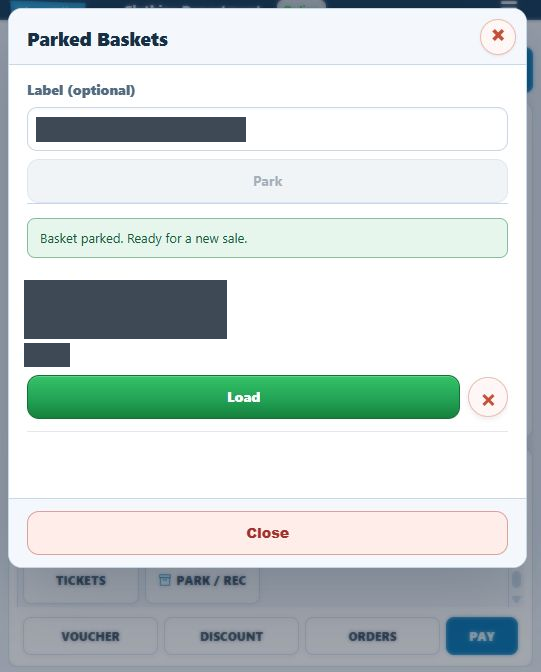
Loading and retaining a record are separate
Loading a basket can leave its record in the parked list. Do not repeatedly load the same label just because it remains there. Compare the active basket first, including its items and payment state. Removing an item from the active basket is also different from removing a retained parked record.
When the work is finished, review the parked list deliberately and follow the separate deletion confirmation only for the record you intend to remove. Keep unfinished or disputed work available while investigating it.
Example: loading over an unpaid basket
Suppose the active basket has two Carry Bags totalling £0.10, while the saved basket has one totalling £0.05. Loading the saved basket can leave one bag and £0.05 due, replacing the active quantity rather than adding the baskets together. Review every line after Load, even when the product name looks familiar.
If the active contents changed unexpectedly
- Stop before taking payment and compare the loaded reference, lines, quantities and customer with the intended sale.
- Inspect the parked list for any separately saved work, using its reference and label. A record can remain listed after loading, and its displayed update time can change; the time alone does not identify different contents.
- Do not keep pressing Load as an attempted undo. If the earlier active basket was not separately parked, do not assume another Load will restore it.
- If a payment was attempted or its outcome is uncertain, use the payment-review process before reconstructing or completing a sale. For an unresolved unpaid basket, record the known items and steps for support.
