
Add or edit a product tax class
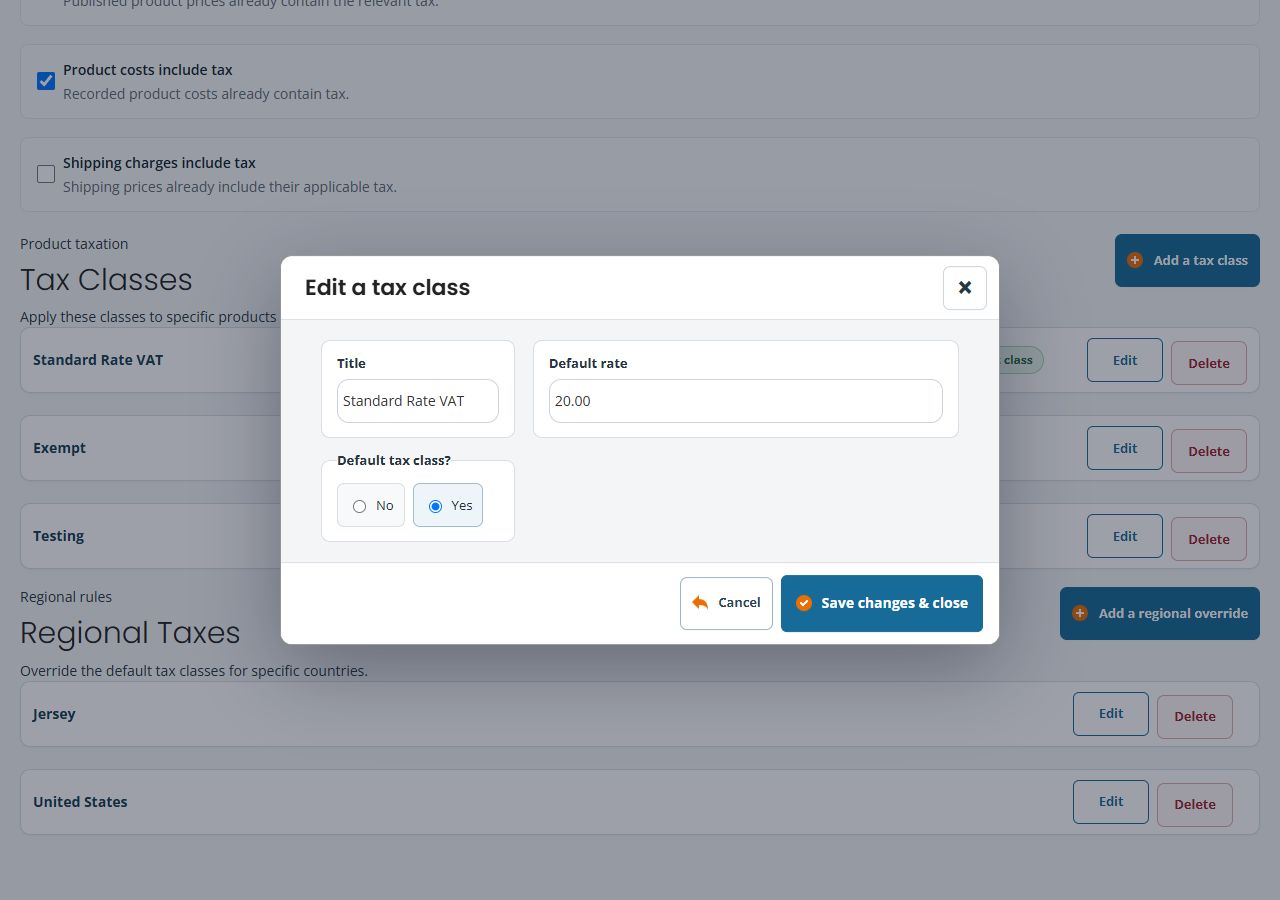
Use the tax configuration established for your business. A class’s name, its default rate and whether it is the shop’s default class are separate settings.
Open the class form
- Open Global Settings → Tax Rates & Classes.
- Review the existing Tax Classes and the class currently marked Default.
- Use Add a tax class for a genuinely new class, or Edit tax class for the intended existing class.
- Review Title and Default rate against the business-approved configuration.
- Choose Default tax class? deliberately. Choosing a new default affects the shop’s default designation; do not use it as a shortcut for assigning one product.
Save and check assignments
- Use Save changes & close for the intended change.
- Reopen the class and review the saved values and list’s Default badge.
- Open the intended product’s Advanced → Tax class and check its actual assignment.
- Review regional overrides and price-inclusion choices before comparing a representative calculated order.
Example: one differently classified product
If one product needs a different established class, check that product’s assignment first. Changing the whole shop’s default class is a different operation and may affect other unassigned/default-dependent records.
If the calculation differs
Keep the product/variant, assigned class, destination, price/cost/shipping inclusion choices and actual order calculation for support. Do not delete a class or change a rate repeatedly to force a displayed total. Review dependencies before any removal.
Regional overrides · Price-inclusion settings.
Remove an unused tax class
- Identify the exact class and record its title, rate and Default designation.
- Review products and regional overrides that use it. Arrange any intended replacement assignments before removing the class.
- Select Delete beside that class and read Delete tax class?. Cancel if its assignments or default use are uncertain.
- Confirm only the intended removal, read the result and inspect the refreshed Tax Classes list.
- Recheck affected product assignments, the Default designation and the relevant calculation.
Keep the previous configuration with your records. Do not assume the system will prevent removal of a used or default class, select a replacement for you, or restore a removed class automatically. Ask support before removing an established class when its dependencies are unclear.
Check a new class before entering values
Add a tax class opens a form with blank Title and Default rate fields. In the illustrated account, Default tax class? initially selects No. Decide whether you are creating another available class or deliberately changing the shop’s default designation; then check each field against your established configuration. Use Cancel if you only intended to inspect the form.
If the class looks right but a product differs
- Compare the class’s title and numeric rate; a familiar name is not enough.
- Check the actual product’s assigned class.
- Check the intended destination’s regional choice for that class.
- Keep the price-inclusion settings and resulting calculation with the support query.
Choose the intended default tax class
Set the class your business intends to use as its default rather than relying on an automatic fallback. This is separate from entering a class’s Default rate.
- Open Global Settings → Tax Rates & Classes.
- Under Tax Classes, select Edit for the intended class.
- Set Default tax class? to Yes and choose Save changes & close.
- Reopen the list and check that the intended class is marked Default class. Choosing a new default replaces the previous designation.
The default is used where no explicit product class is supplied. X/Z report calculations also use it to group non-VAT sales for products without an explicit class; the printed detail depends on the report layout. An explicit default is not a switch that enables all tax reporting: current software can fall back to an existing class when none is designated.
Use the classification and rates established for your business. This explains ShopTill-e’s controls, not which tax rate or accounting treatment your business should use.
