
Find product tax-class settings
Tax Rates separates price/cost inclusion settings, product tax classes and regional overrides. Use the configuration your business has established for the relevant products and destinations; a class name alone does not explain every resulting calculation.
Find the configuration
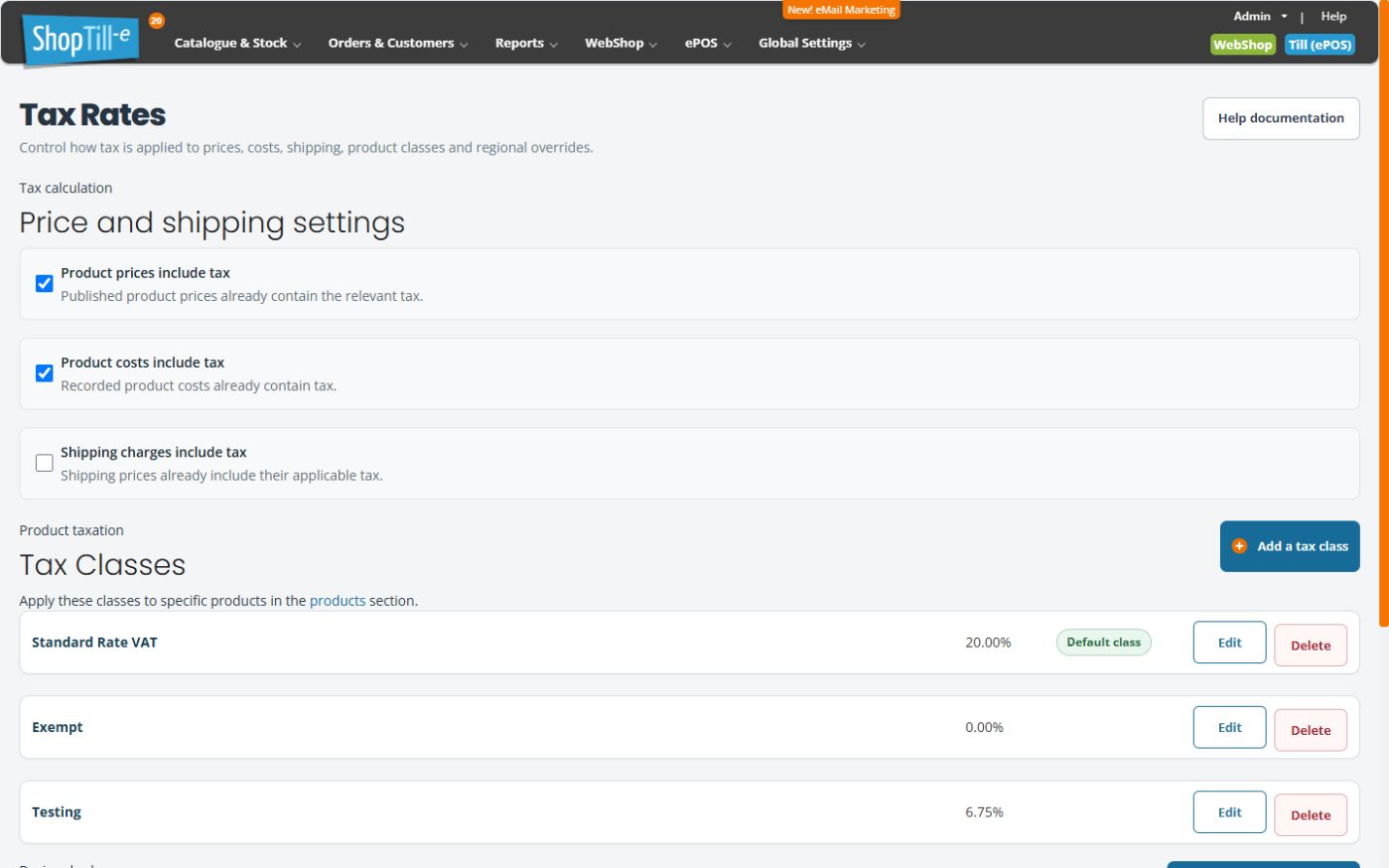
- Open Global Settings → Tax Rates & Classes.
- Review Price and shipping settings, including the descriptions for published product prices, recorded costs and shipping prices.
- Review Tax Classes and the class marked Default.
- Use Edit tax class for the intended class when you need to inspect its fields.
- Review Regional Taxes separately for country-specific overrides.
Find the product assignment
The product editor’s Advanced tab contains Tax class. Compare the product assignment with the class definition and destination rules when investigating a calculation.
Example: investigate a displayed tax amount
Keep the product, variant, class, destination, price-inclusion choices and order reference together. Check the actual order calculation before assuming that changing the Default class would address the particular item.
Keep changes scoped
Add tax class, Delete tax class and regional-override actions affect different configuration objects. Review dependencies and representative results before applying a business-approved change.
Change the price and shipping choices deliberately
The Product prices include tax, Product costs include tax and Shipping charges include tax checkboxes submit a change when clicked. They do not wait for a separate whole-page Save Settings button. Read and record the intended choice before selecting it; clicking merely to inspect a setting is a change.
- Review Product prices include tax separately from Product costs include tax.
- Review the Shipping charges include tax choice alongside the product-price treatment, the shipping rate's tax class and any regional rules.
- For an intended change, select only the agreed checkbox, read the result message and reopen the page to check the stored choice.
- Compare a representative product and delivery charge in the actual calculation before relying on the configuration.
If the result or save message is unclear, record the selected choices and calculation details before trying another change. Review the interaction below, then check the resulting delivery-charge calculation.
Shipping tax and entered prices
In WebShop tax calculation, the control currently labelled Shipping charges include tax enables tax calculation on shipping. Product prices include tax also determines how the entered shipping charge is treated.
| Shipping-tax choice | Product prices include tax | How the entered shipping charge is treated |
|---|---|---|
| Enabled | Selected | The entered shipping price includes its applicable tax. |
| Enabled | Not selected | Applicable tax is calculated on top of the entered shipping price. |
| Disabled | Either choice | The shipping-tax calculation is not applied. |
The applicable rate still depends on the shipping rate's class and destination rules. The shipping checkbox is not an independent choice of inclusive or exclusive shipping-price entry. Review both settings together; changing the product-price choice also affects the product catalogue's price treatment.
Use the tax configuration established for your business, then compare a representative basket, shipping rate and destination. Keep the chosen settings and actual calculation with any support query.
Related setup tasks
Review a product’s class choice
- Find the intended product in Product Management and choose Edit.
- Open Advanced and find Tax class.
- Review the current choice and the classes configured for your shop. The selector can include Default and named classes; choose the classification established for the intended product rather than using a demonstration rate or name as advice.
- For an intended product update, review the whole record before Save changes & close, then reopen it and compare the saved class.
- When investigating a tax result, compare the actual product, destination and order calculation as well as the selected class. A class-selection check alone does not validate every calculation.
