
Review a regional tax override
Regional tax settings are separate from the product’s class assignment. Review the intended country and each class rather than applying one rate to every product by assumption.
Review the override form
- Open Global Settings → Tax Rates & Classes.
- Find Regional Taxes and the intended country’s override, or open the add-override action if a new country configuration is intended.
- Check Country. A new override lets you select it; editing shows the existing country.
- For each class, review Default versus Override.
- Where Override is intended, enter the business-approved Override rate (%). Default uses the class’s default-rate path; a zero override is a different choice from using Default.
Save and verify
- Review all class choices and the country.
- Select Save changes & close for the intended change.
- Reopen the country’s settings and check both the choice and stored rate for every affected class.
- Check representative products/classes and the intended destination in the actual calculation, including shipping and price-inclusion settings.
Example: mixed product classes
A basket can contain products assigned to different classes. Check each class’s setting for the country; the presence of one regional override does not establish that every class uses the same rate.
If a result or save is unexpected
Keep the country, product classes, Default/Override choices and exact error. Confirm what was actually stored before retrying. Removing a country override and reverting one class to Default are separate actions; check the intended scope.
Tax class setup · Product assignment and inclusion choices.
Remove a country's override
- Record the intended country and the settings for every affected tax class.
- For a change to one class, edit the country and review that class's Default/Override choice.
- For removal of the whole country override, select Delete beside that country in Regional Taxes.
- Read Delete regional tax? and confirm only the intended country.
- Read the result, check the refreshed country list and compare the relevant product classes and destination in the resulting calculation.
Removing the country override affects its class-specific regional rates together. It is separate from removing a product tax class. Keep the former configuration so the intended rates and choices can be reconstructed if needed.
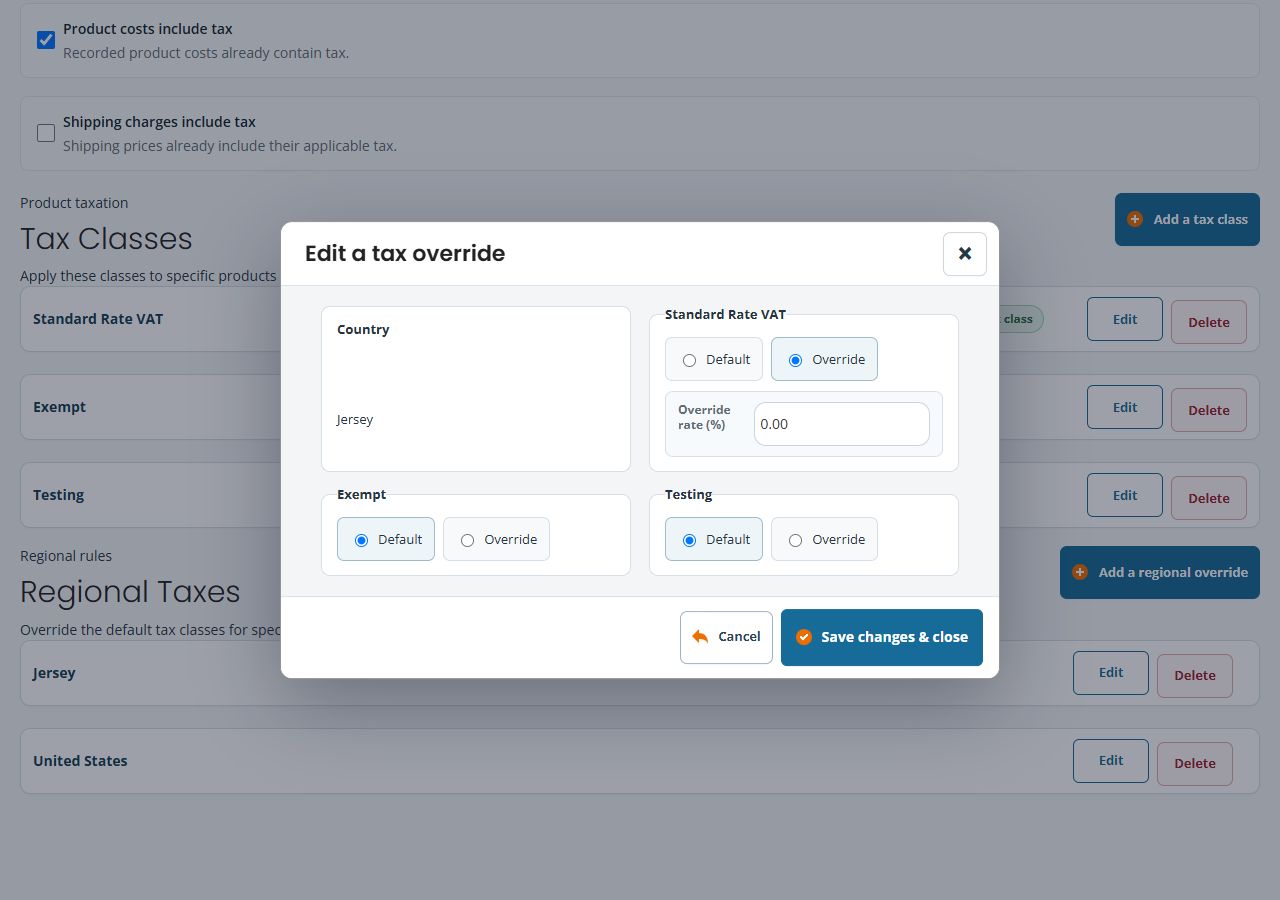
Find the rate field
The Add a regional override action opens a Country selector and a Default/Override choice for each class. In the example account, each class initially selects Default. Choosing Override reveals that class’s Override rate (%) field. In an existing override, Country is displayed as fixed text, so check the destination before changing any class.
If a rate field is missing
- Find the intended class within the country’s form.
- Check whether that class currently selects Default or Override.
- If an override is intended, select Override and review the rate field that appears.
- Do not change the other classes merely to make their fields appear. Use Cancel when investigating without intending a save.
Record the selected mode as well as the number. A visible override of 0.00 and a class set to Default are different form choices.
