
Configure shipping rate bands
A rate’s title does not define its eligibility. Read its Type, Range and amount together, and review any customer-group or extra-filter conditions.
Open the destination
- Open WebShop → Countries & Shipping.
- Find the intended country/group and choose Edit rates.
- Record the current rates and order before an intended change.
- Use Add a shipping rate to prepare another row, or review the existing row you intend to change.
Complete the row
- Title: a clear label for the delivery option.
- Type: Value, Weight or Number of items.
- Range: the minimum and maximum for that basis. The form describes blank/zero limits as unrestricted; test the actual boundary behaviour before relying on it.
- Rate: the intended charge in the displayed currency.
- Combine: review whether combining with other types is intended. Confirm the effective calculation before using this to build a multi-part charge.
Some accounts expose extra product-field filters or an Extra check of basket section with Type, Min./Max. value, Check items, Extra field and Value. These are additional eligibility rules. Record their exact values for support; do not assume every account exposes them or that a blank filter is harmless.
Save versus reorder
Use Save changes & close for intended row/group/filter edits. Removing a row stages a deletion for this save. Existing-rate ordering is different: drag or the rate movement controls submit the order immediately. New rows need saving before they can be ordered. Do not assume Cancel rolls back a reorder.
Example: a delivery threshold
For a planned value threshold of 50, first define which basket value is used and whether the boundary is inclusive. Test amounts immediately below, at and above 50, including a discounted basket. For Weight, check product weights and units; for Number of items, check quantities and variants. Set actual charges only after those results match the intended delivery policy.
Check the result
- Reopen the destination and compare every saved row and its order.
- Check a representative checkout destination and customer group.
- Compare eligible choices, combined charges and tax handling with the intended result.
- If a save or order error appears, inspect the stored configuration before retrying; a dialog is not proof that every row was committed.
Add a destination · Review tax settings separately.
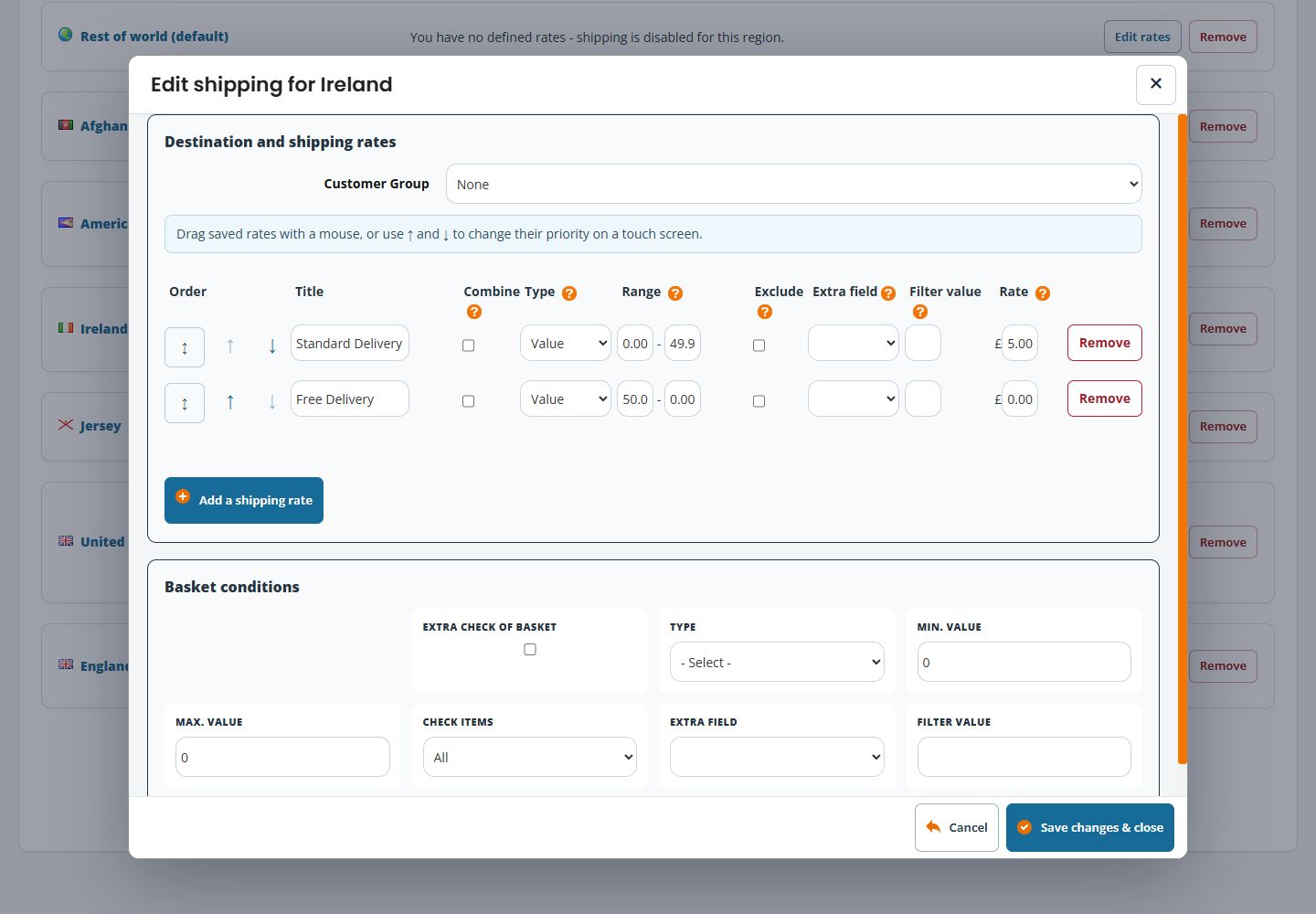
Distinguish the two filter areas
A rate row can show Exclude, Extra field and Filter value. Below the rate table, Basket conditions has a separate Extra check of basket choice, Type, Min./Max. value, Check items (All, Include or Exclude), Extra field and Filter value. Record which area you are changing. A matching field name in both areas does not mean the conditions have the same effect.
Review a threshold before changing it
For example, the illustrated destination has Standard Delivery, Value 0.00–49.99, £5.00, and Free Delivery, Value 50.00–0.00, £0.00. The destination list describes the second range as 50.00 upwards. Before adopting a similar policy, check baskets immediately below, at and above the threshold, and repeat with any relevant discount or customer group. The row title alone does not establish which option checkout will offer.
If a rate is unexpectedly missing
- Check the destination and Customer Group.
- Compare the basket against Type and both Range values.
- Review the row’s Exclude/Extra field/Filter value choices.
- Review the separate Basket conditions.
- Record the basket, destination and displayed result for support before changing several conditions at once.
