Check and apply an existing voucher at the till
The till’s VOUCHER action opens a code check for an existing voucher. It is separate from creating a new voucher or issuing credit for a return.
Check the voucher
- Review the intended basket and select the correct customer first if the voucher belongs to a specific account.
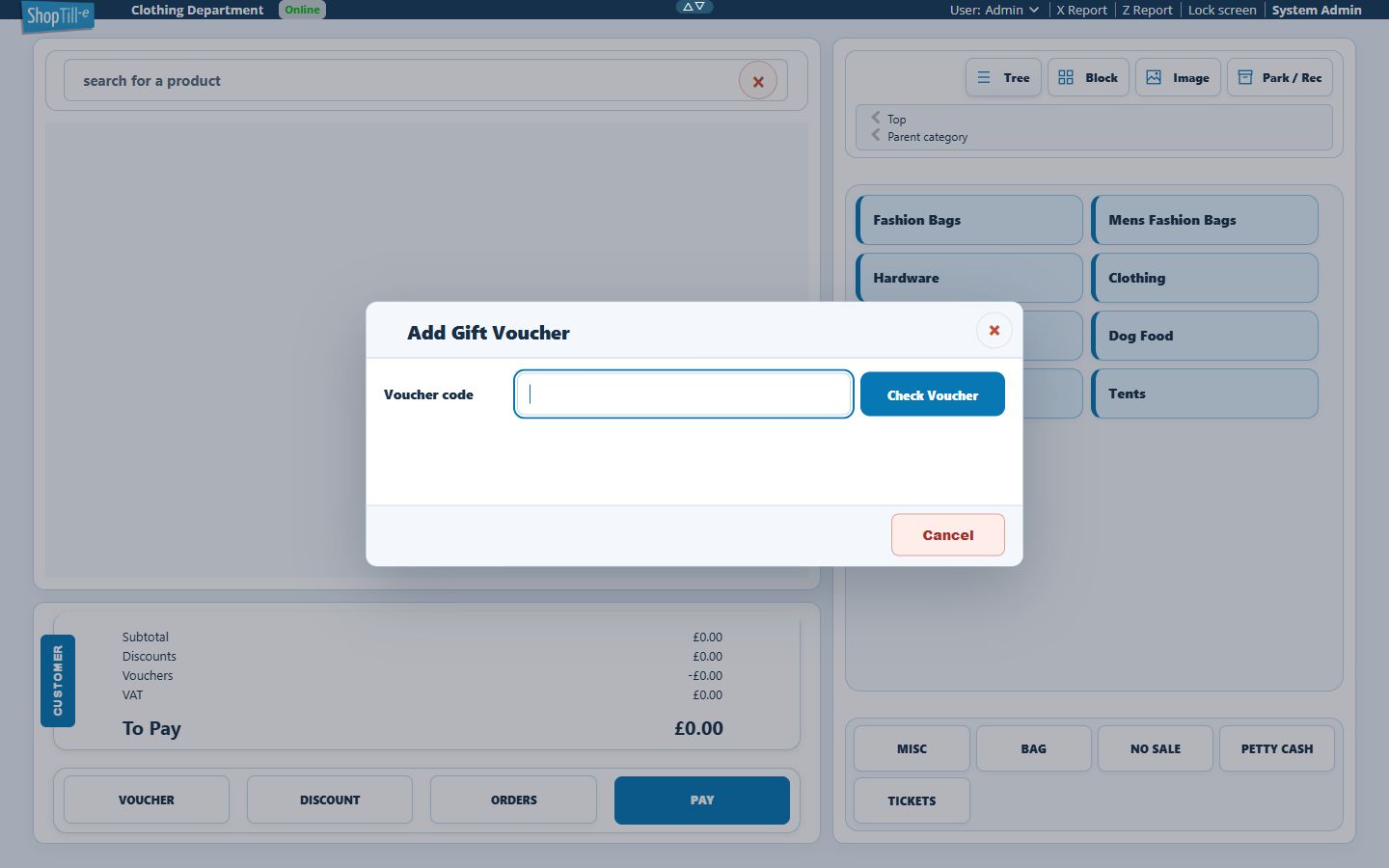
- On a compact layout, open More actions, then select VOUCHER to open Add Gift Voucher.
- Enter the exact Voucher code and select Check Voucher.
- For a valid result, compare Voucher code, Initial amount, Current amount and Expiry date with the voucher and intended sale.
Apply it to the basket
- Use Add voucher on the intended validated result.
- Review the basket’s voucher deduction and remaining To Pay.
- Complete the intended remaining-payment or completion workflow.
- Review the saved order and voucher’s remaining amount/related orders afterwards.
If the code is rejected
Read the exact reason. Current validation distinguishes an invalid/missing code, a used balance, customer-specific restriction, inactive state and expiry. Check the original code and selected customer before making changes. Do not change the voucher’s value or expiry simply to bypass a rejection.
Checking is not completed redemption
A valid code response and a basket deduction are stages in the workflow. Confirm the saved order and remaining voucher balance before concluding that the intended redemption finished, especially after a failed save or sync warning.
Find its record and orders · Create a voucher record.
Example: an unrecognised code
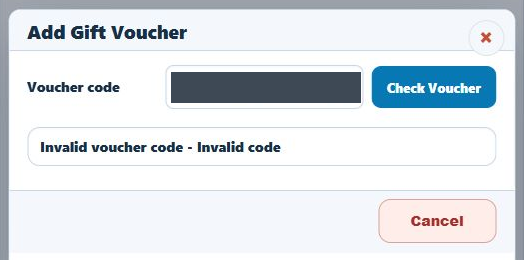
If the checker displays Invalid voucher code - Invalid code, compare the entered code with the original voucher. Recheck any mistyped characters before checking again. Do not create another voucher, increase a balance or take the same value as a discount simply to bypass the message. If the original code still fails, keep the exact message and ask support to investigate the voucher record.