
Open and check the customer display
Where your till provides Open customer display, it opens a separate totals window. Check the intended device and screen before using it during service.
Open the display
- Check the intended till’s basket and currency.
- Expand the till information header if it is collapsed, then select Open customer display.
- Allow the intended window if the browser reports a blocked popup.
- Locate the separate window. With a second monitor, move it using normal device controls; opening the display does not choose a physical monitor.
- Keep the operator’s till available on the staff screen.
Check the customer view
The display is intended to show Subtotal, Discount, VAT, Total and TO PAY. Compare amounts and currency with the till. Do not assume item-by-item details, card-terminal output, a receipt or payment confirmation.
- Check a representative basket before service.
- Compare an ordinary purchase and a discounted basket, confirming updates reach the display.
- Check what remains after clearing or completing a basket and before the next customer.
- Check readability and intended content from the customer’s position.
Close and reopen
Select Open customer display again to bring the existing window forward where available. After closing it, use the same control to reopen it. Recheck totals after either window refreshes or reopens. Verify the browser/device setup you use.
Troubleshooting
- If no window appears, check popup blocking and whether it is behind another window.
- If Waiting for basket remains or values are stale, compare the operator basket and check which till opened the display.
- If amounts or currency differ, stop relying on that customer screen and investigate before showing it during service.
- Record device, browser, till point and whether the issue followed refresh, close or interruption for support.
Operator layout · Checks before refreshing a till
If the header control is hidden
On a desktop layout with the information header collapsed, select Expand till information header first. The expanded area contains the till point, terminal information and Open customer display. This is separate from the operator’s Tree, Block and Image catalogue views.
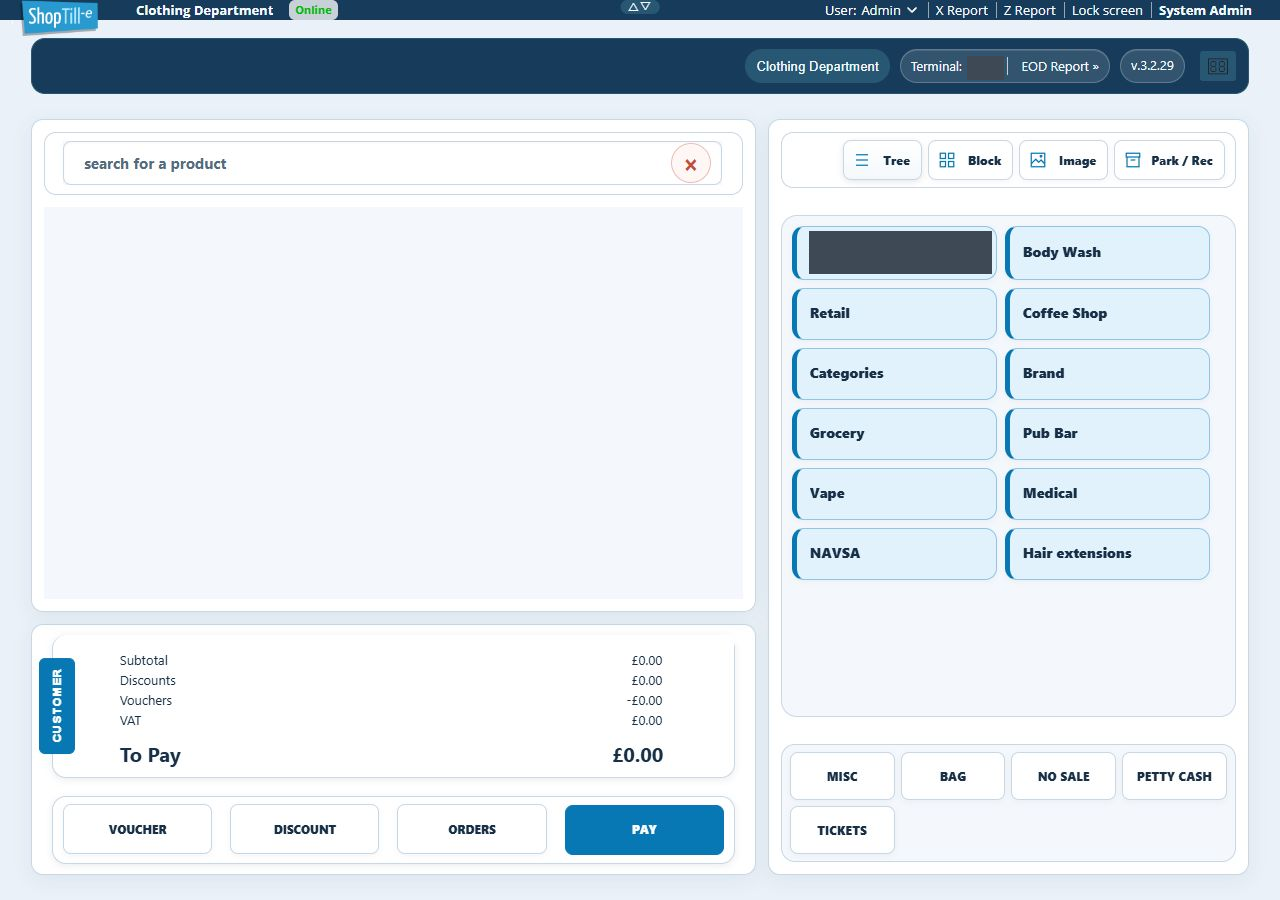
If the separate window is unavailable in your browser, keep the operator’s basket intact and check the browser’s popup indication. Do not treat clicking the opener as proof that a customer screen has opened or received the current totals.
