
Export detailed sales transactions
The Detailed Sales Transaction Report offers line-level data with customer, product, monetary and delivery columns. Set the intended scope before using its download.
Run and export the report
- Open Reports → Detailed Sales Transaction Report.
- Choose Outlet and enter From and To.
- Choose Display: All sales, ePOS sales or Web sales.
- Review Payment method and Till Point.
- Select Run report and inspect the resulting Sales detail.
- Select Download CSV, then confirm that the downloaded data uses the intended scope.
Example: investigate one till’s sales
Choose the intended outlet and Till Point, set the period and ePOS scope, then inspect sample order and SKU references in the result. Keep the filters with the file so the investigation can be reproduced.
Line rows versus orders
The columns include Order, Date, customer information, Method, Till point, SKU, Product, Price, Quantity, goods/discount/tax/shipping values and delivery details. One order can contain several product lines, so compare line counts with line data rather than expecting an order count to match them.
Choose between the two detail reports
Use Sales Order Detail Report when you need its selectable CSV columns and preview-selection workflow. The Detailed Sales Transaction Report has its own filters and output; confirm the one that fits your task.
Run before comparing the download
After an intended filter change, Run report again and inspect the refreshed scope before Download CSV. Keep outlet, times, channel, payment method and Till Point with the file. Compare representative order and SKU lines, not only a row count or a headline total.
If the report or CSV is unexpected
- Check Outlet, From/To, Display, Payment method and Till Point together. Remove an unintended restriction and select Run report again.
- Compare one known order and SKU in the refreshed report with the downloaded file. If they differ, check that you opened the latest download rather than an older file with a similar name.
- If an order appears on several rows, inspect the product lines before treating them as duplicate orders. Keep line quantities and order counts separate.
- If a spreadsheet changes an identifier or date, inspect the original CSV and import the relevant identifier column as text. Preserve the original file while investigating.
- If the difference remains, keep the report name, chosen filters, download time and representative order references for support. Share customer details only where needed for the investigation.
Check split tenders against product lines
A sale paid in two instalments can still produce one product line here. For example, a single £12 product paid as £5 cash then £7 cash can appear with Method: Cash/Cash, Quantity 1 and Total Goods 12.00. The method text is not a count of products or the individual tender amounts. Use the saved order’s payment details when you need each payment entry.
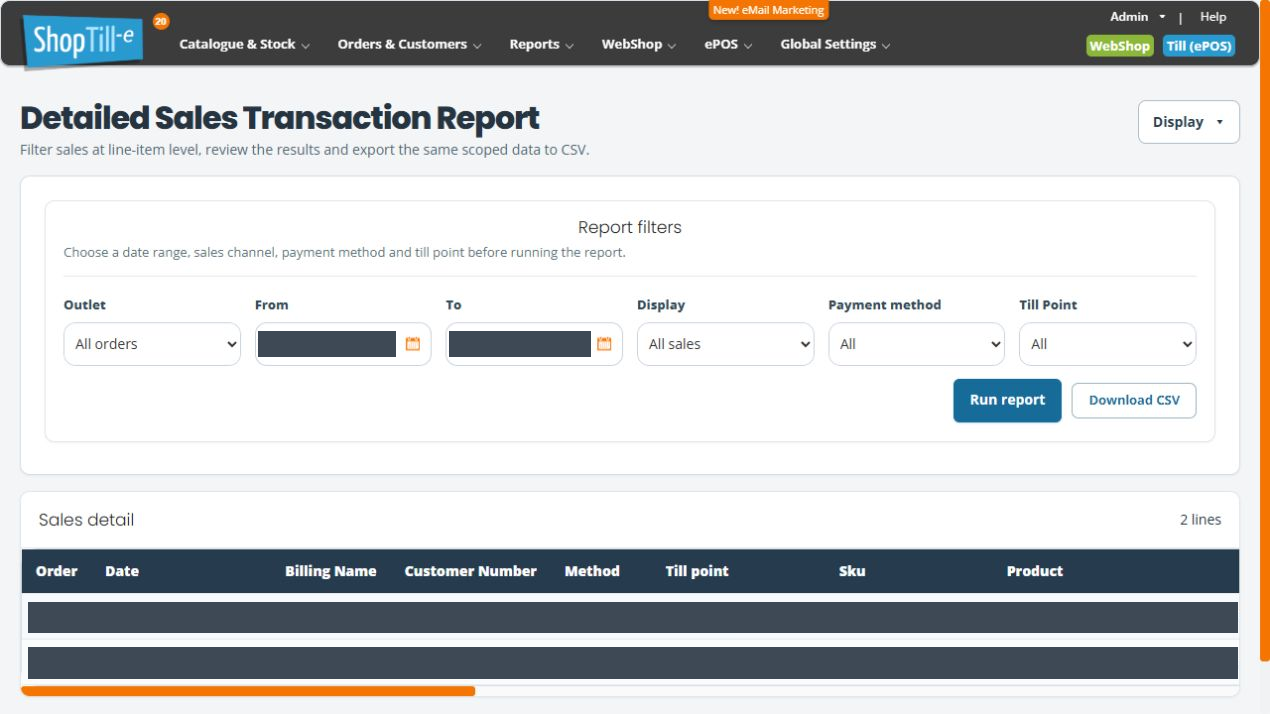
Compare the CSV’s ordernumber, sku, method, quantity and monetary columns with representative displayed lines. Keep the original CSV so spreadsheet formatting cannot obscure identifiers or timestamps.
If a split-payment order appears twice
Check the Payment method filter before adding exported line amounts together. A split-payment order can appear more than once when a specific method is selected. Compare the same period, outlet, channel and Till Point with Payment method set to All, then Run report again.
Compare the order reference, SKU, quantity and line amounts with the saved order. Do not treat repeated full product lines as separate purchases or add them together until the difference is resolved. Keep both filter selections and the affected order references for support. A report discrepancy does not justify repeating a customer payment.
After changing Display, recheck Payment method: the available choices can change between ePOS sales and Web sales. Select the intended combination and Run report before comparing results or downloading.
