ShopTill-e Help Assistant
Online
Google Chrome with ShopTill-e ePOS Till System in Kiosk Mode with Silent/Background Printing
Google Chrome can run the ShopTill-e ePOS Till System in full screen locked in Kiosk Mode without any toolbars or the address bar & can also print silently in the background. Kiosk Mode keeps the user 'locked' into the POS screens so you can't easily jump between apps on your machine and can therefore sometimes be a little restrictive. Another option is to use full screen without using kiosk mode and just enable Background Printing in Google Chrome without using full Kiosk Mode, this way you can easily toggle full screen mode on and off very simply using the F11 key.
There are a series of fairly straightforward steps below to set this up. Also if you wish you can set your computer so that it runs ShopTill-e immediately as soon as it boots/starts up:
Steps to enable the ShopTill-e ePOS Till System in Kiosk Mode & Silent / Background Printing using Google Chrome
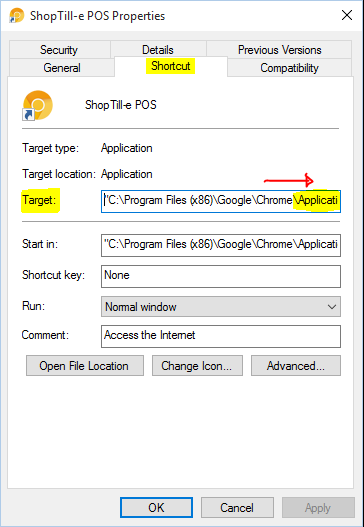

If you prefer to not be forced into Kiosk Mode and would like to be able to toggle full screen on and off using the F11 key follow the same steps as above however in point 6 do NOT include the the flag/word --kiosk you only need --kiosk-printing this will enable silent/background printing on however will then NOT force the more restrictive kiosk full screen mode you will have control using the F11 key. Like this:
--kiosk-printing "https://your-shop-name.shoptill-e.com/builder/pos.php"
(Note: if you have other Chrome windows already open or if Chrome is set to continue to run background apps when Chrome is closed (turn this off in Settings > Advanced - System) this will stop Chrome from background printing).
Starting from Chrome 57 and Opera 44 a power saving fuction has been enabled and it is possible that this could slow down background priting to disable this add the following flag as well:
--disable-background-timer-throttling
[Tips]
When you install the ShopTill-e POS as a Progressive Web App (PWA), Google Chrome assigns it a unique App ID. This App ID is required if you want to create a desktop shortcut that launches the POS with:
--kiosk-printing)This guide explains how to locate the App ID on Windows.
In the Chrome address bar, type one of the following and press ENTER:
chrome://appsor (for newer Chrome versions)
chrome://app-idsLook for the entry named “ShopTill-e POS” or “POS for <your shop name>”. Click it to view its details.
The details panel will show the following information:
It will look something like:
abcdefghijklmnopqrstu123456789
Edit your shortcut so the Target field looks similar to this:
"C:\Program Files\Google\Chrome\Application\chrome.exe"
  --app-id=abcdefghijklmnopqrstu123456789
  --kiosk-printing
Replace the sample App ID with your actual one. This will launch the installed POS PWA directly with silent printing enabled.
If you want silent printing but still want to use normal window controls (e.g. F11 for fullscreen),
omit the --kiosk flag:
--app-id=YOUR_APP_ID --kiosk-printingChrome may slow background printing for performance reasons. To prevent delays, add:
--disable-background-timer-throttlingFull example:
"C:\Program Files\Google\Chrome\Application\chrome.exe"
  --app-id=YOUR_APP_ID
  --kiosk-printing
  --disable-background-timer-throttling
Your desktop shortcut will now launch the POS in standalone mode, with reliable silent printing and no print dialog. This is the recommended configuration for tills using thermal receipt printers.
Also please see - Firefox with Background / Silent printing